Public release is still December 3. This build is mostly about painting hints faster: choosing an area, filling it at once, and cleaning up after. Thank you to the testers whose reports shaped it.
Paint a direction directly
Sometimes one patch faces the wrong way and no hint gets it right. The new Direction hint, key N, lets you say which way it faces. Aim on the ball in the options bar, where the middle faces you and the edge faces away, or Ctrl+click the picture to pick up a direction that is already there. Strength sets how firmly it holds, and the rest of the surface is still solved, so the patch blends into what is around it. It works over the outline too, for a hard top edge or a flat base.
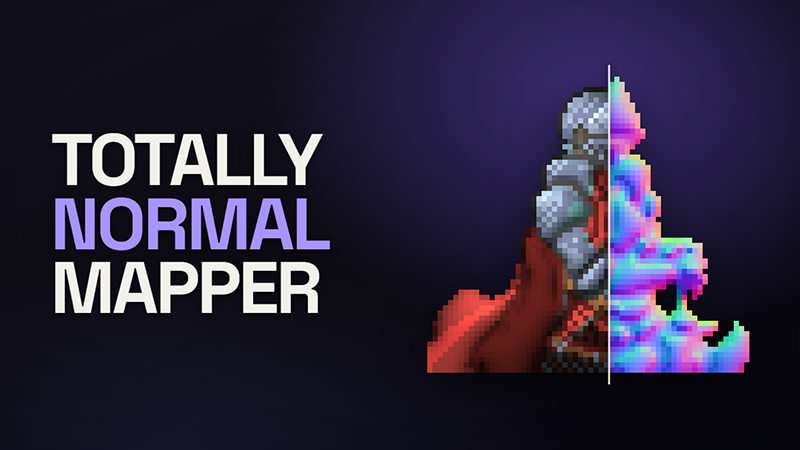
The layer is a normal map with alpha. Export it with File ▸ Export hint layers, paint it with a normal-map brush in Photoshop or Aseprite, and a layer named direction comes back in as painted.
Select, fill, grade and erase
- Select, key S. Drag a rectangle or an ellipse, draw round an area with the lasso, click the corners of a polygon, or click with the wand. Shift adds, Alt takes away. While there is a selection, every hint tool paints only inside it. Select all, Deselect, Reselect and Invert are in the Edit menu with the usual keys.
- Paint bucket, key K. Click to fill an area with a hint. By color takes the pixels like the one you click, which suits flat pixel art. By lines takes everything inside the drawn lines around the click, which suits shaded art, where no color tolerance separates one area from the next but the line between them does.
- Gradient, key Q. Drag across a hint to fade it from where you start to where you stop. It is the quick way to make a part painted In front join the surface behind it gradually. Or have it fill a ramp of the hint instead.
- Eraser, key E. A brush that takes paint off every hint at once, or off only the one you choose, and never touches the artwork.
The bucket, gradient and eraser paint whichever hint you pick in the options bar, which starts as the last hint tool you used. With a selection, Alt+Delete fills it with that hint and Delete clears it.
totallynormalmapper.com/docs/tools
Steadier brushes
- The brush shows as an outline of its size and shape over the artwork, in place of a crosshair sitting on the pixels you are painting.
- A square tip paints whole pixels, so a stroke's edges follow the pixel grid.
- Smoothing steadies a shaky hand, and a pen's pressure sets the brush's size or strength.
- Strokes are smoother at speed, and land centered under the pointer. They used to sit half a pixel off it.
- [ and ] change the size, Shift+[ and Shift+] the hardness, and Shift+click paints a straight line from where the last stroke ended.
- The size is now shown as the brush's width across. The slider reaches further on large artwork, and you can type any size into the box beside it.
Tip, smoothing and pen pressure sit behind the new Brush button in the options bar.
totallynormalmapper.com/docs/hints
A tidier editor
- The toolbox is two columns: looking, arranging, selecting, filling and erasing on the left, the hints on the right.
- Remove stroke moved from E to R, so the eraser can have E.
- Onion skin is gone from the options bar. The artwork is still dimmed under the hint overlay so the hints stand out.
- Clicking a light over the artwork selects it without switching the inspector to the Lights tab.
- Most tooltips are shorter, and say what to do first.
Fixes
- A Flat face solves the same with or without a graphics card. Where a Flat face met the outline, the graphics card and the processor could disagree by a few degrees on average and much more at a few pixels, so a computer without graphics support, or the batch tool on one, gave a slightly different map. They now agree.
For testers
If the app is already in your library, Steam will offer this build. Start it from your Steam library. A copy started some other way asks Steam to relaunch it. The About dialog should read 1.9.0.