Thank you for always using Textvas.
New Features
・Optimize All Images
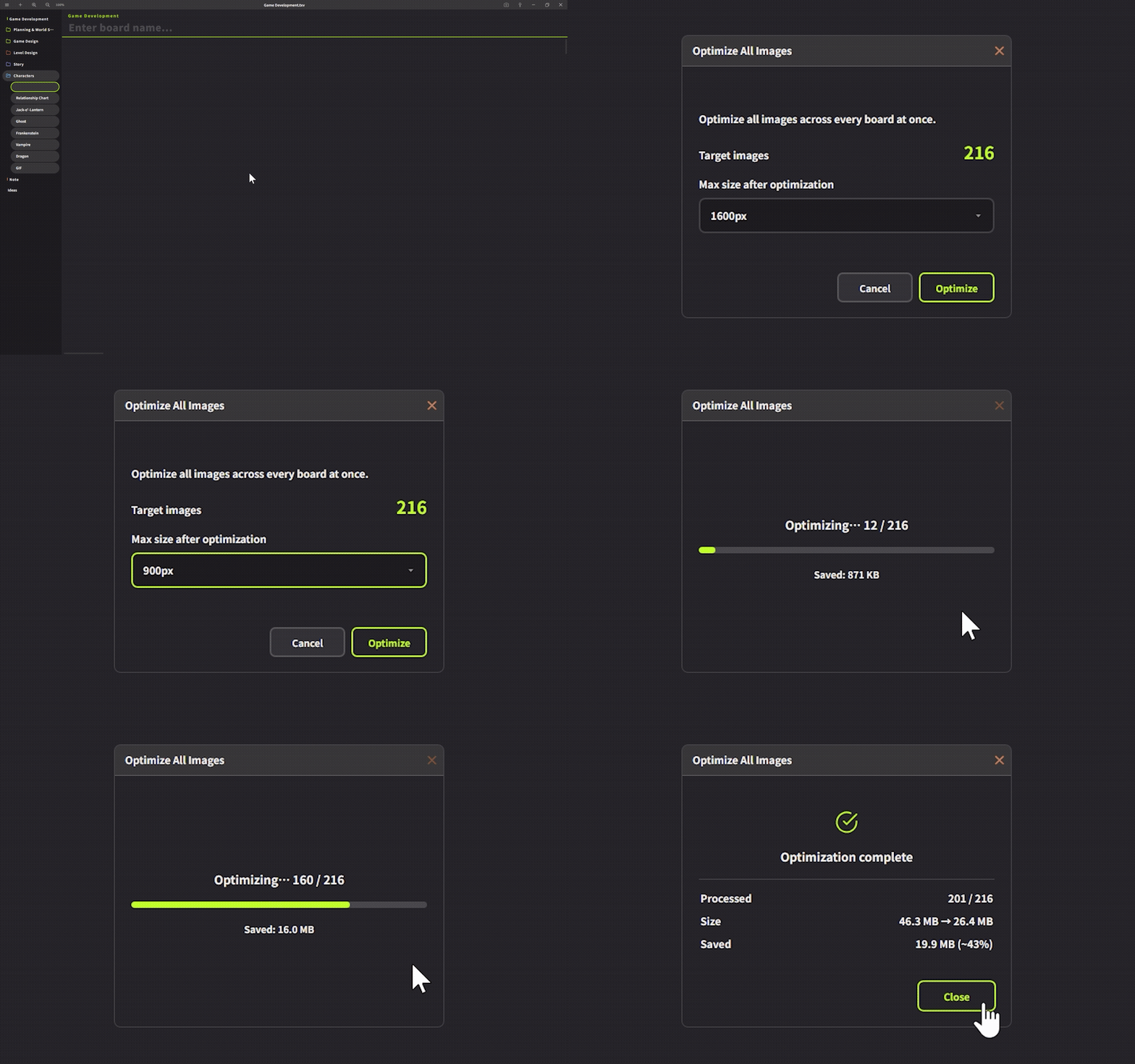
A new feature that shrinks and converts all images in a project to WebP at once, making the project lighter.
Just open the dedicated window from "Optimize All Images" in the top-left menu, choose a maximum size, and run it.
This is useful when you want to resize and lighten all your imported images together after the fact.
The maximum size is the upper limit for the longer side. Only images exceeding this size will be shrunk;
smaller images below it will not be stretched and will keep their original size (only WebP conversion will be applied).
For example, even if the limit is set to 1200px, an image that is originally 300px will remain 300px and will not be enlarged.
You can check the progress of the process and how much capacity has been reduced in real time.
GIFs and SVGs are not subject to conversion. However, they are included in the image count.
Note that optimized images cannot be restored to their original state (they will be replaced with the optimized version).
Please back up any important projects before using this feature, just in case.
・Faster automatic resizing when dragging and dropping
Automatic resizing when importing a large number of images by drag and drop has also been made faster (by taking advantage of multiple CPU cores).
・Added a shortcut for Preferences
Added a shortcut to open Preferences with Ctrl+, (comma).
Improvements
・Focus Mode is now remembered per file
Previously, if you quit while Focus Mode (F key) was on, opening a different file afterward would also open that file in Focus Mode. Now, each file remembers its own state individually. This state is saved locally only and is not written into the .txv file itself, so sharing the file will not affect how it is displayed for others.
・Removed the full-screen overlay when dragging files
Due to OS limitations, the file name and extension cannot be read while dragging, making it impossible to accurately identify only .txv files, so this has been removed. You can still open .txv files as before by dropping them onto the window.
・Adjusted the minimum size of the formatting toolbar
When the formatting toolbar is shrunk to 100% or below, it will no longer shrink any further.
・Added an error dialog for save failures
An error dialog will now appear if a file fails to save.
・Added an operation-lock display while dragging images
While a resizing process is running during image drag-and-drop, an overlay is now shown on screen to lock operations. This prevents an issue where you could move or switch boards during processing, causing you to lose track of where an image would be pasted.
・Fixed the dropdown menu arrow design
Fixed the design of the dropdown menu arrow.
・Material folder deletion now stops immediately
Even while thumbnails are being generated after adding a folder full of images as material, the process will now be interrupted the instant you click the trash button to delete it.
Bug Fixes
・Fixed an issue where, after changing a theme color and then reverting it with the default button, the change was reflected immediately in the Preferences window but not immediately on the board.
・Fixed an issue where incorrect notation could appear during automatic image resizing, even for small images that were not subject to resizing.
・Fixed an issue where hovering over the delete button for a material folder would trigger an unwanted zoom animation.
・Fixed an issue where a GIF added in the material import window would be resized to 300 pixels.
・Fixed an issue where a warning dialog would appear when merging boards, even when there were no unsaved changes.
About the txv File Size Limit
The limit is approximately 512MB.
This may seem small at first, but Textvas is originally a text-centric app, and 512MB is an enormous amount of space for text. If it were pure text, it could hold several hundred million characters (equivalent to thousands of paperback books), so reaching this limit through text alone is virtually impossible.
We also considered a design where "images are managed in a separate folder, keeping the main file lightweight." However, that approach tends to cause the "where did my folder go" problem, where moving only the image folder breaks the links, and it loses the convenience of being able to hand over everything with just a single file. For this reason, we chose a self-contained design that stores everything, including images, in a single file. As a result, the limit is set at approximately 512MB (technically, this is due to a hard limit on string length in the underlying engine, so it cannot be raised from the settings).
For images, by making use of automatic resizing on import and the "Optimize All Images" feature, it's fully possible for a single project to hold over 1,000 images. Here are some rough guidelines:
Image type (after optimization, long side 1600px, WebP)
Approximate size per image
Approximate number of images that fit
Illustrations/diagrams (compress well)
~100KB
Approx. 3,000–4,000 images
General photo-style images
~300KB
Approx. 1,300 images
High-detail photos
~500KB
Approx. 800 images
With lightweight artwork, you can fit thousands of images, and even with mostly photos, 1,000+ is realistic. Since saving temporarily uses more memory, it's safer to treat about 80% of the limit as your safe zone. Note that this is the count after optimization. Original, uncompressed PNGs, etc. as imported (several MB each) could fill the same 512MB with only a few hundred images. Even in that case, though, running "Optimize All Images" can significantly reduce the size and considerably increase how many images you can fit.
We will continue working to improve Textvas.