Thank you very much for using Textvas.
New Features
・Minimap
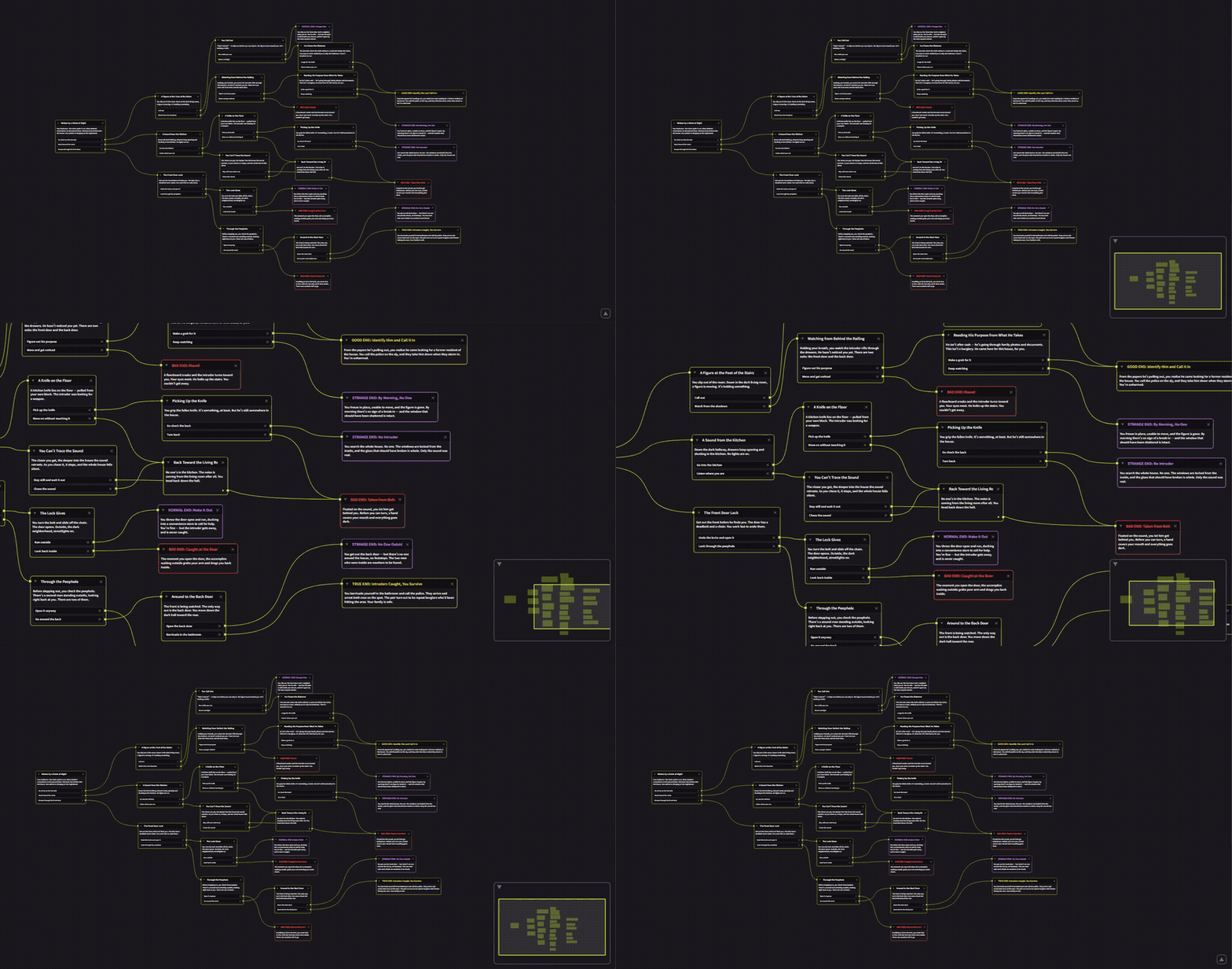
A minimap has been added to the lower right of the board and node editor so you can see the whole canvas at a glance. A frame shows where you are currently looking, and you can move by clicking and dragging or zoom in and out with the wheel. You can collapse it with the upper triangle button or the CTRL+M shortcut. You can also hide it from Preferences > Other > Hide minimap.
・Tab icon display
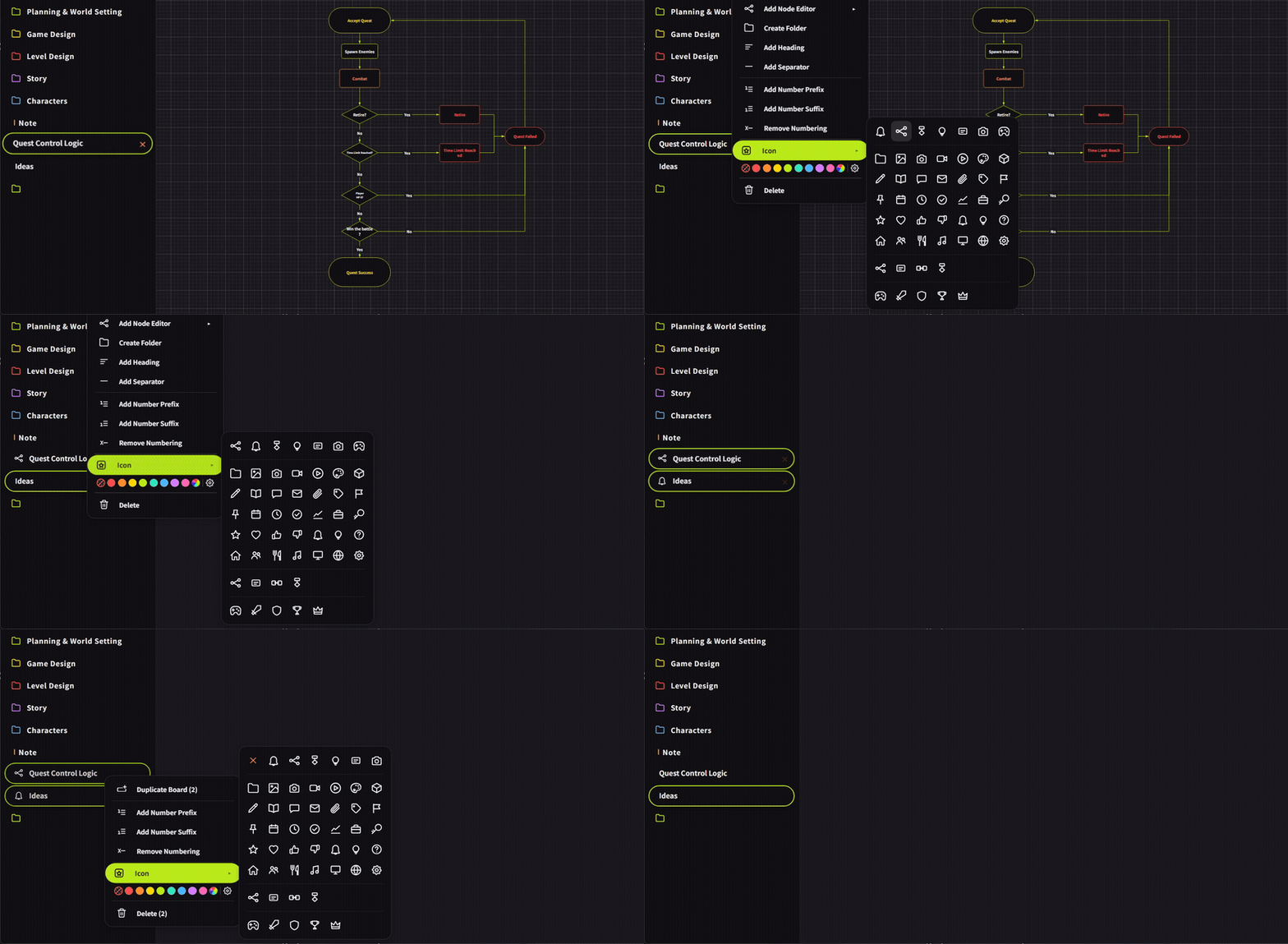
You can now add icons to tabs in the sidebar. Icons can be added from the icon item in the context menu that opens when you right-click a tab. Categories such as tabs are easier to recognize visually, and recently used icons are shown at the top.
Improvements
・Remember window position
The window position, which was previously shared by all files, is now remembered for each .txv file. Textvas remembers the position on exit and shows the file in the same position the next time you open it. In multi-monitor environments, you can set a regular position for each file. Only the position is remembered; the size and maximized state remain as before. When a file is loaded by drag and drop, it is loaded at that position.
・Highlight during drag and drop
While you bring a file into the window, the entire board is now highlighted with a frame.
・Notification for unsupported files
Previously, dropping an unsupported file format onto the board did nothing, leaving the cause unclear. Now a message appears at the moment you drop it, indicating that the file format is not supported.
・Toggle switch design
The design of the toggle switches in Preferences has been adjusted.
・Third-party license list
The third-party license list that was in Help under Preferences has been moved to the included text file.
・Loading music files
Fixed an issue where some .wav files were placed but could not be played, leaving the play button gray. The file contents are now checked when dropped, and files that cannot be played are not placed; instead, Textvas notifies you that the file format is not supported. This app can play standard PCM files, but not other methods such as older compressed formats. Previously, only the extension was checked, so even a file that could not be played was still placed.
・Loading Markdown
When loading .md files, Textvas measured the size each time it placed one text item, so larger files took longer. It now places everything first and then measures the items together.
・Formatting operation panel
The formatting bar shown above selected text, including text size, color, underline, border, background, alignment, and lists, was always prepared even for text that was not selected. It now prepares the bar when text is selected, making boards with many items lighter to operate.
・Bullet list status display
Fixed an issue where the bullet list button could light up in a state different from the actual one when leading symbols and check boxes were mixed.
・Text wrapping
When changing the font size of text with Wrap to screen width applied, the wrapping was removed and the text returned to one line. Wrapping is now maintained even when the font size changes, and the width is redrawn to match the new size.
Bug Fixes
・Fixed an issue in the color palette where reset returned colors from a different theme.
・Fixed an issue in board tabs where entering a name after choosing a color did not apply the color to the name.
・Fixed an issue in board tabs where, after assigning icons or colors to multiple selected tabs from the right-click menu, the selection outline disappeared but the selection itself remained.
We will continue working to improve Textvas.