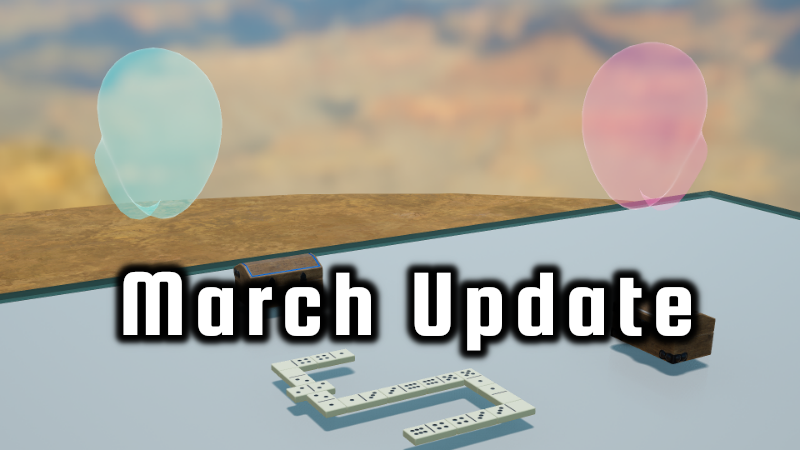
The March introduces a new tag system, a setting to show player heads, and lots of improvements for snap points and scripting:
• You can now add tags to objects, templates, containers, snap points, and cards. They can control if objects snap and what can be inserted into containers. Tags can also help with finding what you're looking for in the object library, card deck explorer, or container explorer. Find more information on tags in the new knowledge base page on tags.
• A new option in the game settings allows you to activate snapping when holding multiple objects
• Snap points can now have different shapes for their range: in addition to the sphere shape, their snap range can also be a cylinder or a cube.
• There are new options for snap point rotation: instead of just switching between rotation on and off, you can also set snap points to flip objects upright, upside down, or adjust their rotation to be "flat" without fixing it entirely
• A new options for snap points allow you to specify that they are only valid when the object is upright or upside down.
• While creating a snap point grid, you can now drag the grid with the mouse
• Show range for highlighted snap point whilre creating a grid
• Show a quick animation when snapping an object
• Snap range for objects with non-uniform scale are now also scaled non-uniformly
• You can now show the heads of other players. An option in the video settings allows you to activate heads only for VR players (default), for everyone, or for no-one.
• Set zoom direction for the counter 10 and counter 100 objects so they don't spin when viewed in the object zoom
Scripting
• Add methods to work with tags: `GameObject.getTags`, `GameObject.setTags`, `Container.getContainerTags`, `Container.setContainerTags`, and `SnapPoint.getTags`
• Add `getTintColor` and `setTintColor` for `ImageWidget` and `ImageButton` to allow tinting images
• Add a key parameter to `setSavedData` and `getSavedData` in `GameObject` and `GameWorld`, allowing you to organize persistent information more easily and save larger amounts of data globally and per object
• Add `GlobalScriptingEvents.onWhisper`
• Add `getShape`, `getSnapRotationType`, and `getFlipValidity` methods to `SnapPoint`
• Add `GameObject.release` method to release objects held by players
• Allow automatically wrapping text for `Text` widget using `Text.setAutoWrap`
• Execute `CardHolder.onCardFlipped` and `CardHolder.onCardRotated` when animation finished instead of when the player pressed the respective button
• Text with multiple lines on a button was not centered properly
• Inserting and removing an object from a container in the same frame caused the object to become invisible on clients
• A previously clikced UI button could be clicked when pressing enter
• `Player.getSelectedObjects` for client players only worked while holding
Fixes
• When loading a state while an active measure move was visible, the measure indicator remained visible and stuck after the state was loaded
• Snap point radius shown in editor was too small
• Some zoomed objects were rotated incorrectly when using object zoom while looking directly down
• Card stack explorer did not show web textures and could have wrong aspect ratio for cards scaled in-game
• Team chat tab sometimes wasn't visible when the local player was part of a team
---
These new updates we've added are just some of the many features on our early access development roadmap for Tabletop Playground, which you can check out on our Trello HERE.
Don't forget to join our community Discord to chat with the dev team and give us your suggestions for new features for the game!