Cursor Charm 1.0.1 - New Charms, Effect Controls, and Smoother Particles
Cursor Charm · published
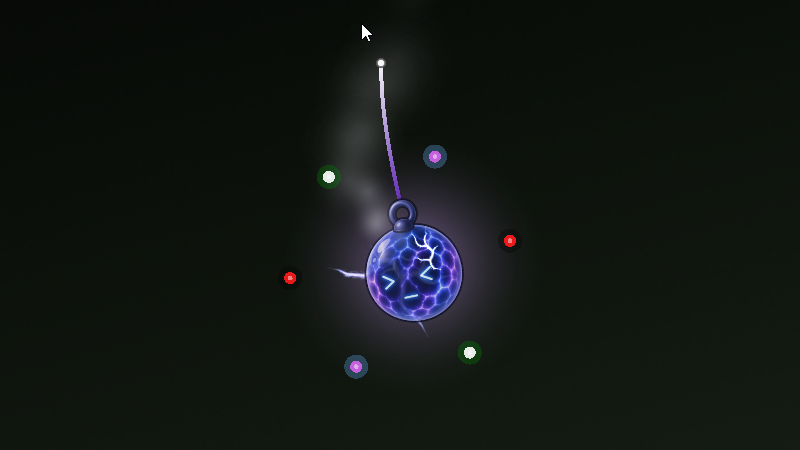
New Charms
Four new charms have been added:
Coffee Cup
Potato
Rock
Traffic Cone
The built-in Orb charm has also been updated with a fuller ring of orbiting lights.
Smoke Particles
There's a new Smoke particle style!
The Coffee Cup uses it by default, but you can add it to any charm from the particle dropdown.
More Control Over Special Effects
Each of the three effect slots on the Charm tab now has a few extra controls:
Effect Intensity - Controls how strong the effect is. 1 is the default setting value. Increasing it can mean faster bullets, quicker spins, more frequent shadows, larger balloon pops, and more depending on the selected effect. A small hint below the slider explains what Intensity changes for the effect you're using.
Effect Opacity - Controls how solid or faded the effect looks.
Colors - Effects that support custom colors now have their own color options.
Color customization is available for:
Shadow: Trail color
Bullets: Bullet color
Orbit: Inner color and outer glow
Flies: Body and wings
Bird: Body and belly
Other Improvements
Orbiting lights now recover more naturally if the charm flicks around while the are orbiting, and they also do not "break orbit" as easily as before.
Balloon pops can be made bigger or smaller using Intensity, and balloons now use a much wider mix of colors.
Changing the language now updates the settings window, tray menu, and charm names immediately. This was not working fully pre-patch.
Black Overlay Fix
App Settings now includes a Use Angle Renderer option.
This is enabled by default and uses a more compatible graphics path. If Cursor Charm previously showed a black screen or black overlay instead of your desktop, this should help.
Changing the renderer requires a restart, and Cursor Charm will ask you to restart before the change takes effect.
If you run into this problem and cannot see the Cursor Charm settings window to turn the option back on, you can manually edit or remove the configuration file located here:
%AppData%\\Godot\\app_userdata\\Cursor Charm\\charm_config.cfg
Removing the file will reset all Cursor Charm settings back to their defaults, including your custom charms.
If you want to keep your charms and settings, open the file in a text editor instead. Under the [global_settings] section, make sure this line exists:
use_angle_renderer=true
If it is already there but set to false, simply change it to true, save the file, and start Cursor Charm again.
Performance and Technical Improvements
A few things have changed behind the scenes to make Cursor Charm run more smoothly:
Particles are warmed up at launch. Each particle style is briefly prepared in the background while the CursorCharm is booting up. The first time you select Fire, Smoke, or another unused particle style should no longer cause the app to freeze for a second or two.
Changing particle amount is smoother. Adjusting the number of particles used to rebuild the effect and could briefly pause the app. This is no longer necessary, so the slider should stay responsive.
Improved graphics compatibility. Cursor Charm now uses the ANGLE renderer by default. You can still switch renderer from App Settings if needed.
Settings stay on top. The settings window is kept above the overlay, even when the overlay is fully opaque, so it should no longer get hidden behind a black or solid overlay (if that were to occur for you).
Thanks for hanging a charm on your cursor! ❤️