Voxel Mode!
major updateBattle Map Studio · published
Hi,
I hope your 2024 is going well. I finished the first version of voxel mode, and I’m super excited for you to try it out!
Voxel Mode
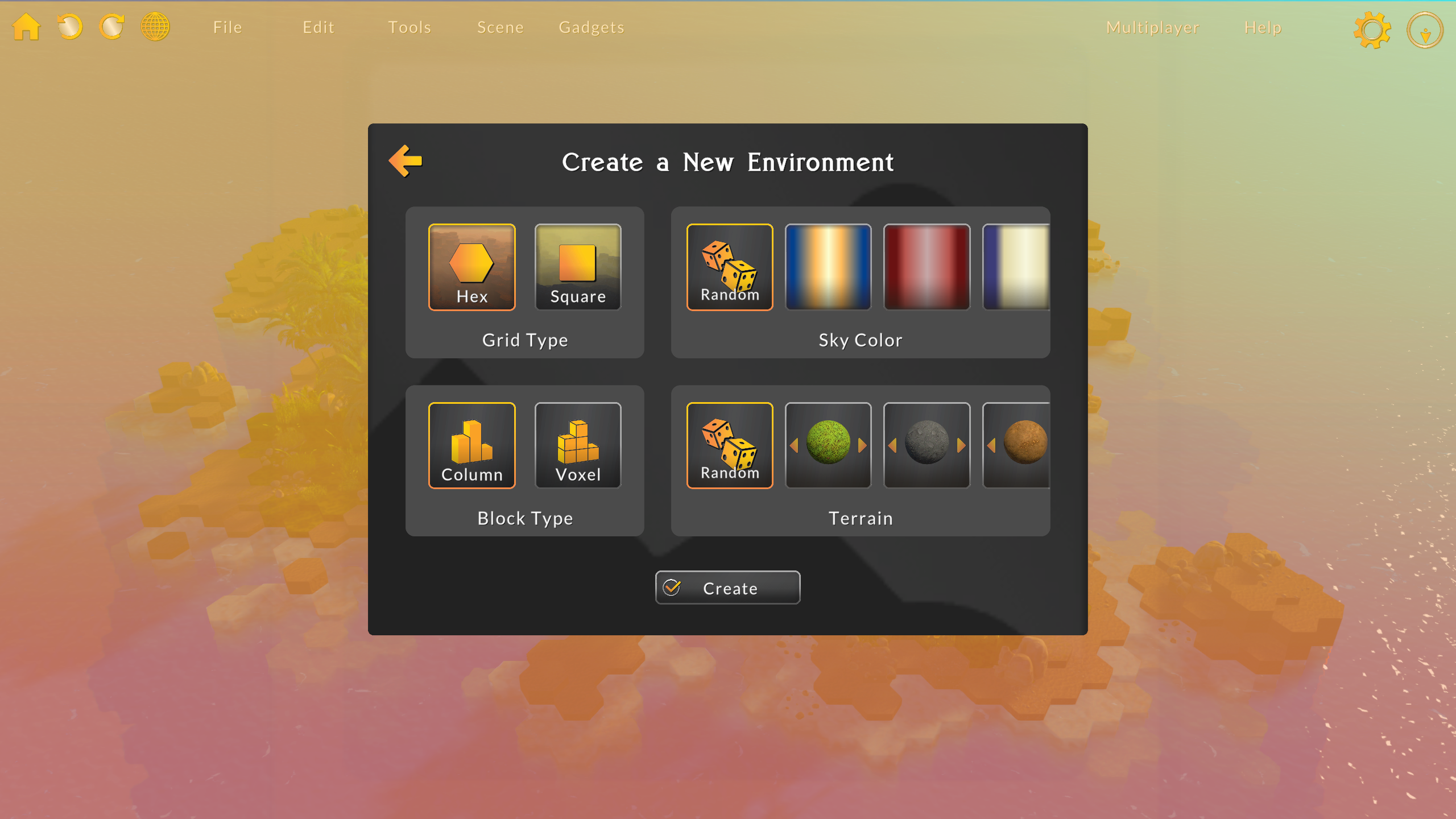
When you create a new map, you now have the option to choose between column (original mode) and voxel modes.
Voxel Mode Tools
Painting tools unlock extra capabilities when in voxel mode.
Voxel Brush
When using the brush, hold X to start painting on the vertical plane. Additionally, blocks and units still intercept pointer rays in voxel mode, so as to make it easier to paint vertically without holding X.

In voxel mode, you can drag-draw horizontally and vertically, which makes it easier to make steps, or gradual gradients. With the brush active, try holding Shift and moving horizontally. Then, hold X and move vertically. See that a diagonal line is created on the horizontal and vertical axes.

Voxel Dragger
The dragger can now create 3D areas! When using the dragger, hold X to add the vertical dimension to your drag-shape.
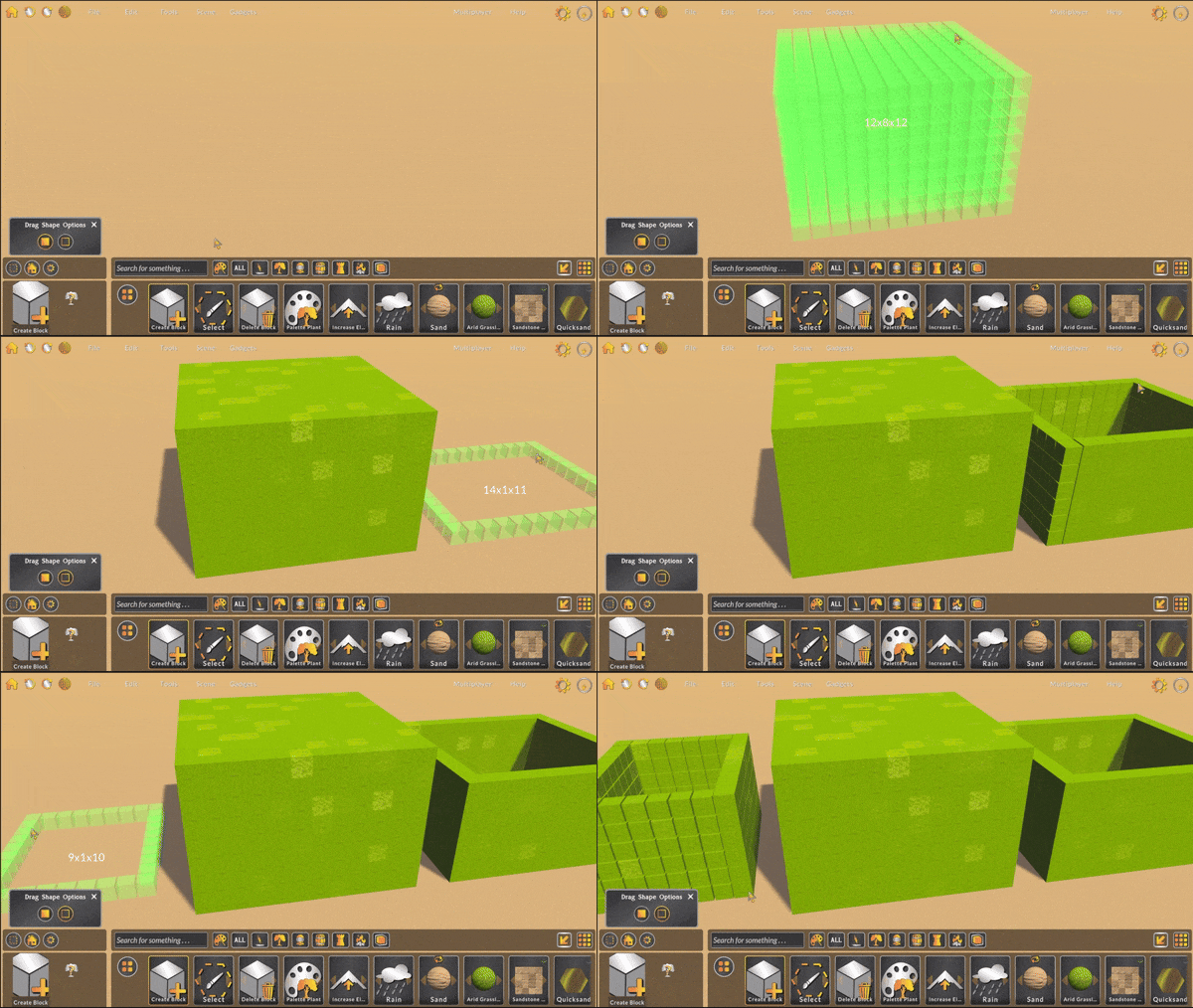
The quick-wall feature also supports vertical dimensions. Click the house icon and drag a 3D area to create a building with multiple floors. To make walls perfectly align with vertical blocks, set the block step to 2.75 on the active layer.

Voxel Bucket
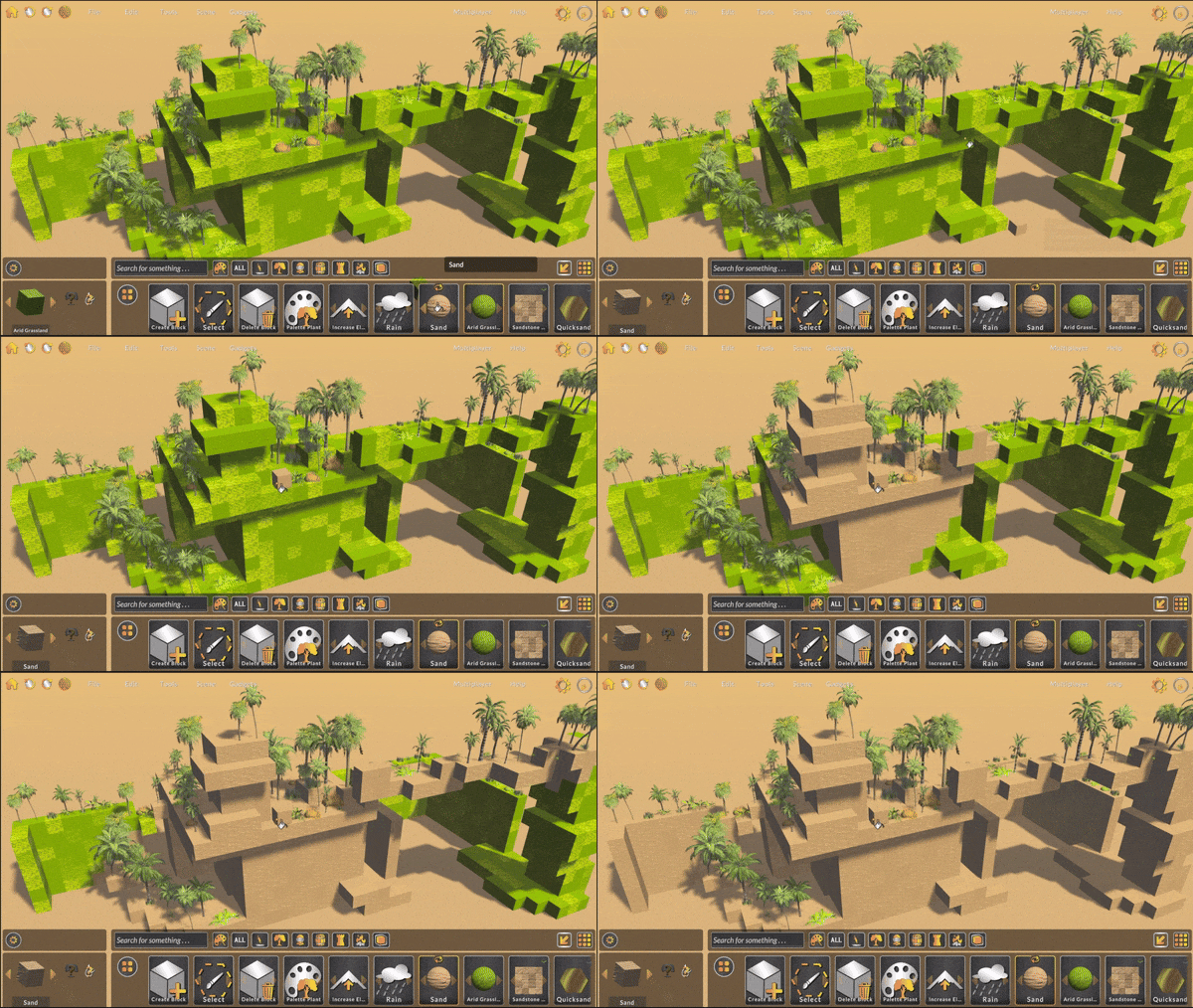
The bucket gets new functionality when in voxel mode too. Now when filling an area, the horizontal and vertical neighbors are changed as well.
Voxel in Tilt Five
When using Tilt Five, the wand tip becomes a 3D cursor. In column mode, the wand tip still shoots a ray from the tip to the terrain.

The voxel brush is like the regular brush but allows you to paint in 3D. Instead of painting just on the XZ plane, you can switch to the XY plane to paint vertically.

Elevation in Voxel Mode
To avoid adding too much complexity too fast, I’ve disabled elevation modifications in voxel mode. I’m still thinking about if I want to include elevation and/or how elevation should function in voxel mode. My current thought is to rather create X blocks above the selected block to simulate an elevation increase, and remove blocks under a block to simulate elevation decrease.
Other Updates
Brush Targets
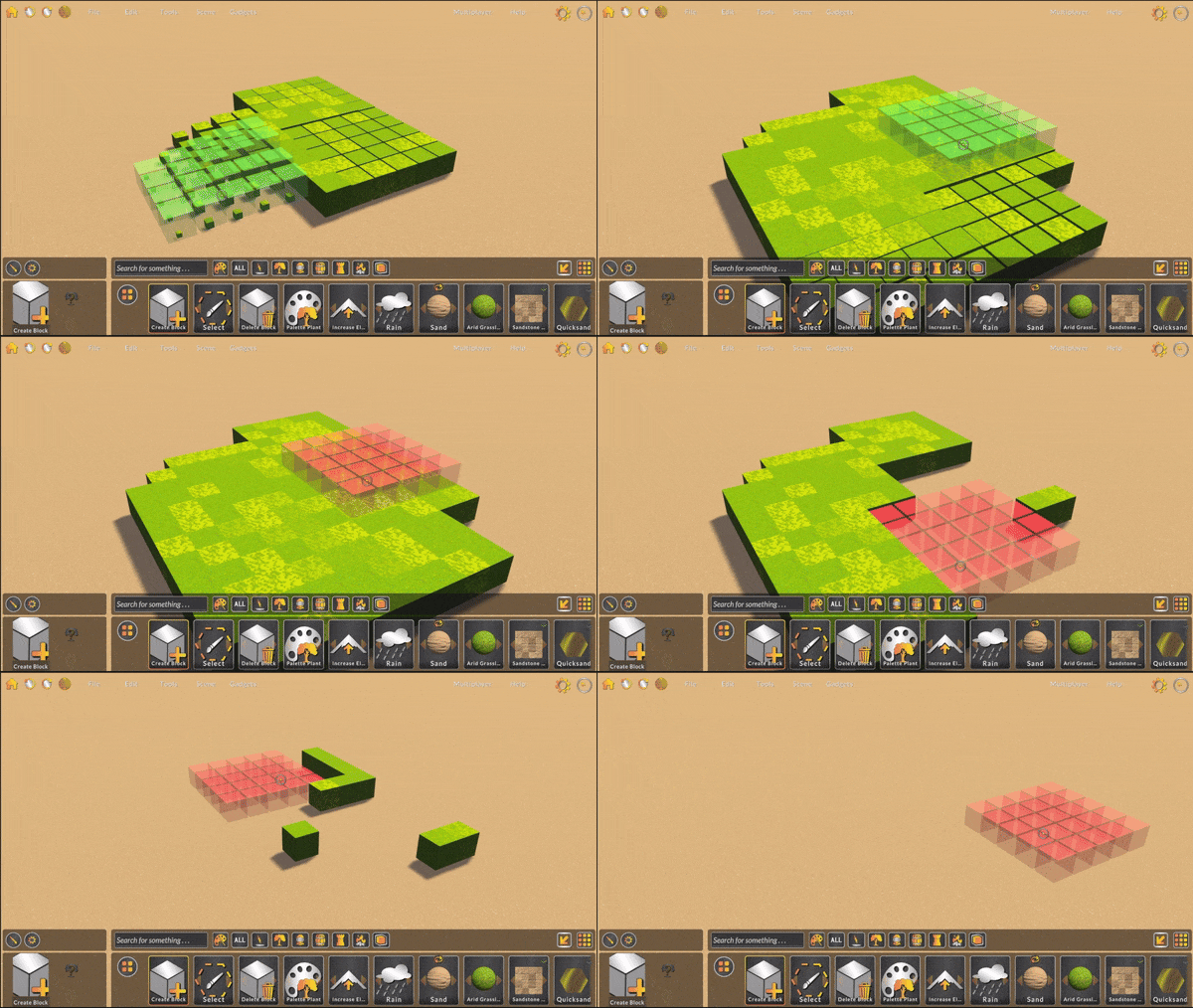
In this update, I’ve made the brush target objects 3D and normalized the target colors to better inform what the brush is actually doing. When creating or adding, the targets are green. When removing or destroying, the targets are red.

Reversible Actions
Holding Ctrl with certain palette selectors now reverses their functionality. For example, holding Ctrl when Create Block is loaded will now delete blocks. Holding Ctrl when Delete Block is loaded will now create blocks.
Refinements
- Updated pathfinding for voxel mode. It's a little janky, but it works. Better than implementing some restrictive and confusing pathfinding algorithm, in my opinion.
- Added a new tab to the quick-wall window to set block soil. This will be helpful for when you want to either change the tile type when creating a building, or make the blocks invisible for when you (useful for multi-story buildings).
- Increased the lighting intensity scale so the maps are a little brighter by default.
- Fixed a visual bug where Hero Forge models would import without textures.
- Fixed a visual bug where Hero Forge model files would display their id as their name.
- Fixed a bug where non-custom-asset units would not be initialized, causing issues with displaying healthbars and team tiles.
- Fixed a UI issue where the hover panels in the character panel would pop up too quickly and cause issues with interacting with the panel the hover panels were displayed on top of.
- Fixed a bug where custom asset object positions would change erratically up and down when placing them.
- Fixed an input bug where clicking a block required a certain amount of hold-time before actually selecting the block.
- Fixed a visual bug where soil blending was not working properly.
- Fixed a Tilt Five bug where the inverse scale was not used, causing various interface and camera control issues.
- Fixed a Tilt Five bug where it was nearly impossible to open the radial menu.
- Fixed a Tilt Five bug where drag movement was too slow.
- Fixed a Tilt Five bug where many of the buttons on the big menu were not working.
- Removed the option to switch grid types. This was annoying to maintain and not that useful/used.
What’s coming . . .
- Mesh brush, which voxelizes a mesh – like a sphere – to make 3D painting faster and more fun.
- Voxel options, to make voxel editing smarter and more manageable when quickly placing trees and units. Currently, block components cannot be added to blocks that have a neighbor block directly above it.
- Elevation, or to decide how to handle elevation modifications.
- Quality of life improvements to better work with voxel coordinates.
- Mesh to terrain, which turns a 3D object into a world in a click.
- New building content, like props and plants!
Enjoy!
Bradley