v[1.1.001] New Version (Online co-op mode, thieves, cleaning, online orders)
major updateRetail Company Simulator · build 17505125 · published
New Version
You can select the version after you click "Play" on Steam.
There will be two options:
1- New Version: This version includes all the new features like online co-op mode, inventory slots, online orders, thieves, cleaning, security guard, janitor, and customer review score. Older save files are incompatible with this version.
2- Old Version: There won't be any updates for the old version but you can still play this version with your old save files.
Here are the update notes for the "New Version":
1- Online Co-Op Mode
The online co-op mode is here! You can play with your friends.
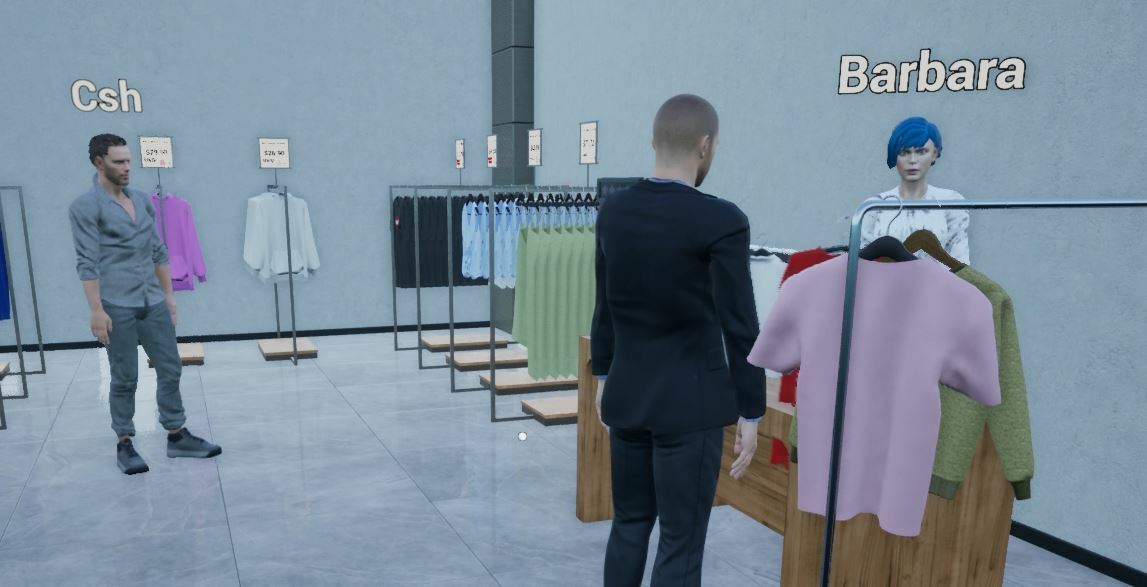
Share the duties with your friends in co-op mode (for up to 4 players).
The more players in the store, the more demanding customers will visit your store.
Also, you can go solo and manage everything in the store. You can invite your friends anytime if you change your mind.
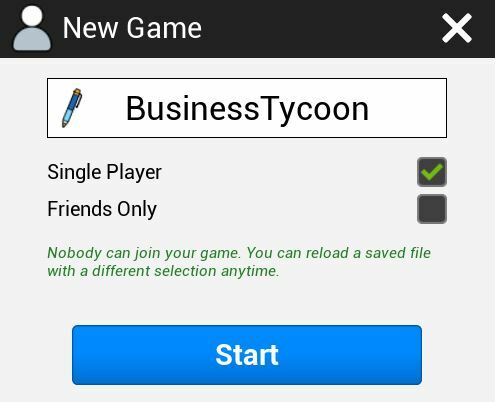
* If you select "Single Player", you can play the tutorials but nobody can join your game.
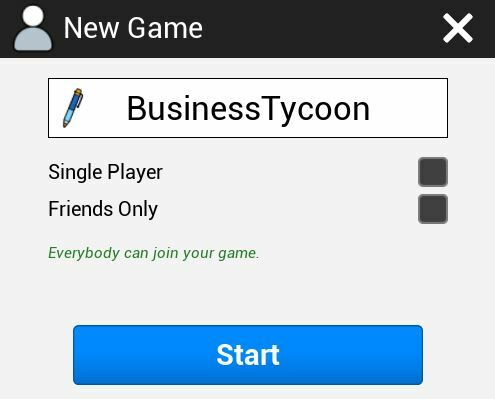
* If you leave all boxes unchecked, everybody can join your game.
* If you select "Friends Only", your friends can join your game.
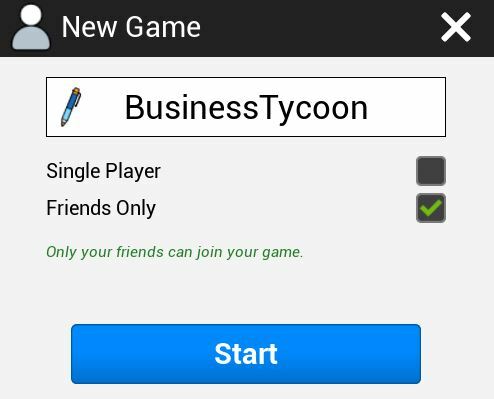
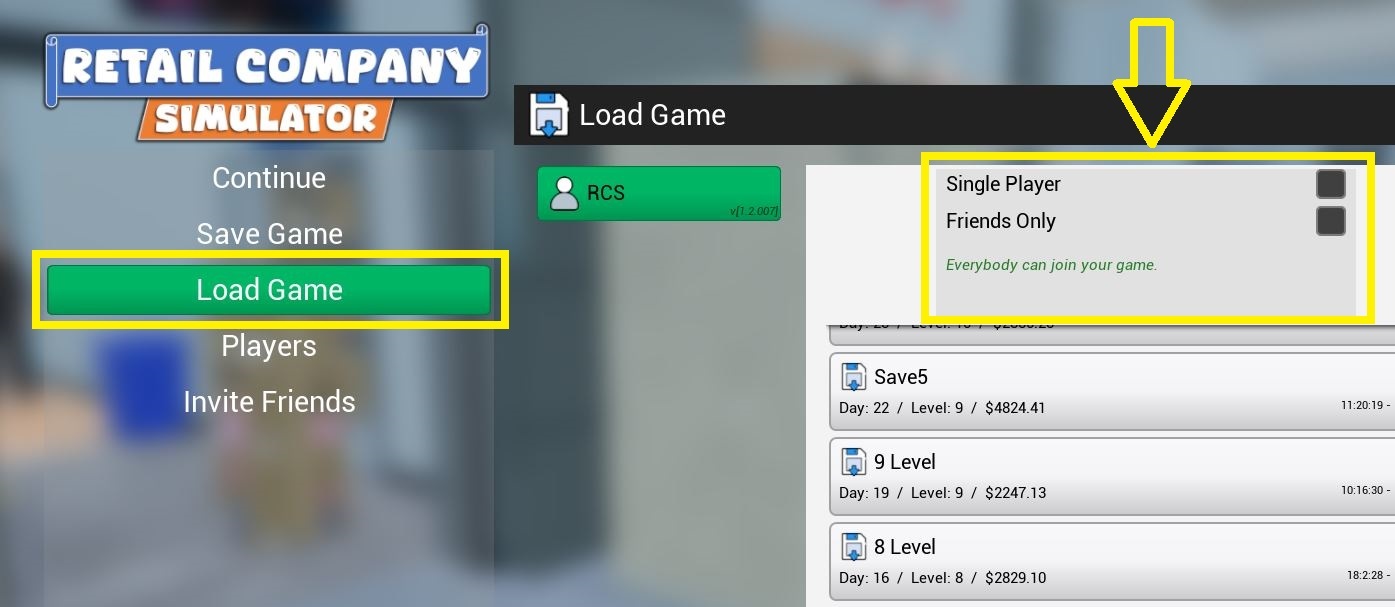
***You can change your preferences when you load your game.
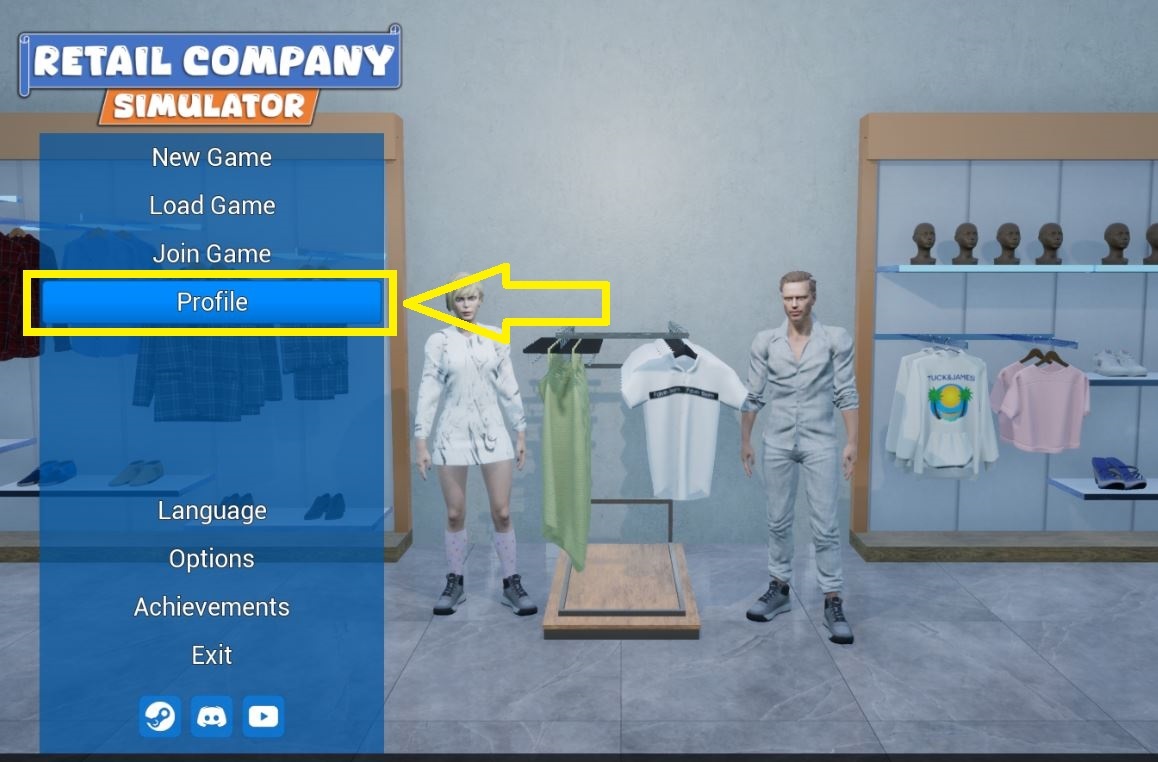
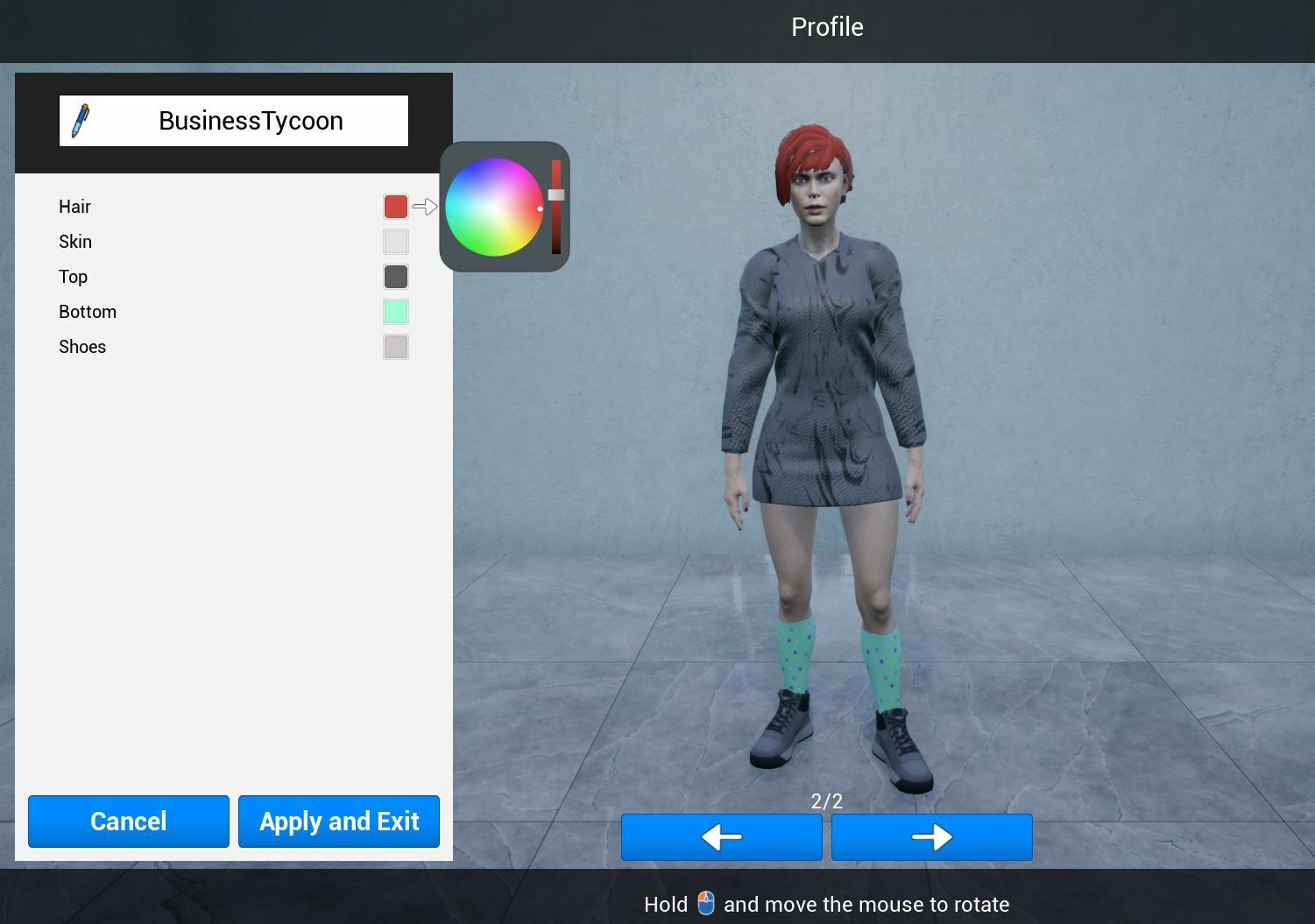
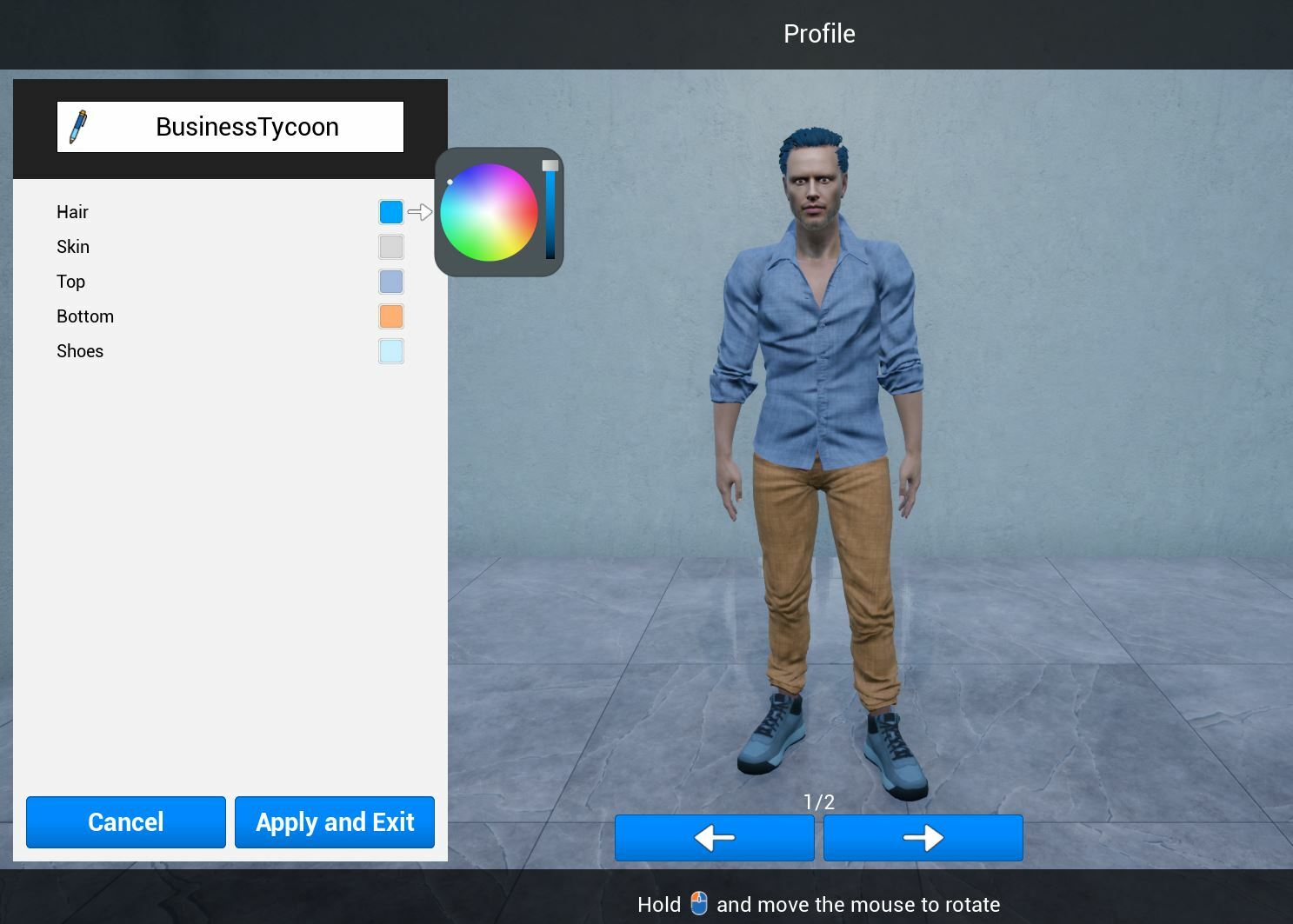
2- Profile
You can select and customize your character in the Main Menu - Profile section.
3- Inventory Slots
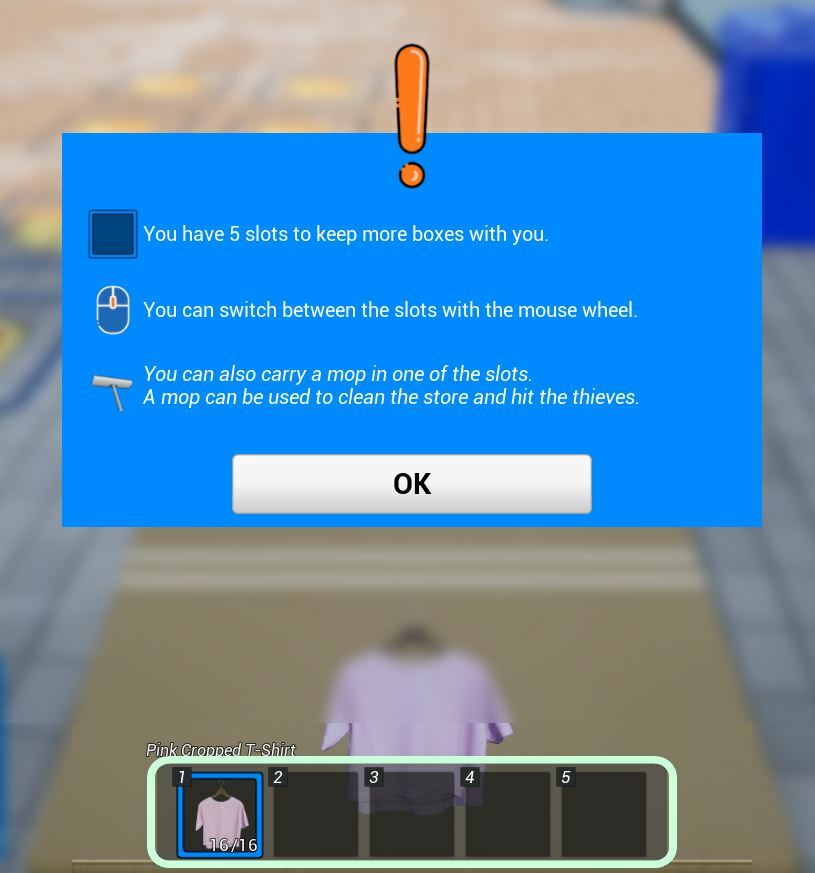
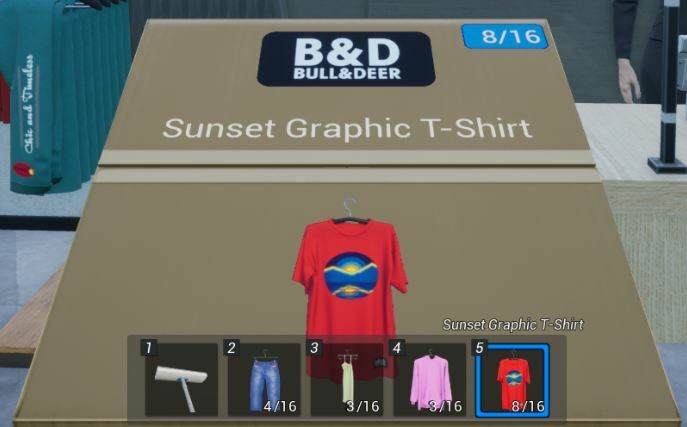
You have 5 slots to keep more boxes with you.
You can switch between the slots with the mouse wheel.
You can also carry a mop in one of the slots.
A mop can be used to clean the store and hit the thieves.
4- Online Orders
When you receive an online order, you'll get a notification on the left part of the screen.
Then, you can go to the "Online Orders" section on your desktop to accept the order.
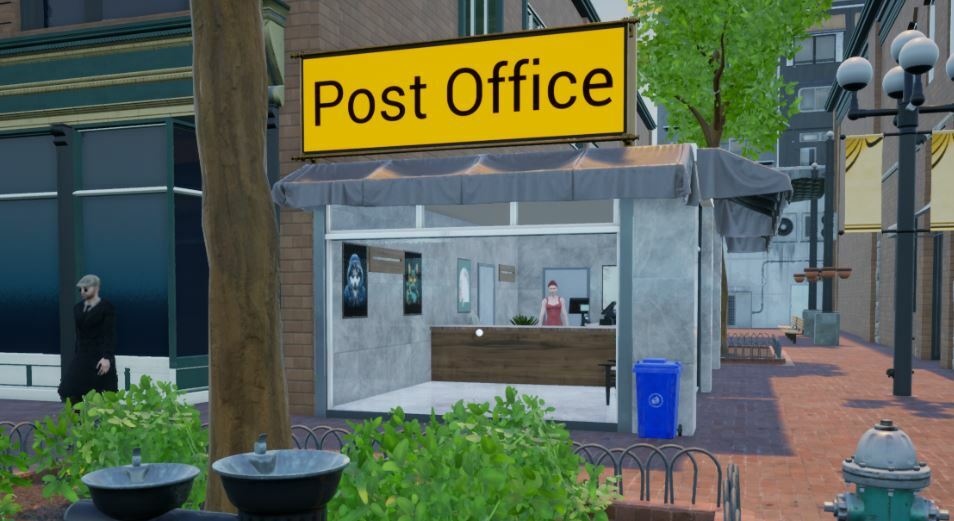
When you accept an online order, you can deliver the required products to the post office until the day ends.
If not, all orders will be canceled automatically the very next day.
How to complete online orders?
- First, you should accept the online order on Desktop-Online Orders.
- Second, you can pin the required products by pressing the button on the top-right corner of the received online order.
- Third, you can add the required products to your slots (use the mouse wheel to switch between the slots).
- Finally, go to the Post Office and click LMB (the same way you place products in the racks) to put them into the post office box.
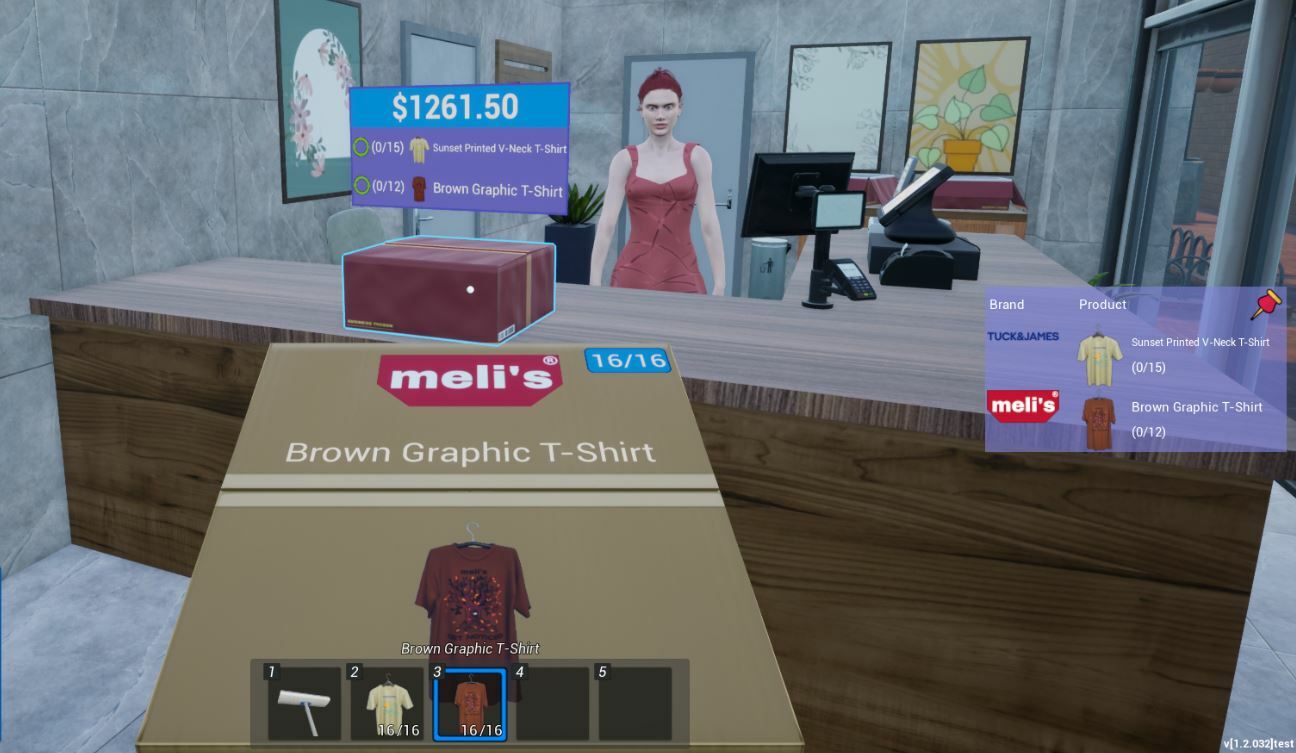
5- Thieves & Security Guard & Anti-Theft Alarm Systems
(If you don't want to deal with the thieves, please disable it from the Options-Gameplay settings.)
Thieves steal your boxes from delivery areas, warehouses, or store entrances.
You can get your box back by hitting the thief with your mop. (You can buy a mop from the Market-Equipment section.)
(They'll leave the box and run away when you hit them with your mop.)
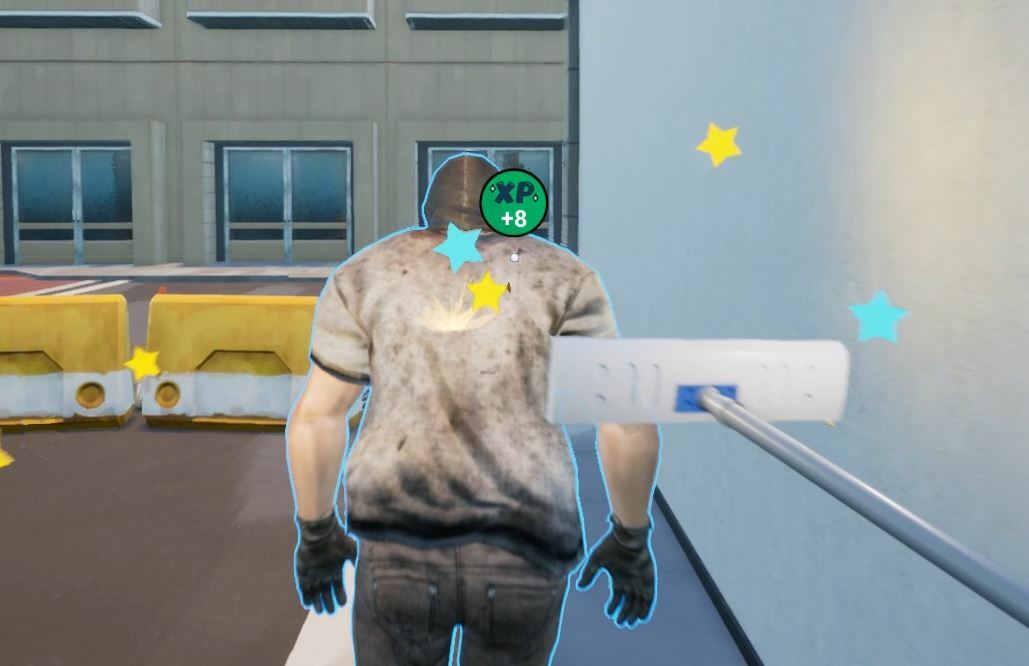
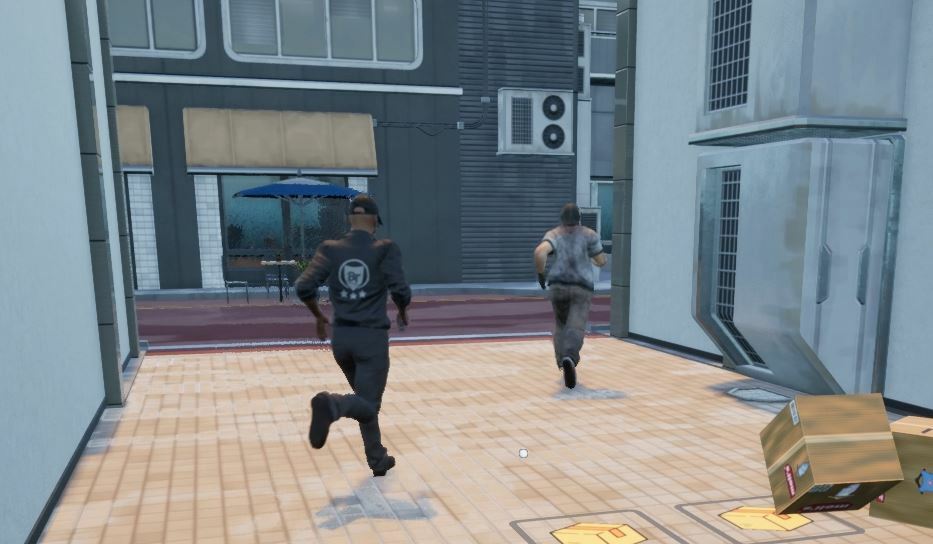
When a thief is around, your security guard will chase the thief, and you'll get a notification on the top-left corner of the screen: "Security Guard is chasing a thief right now".
Please remember that sometimes two thieves visit you at the same time. When your security guard is chasing a thief, it's better to check around (if there is any other thief).
You earn level points when you hit the thieves.
(The higher the store level, the higher the level points from hitting the thieves)
You'll earn level points when your security guard hits the thieves, too.
You can hire a security guard from the Desktop-Workers section.
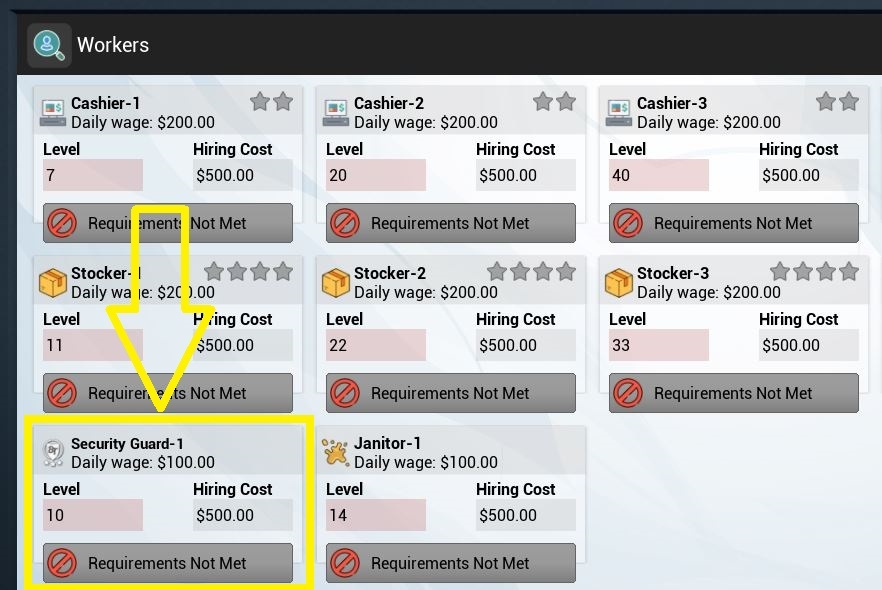
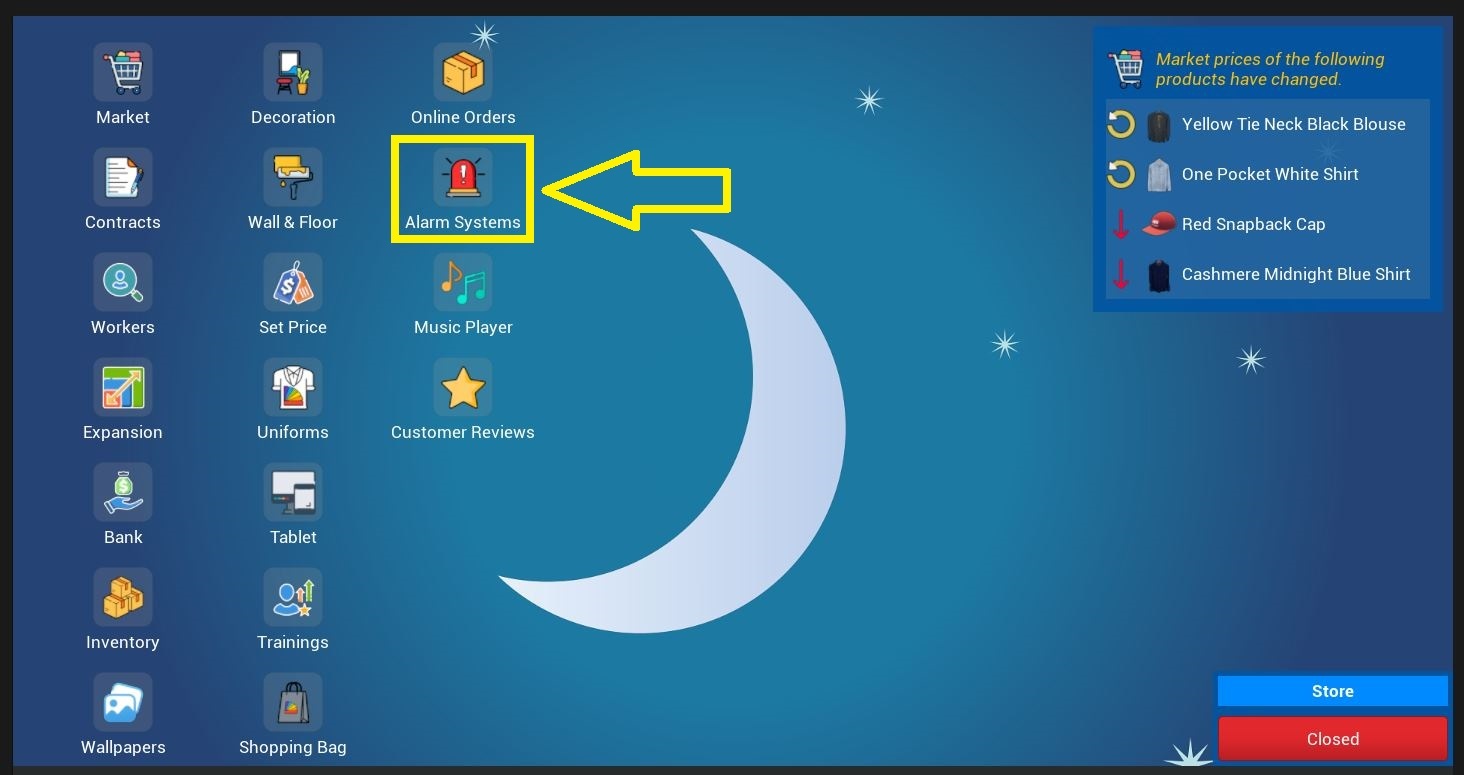
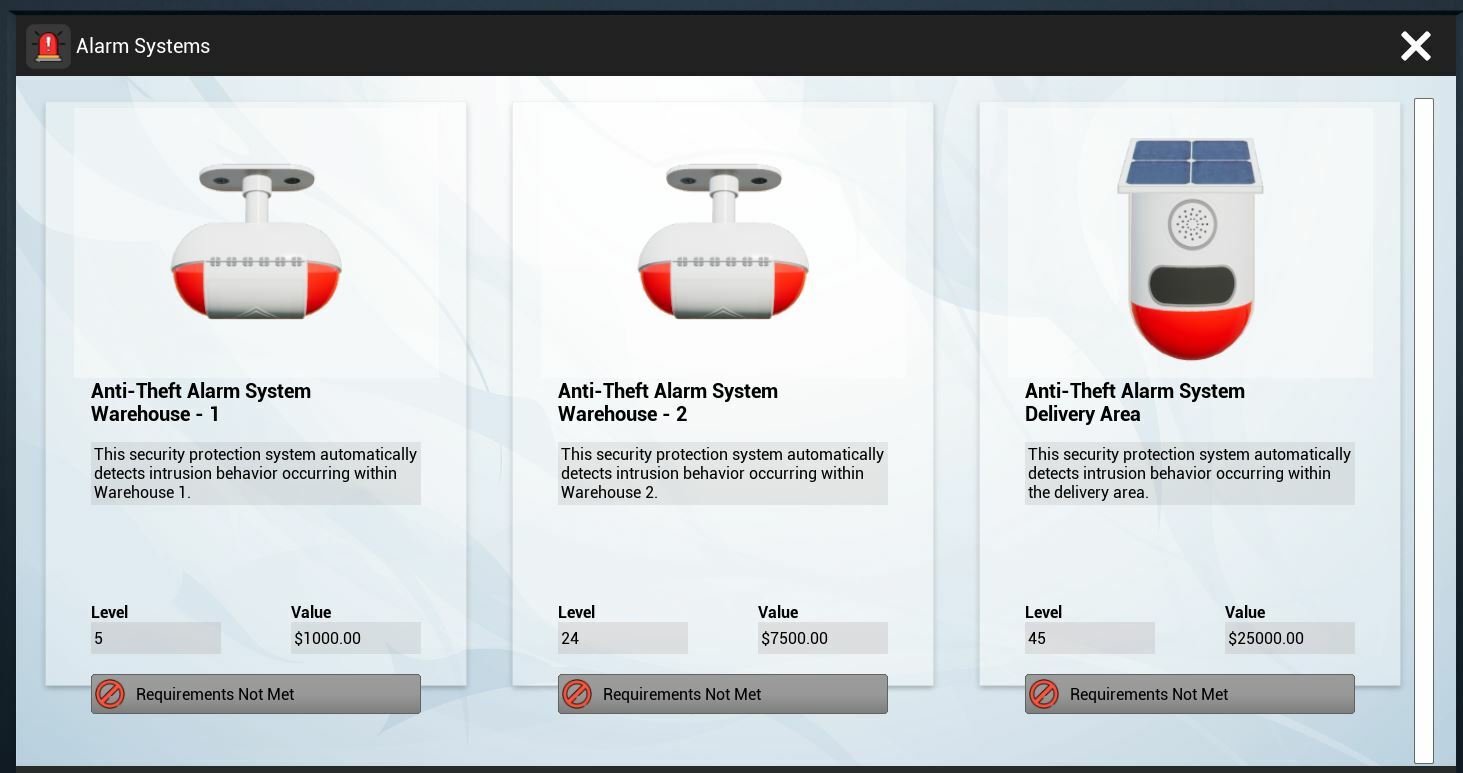
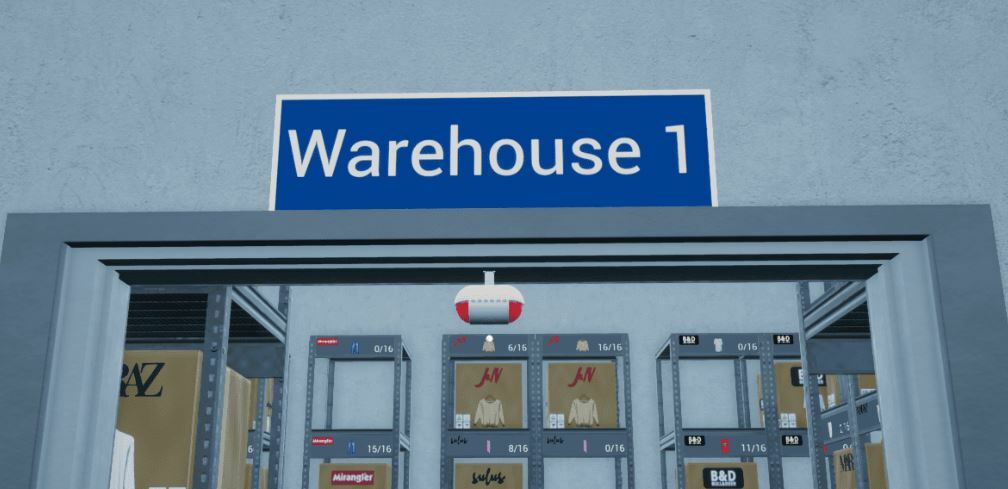
When you reach the required level and have enough money, you can purchase anti-theft alarm systems. These security protection systems automatically detect any theft attempt and notify you.
6- Cleaning & Janitor
(If you don't want to deal with the cleaning, please disable it from the Options-Gameplay settings.)
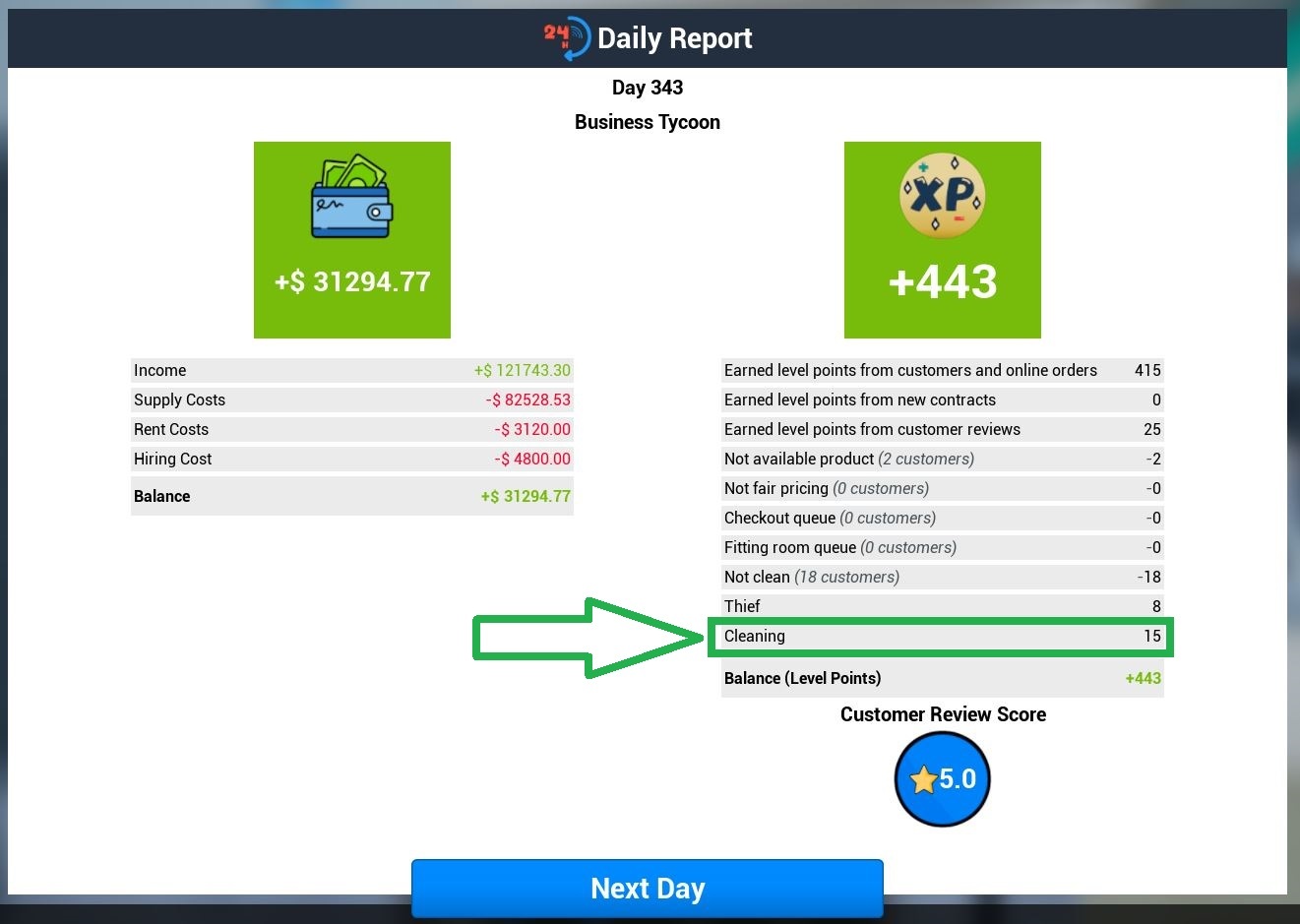
Some customers will leave dirt in the store. You'd better clean the store with your mop. Otherwise, your customers will complain. Each cleaning action gives a level point.
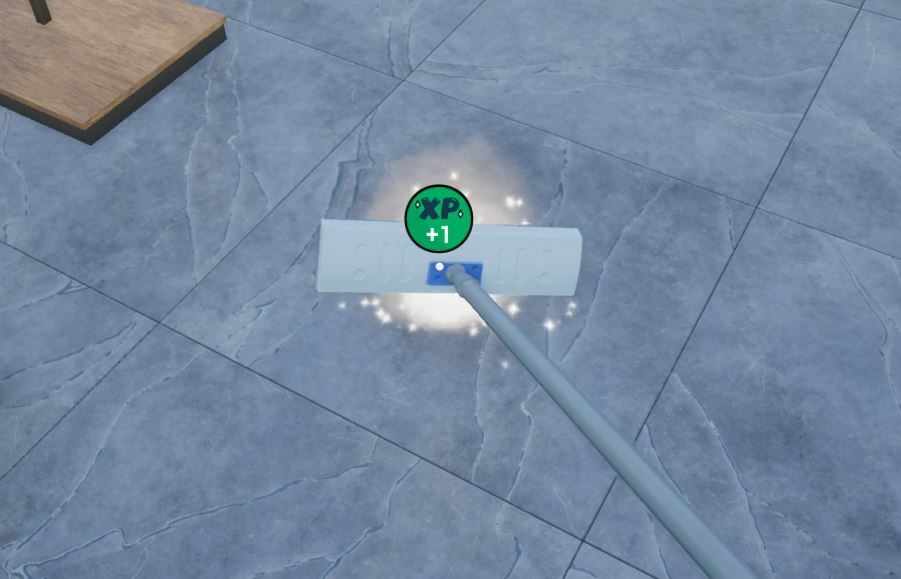
You can see the total level points coming from cleaning in the daily report.
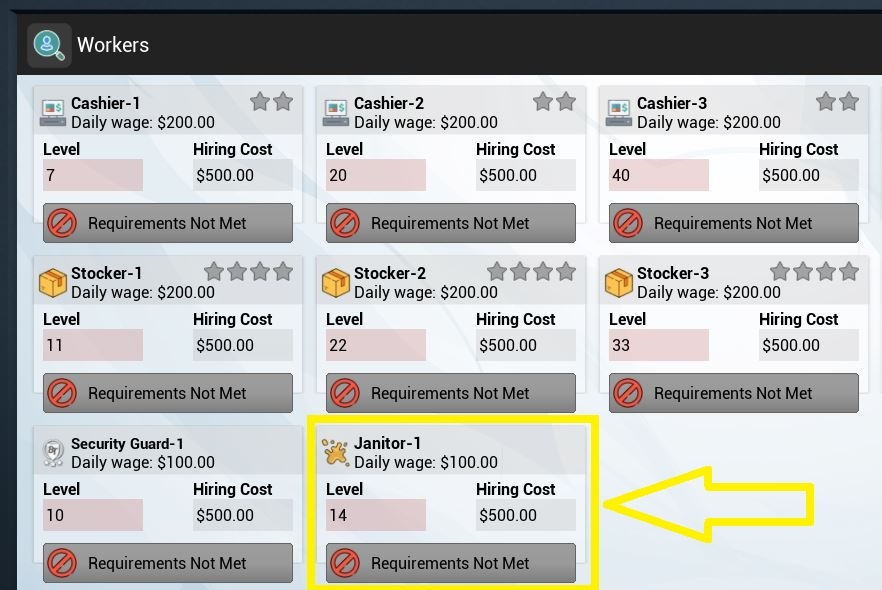
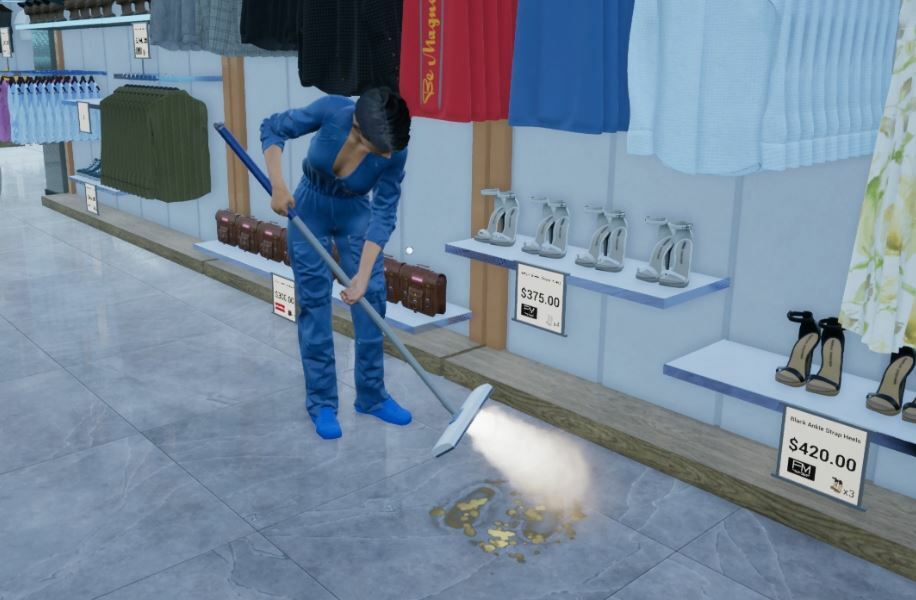
When a customer leaves any dirt in the store, your janitor will go to clean it. You can hire a janitor from the Desktop-Workers section.
You'll earn level points when your janitor cleans any dirt, too.
Please remember that you may still get some penalty-level points if your janitor can't clean the dirt before a customer steps on it.
7- Customer Review Score
Customers rate your store during the checkout process.
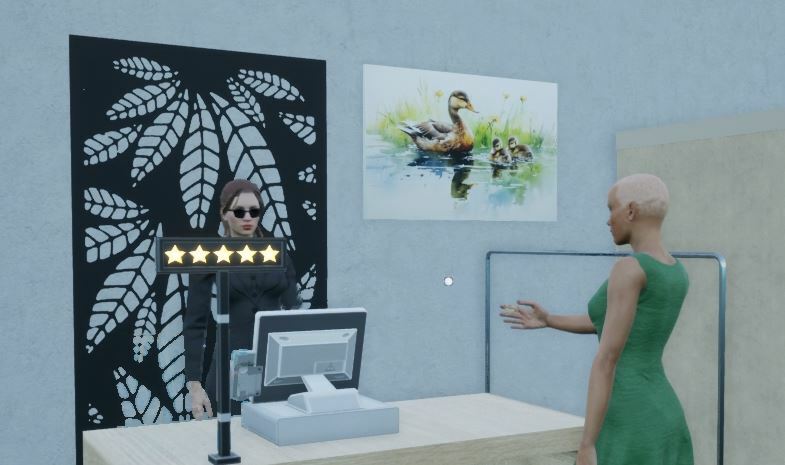
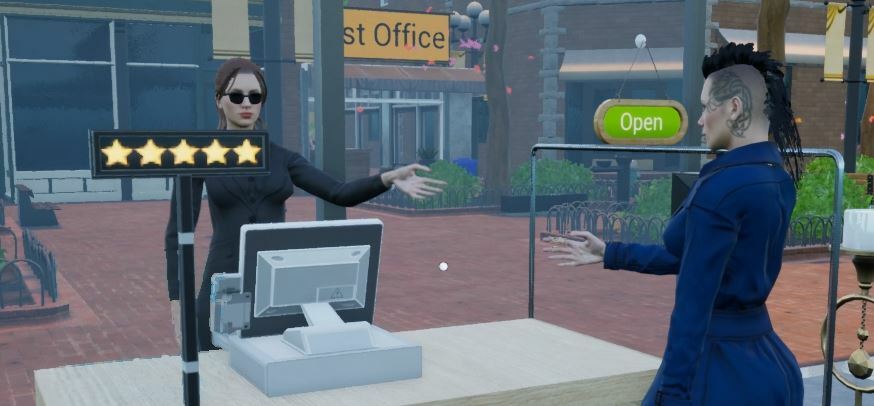
You get extra level points if you complete a day with higher than 4 points.
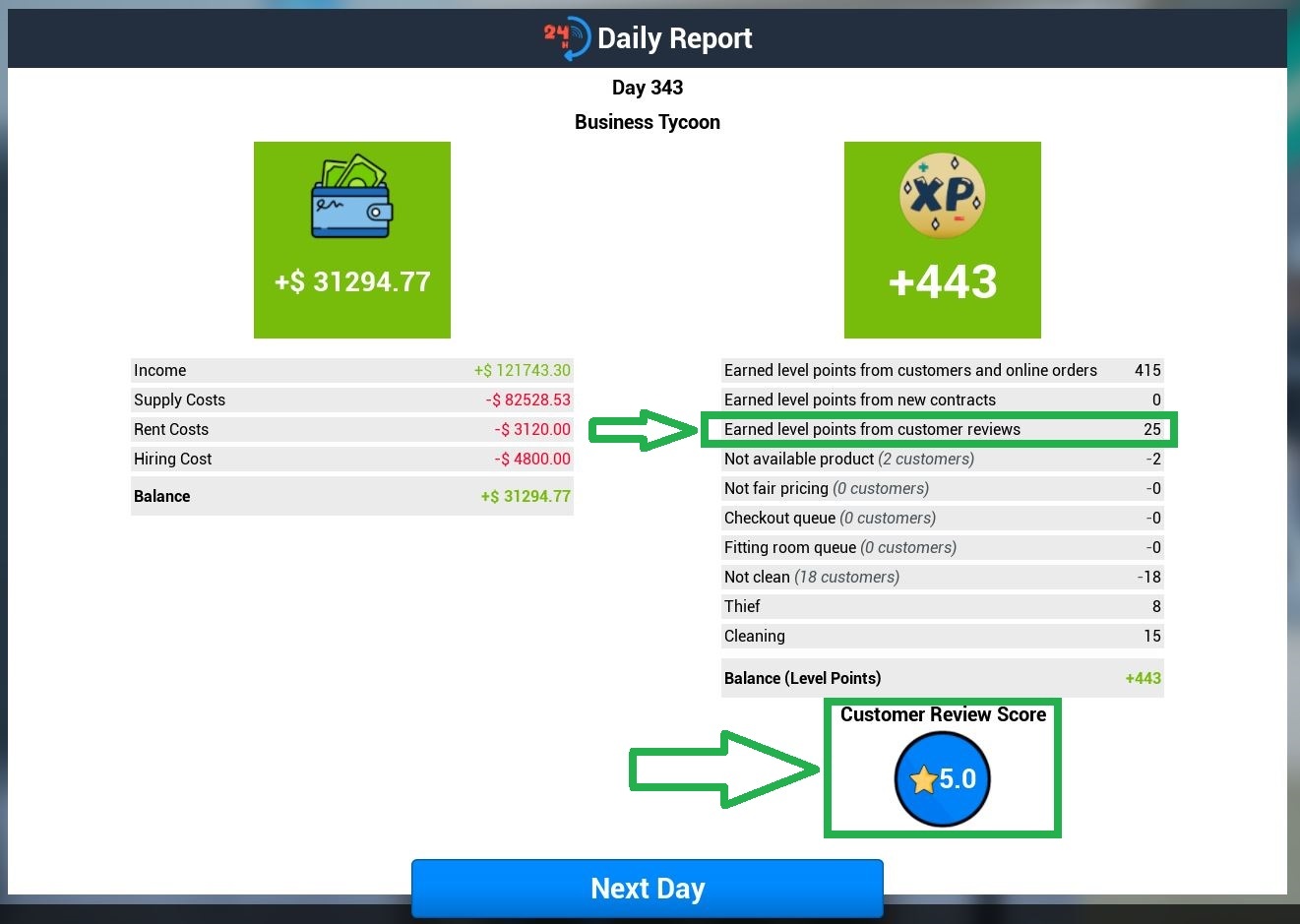
If your review score is 4.00, you get 10 level points.
If you're above 4.00, you get more level points (10+). The higher the review score, the higher the level points.
If your review score is 5.00, you get 25 level points.
You can see how many level points you earn in the daily report.
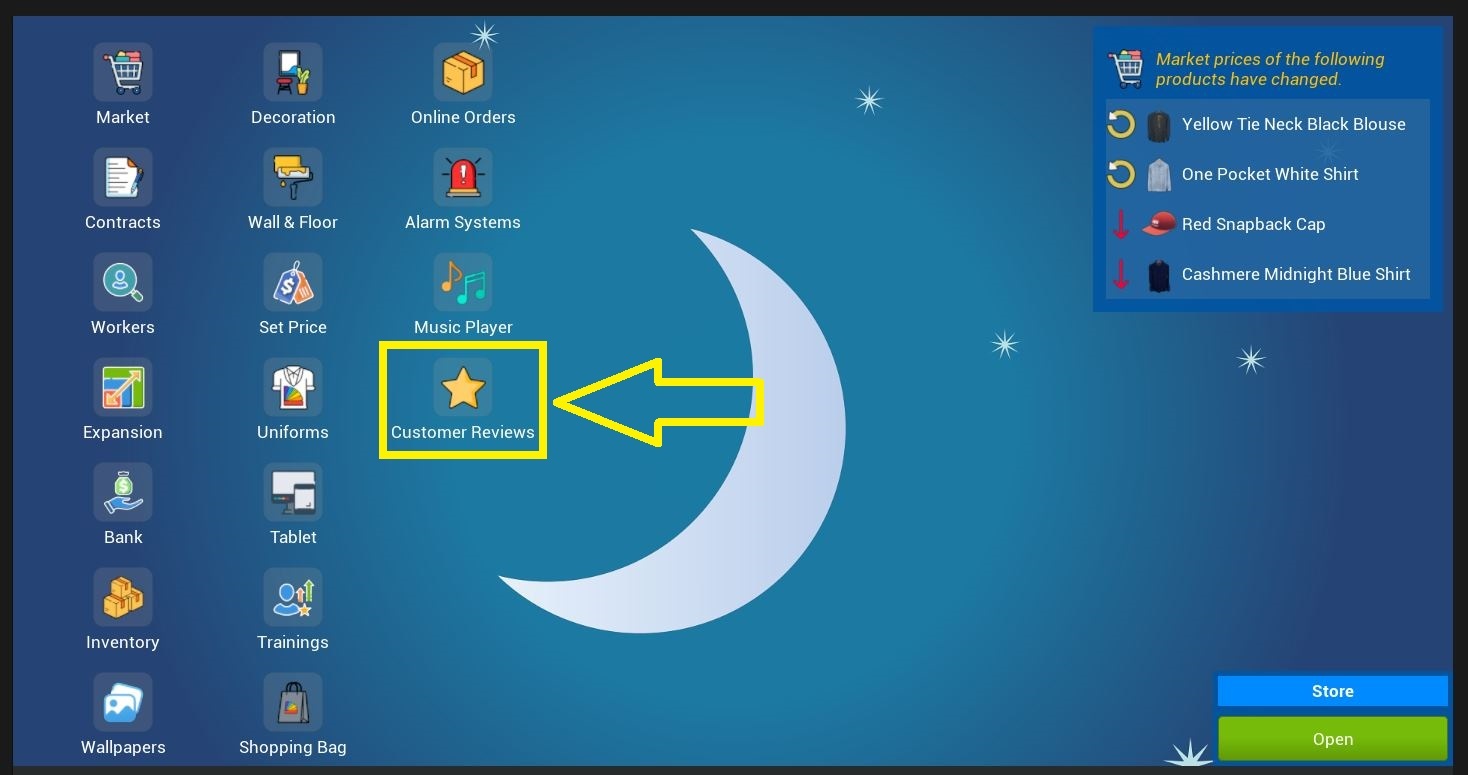
You can check your current score on Desktop-Customer Reviews. The current score is today's score. It'll reset at the end of the day.
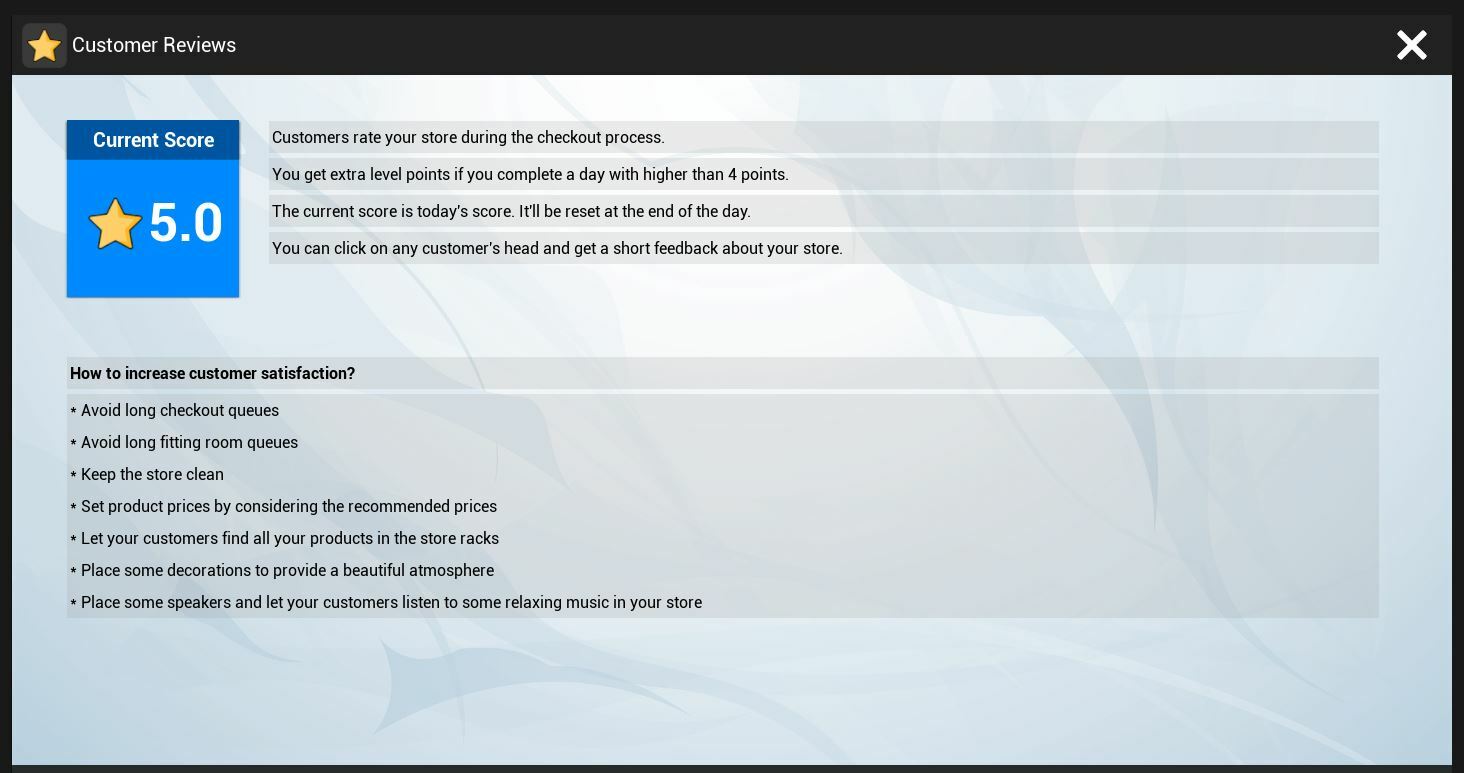
How to increase customer satisfaction?
- Avoid long fitting room queues
- Avoid long checkout queues
- Keep the store clean
- Set product prices by considering the recommended prices
- Let your customers find all products in the store racks
- Place some decorations to provide a beautiful atmosphere
- Place some speakers and let your customers listen to some relaxing music in your store
8- Customer Interactions
You can click on any customer's head and get a short feedback about your store.
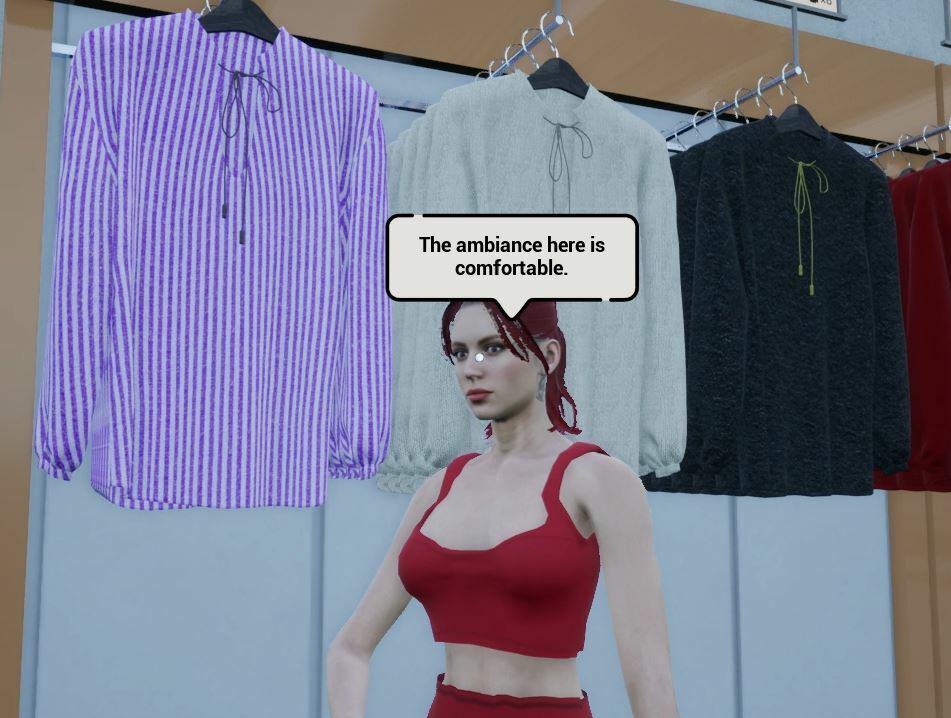
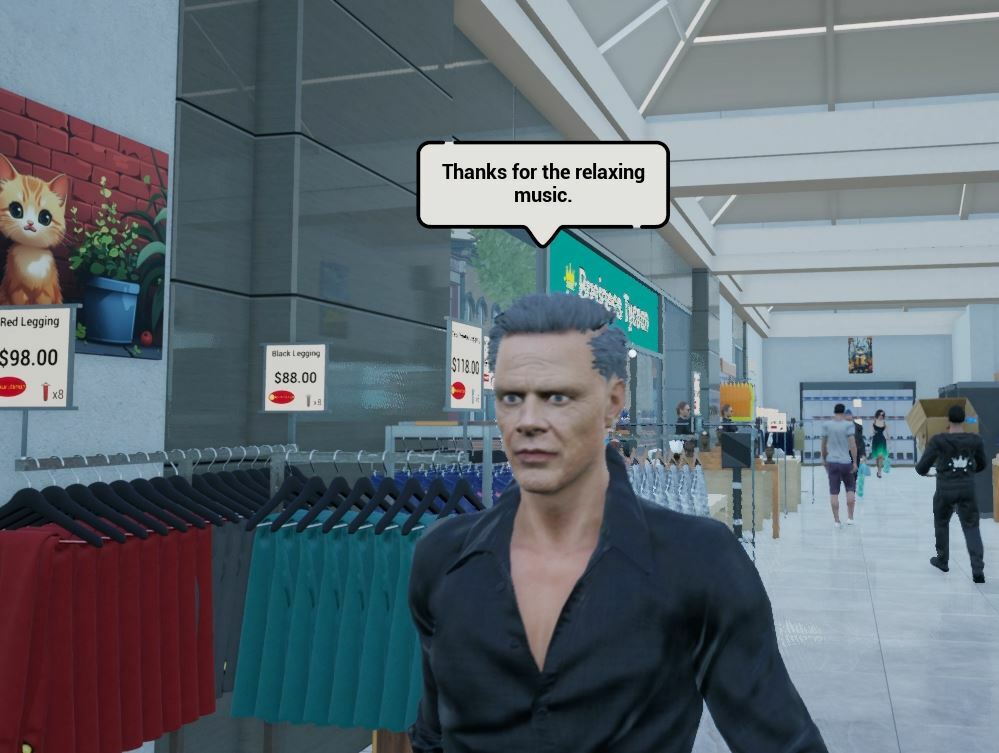
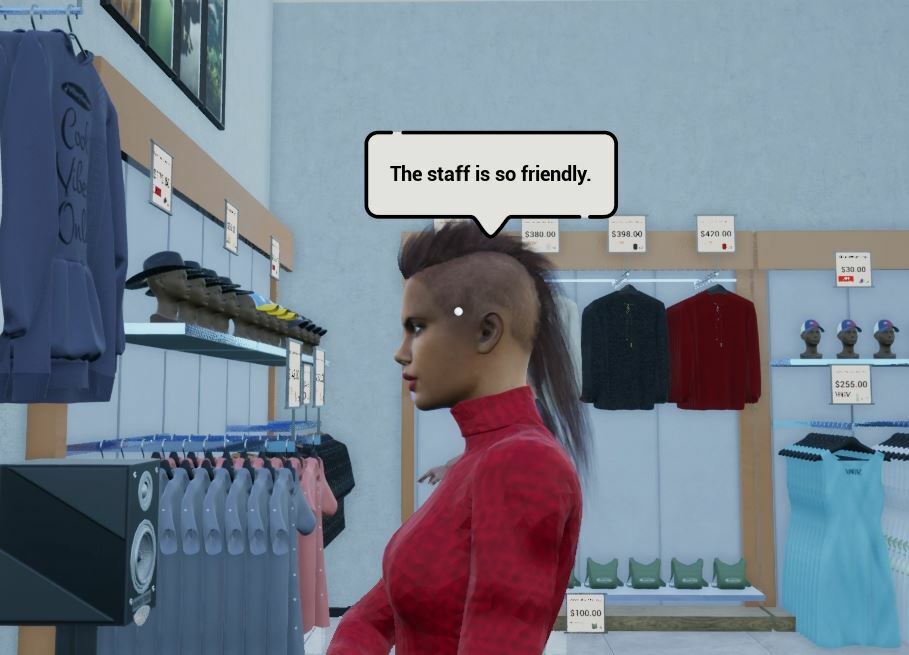
9- Increased Box and Rack Capacities
Most of the box and rack capacities are increased.
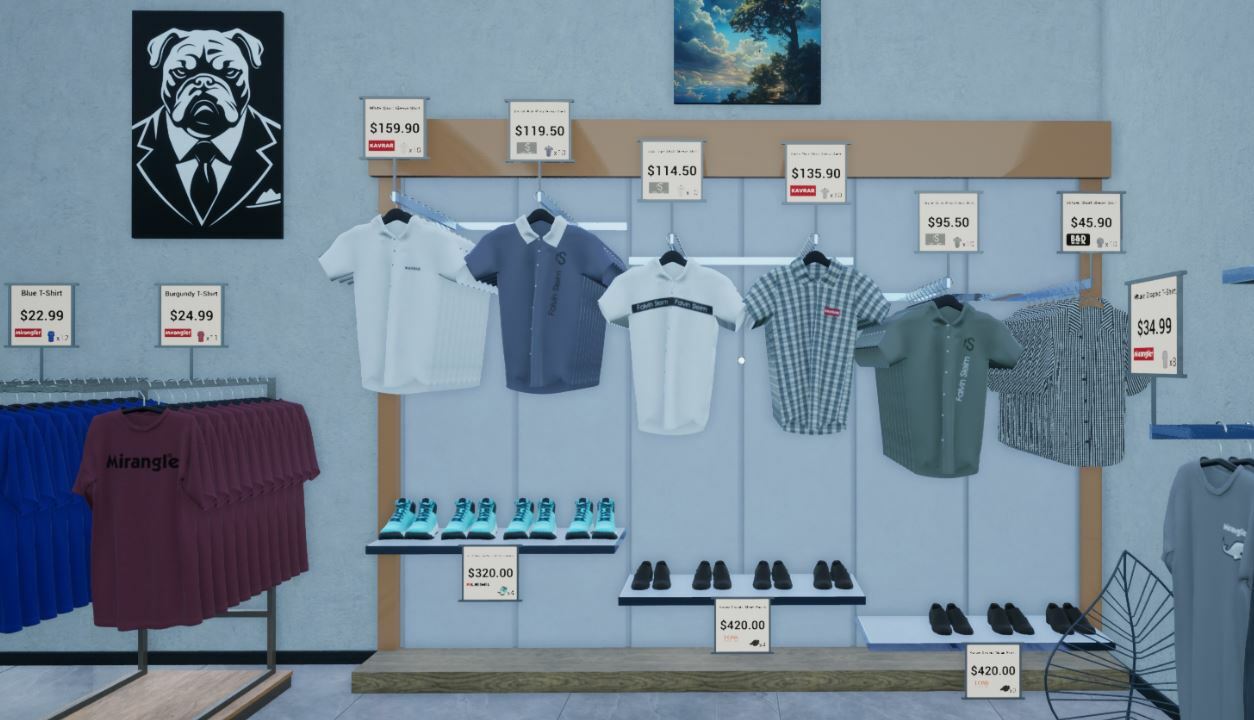
10- Box-to-box Interaction
- You can place the same type of products from your box (in your hand) into another box on the ground or a warehouse rack by clicking LMB.
- It's also possible to take the same type of products from the box on the ground or the warehouse rack to the box in your hand by clicking RMB.
11- No need to search for an empty box in the trash
- When you have an available slot, you can take any products from a rack by clicking RMB.
- As soon as you right-click, the required box type will be spawned on your hand to help you take the products from the rack.
12- New Cash Register: Small Bills On The Left
There is a new cash register in the Market-Equipment section.
This cash register has small bills on the left.
Bills order -> Small bills are on the left
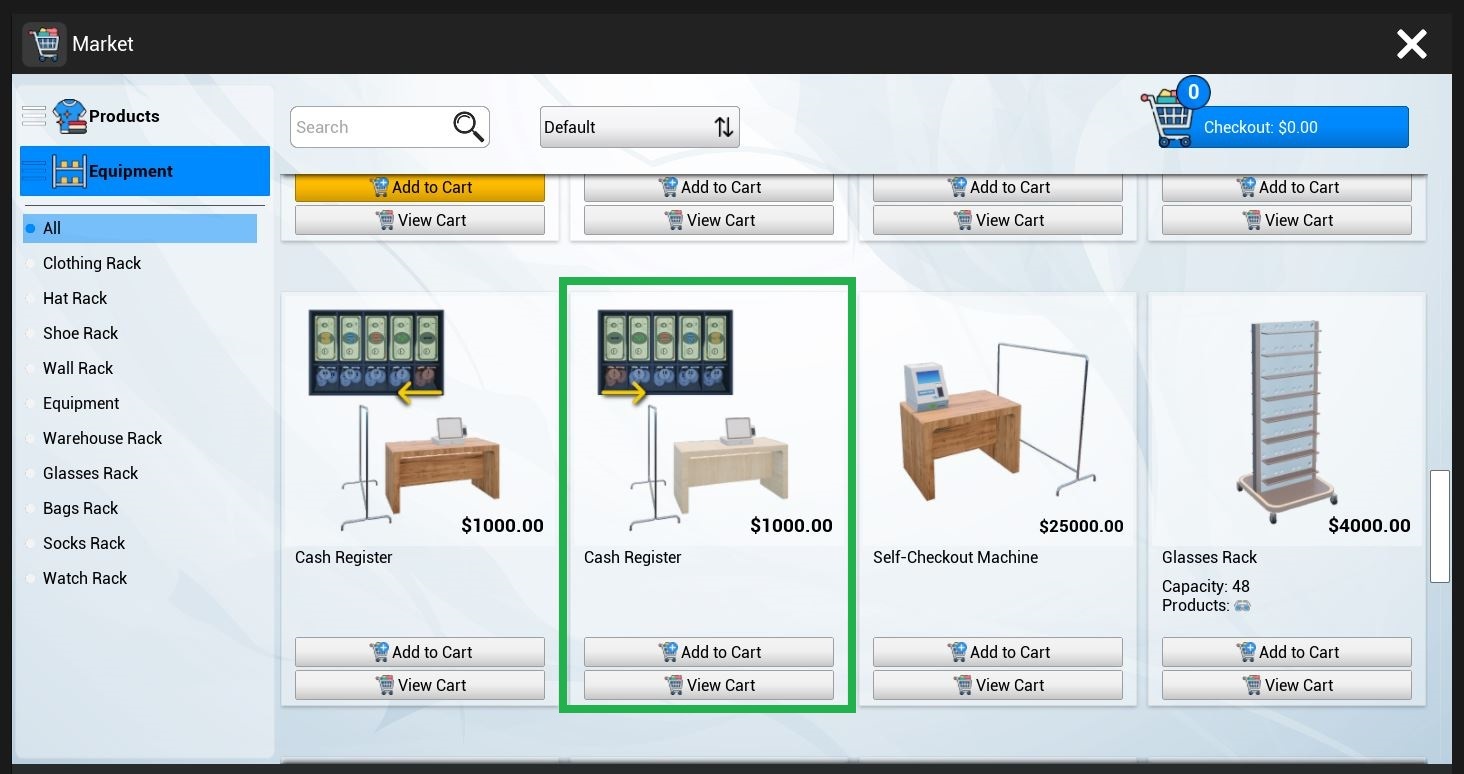
13- Options: Payment Type Selection
You can select the payment type in the Options-Gameplay-Payment Type.
There are three payment types:
- Default -> Customers will use "card or cash" during the checkout process
- Card Payment -> Customers will use "cards" only during the checkout process
- Cash Payment -> Customers will use "cash" only during the checkout process
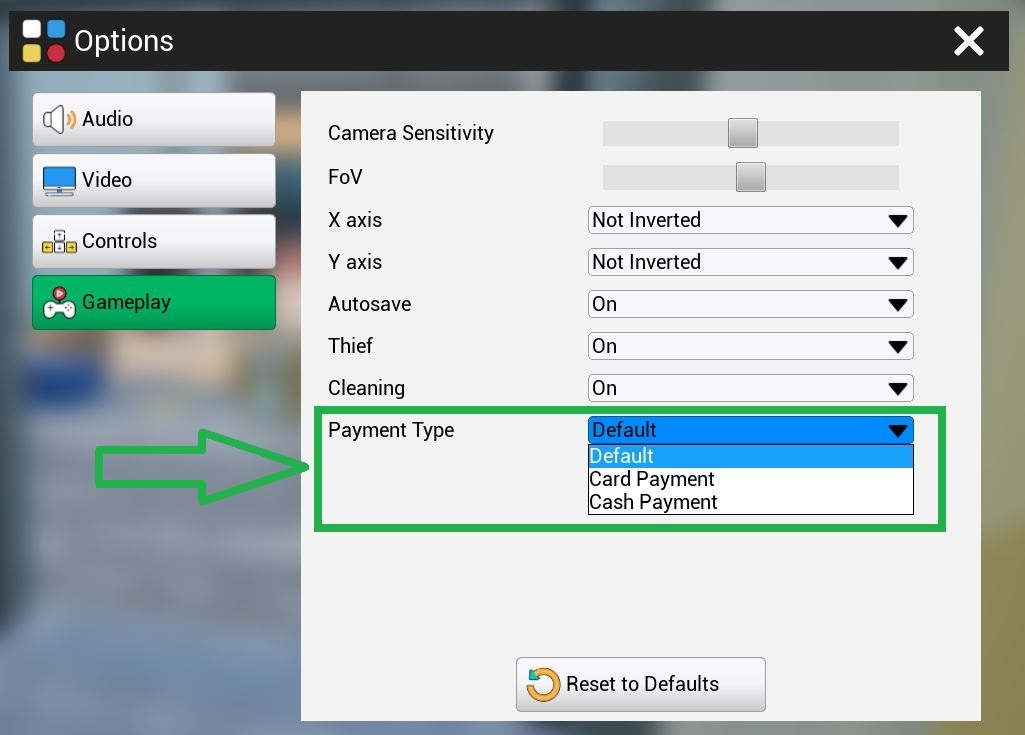
14- Pause the Stockers
You can send your stockers to a break. Meanwhile, you can design your store and warehouse. When you finish your design, you can make your stockers start working.
- Please go to the Desktop-Workers section. There is a new button (that appears when there is a minimum of one stocker hired).
- Press the button to send your stockers to a break.
- Press the button again to end their break and make them work.
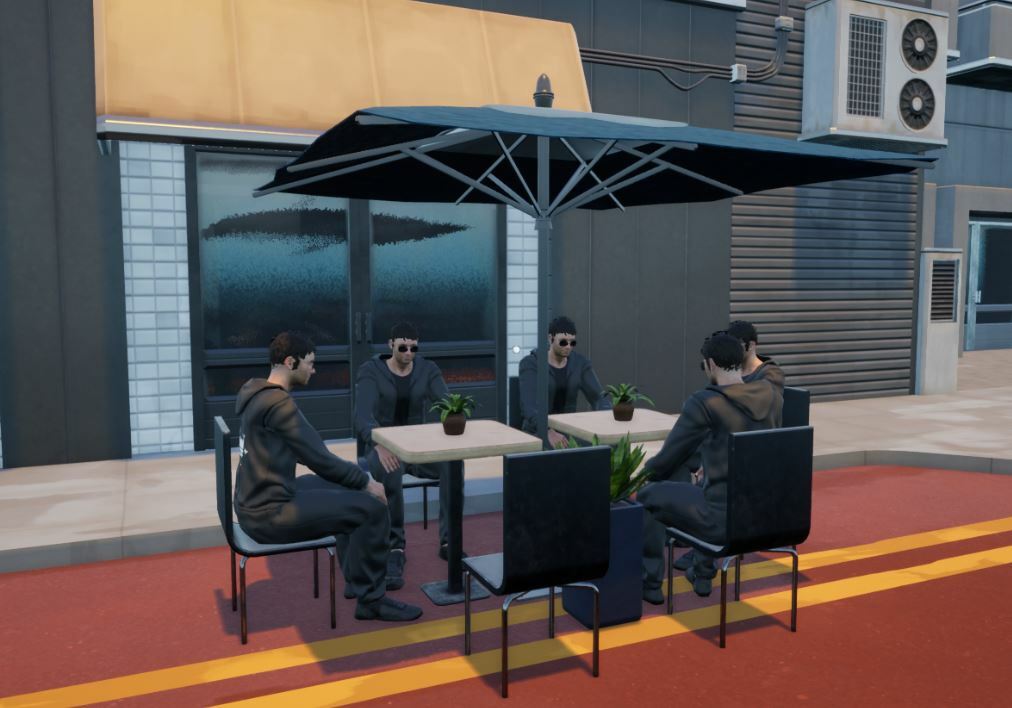
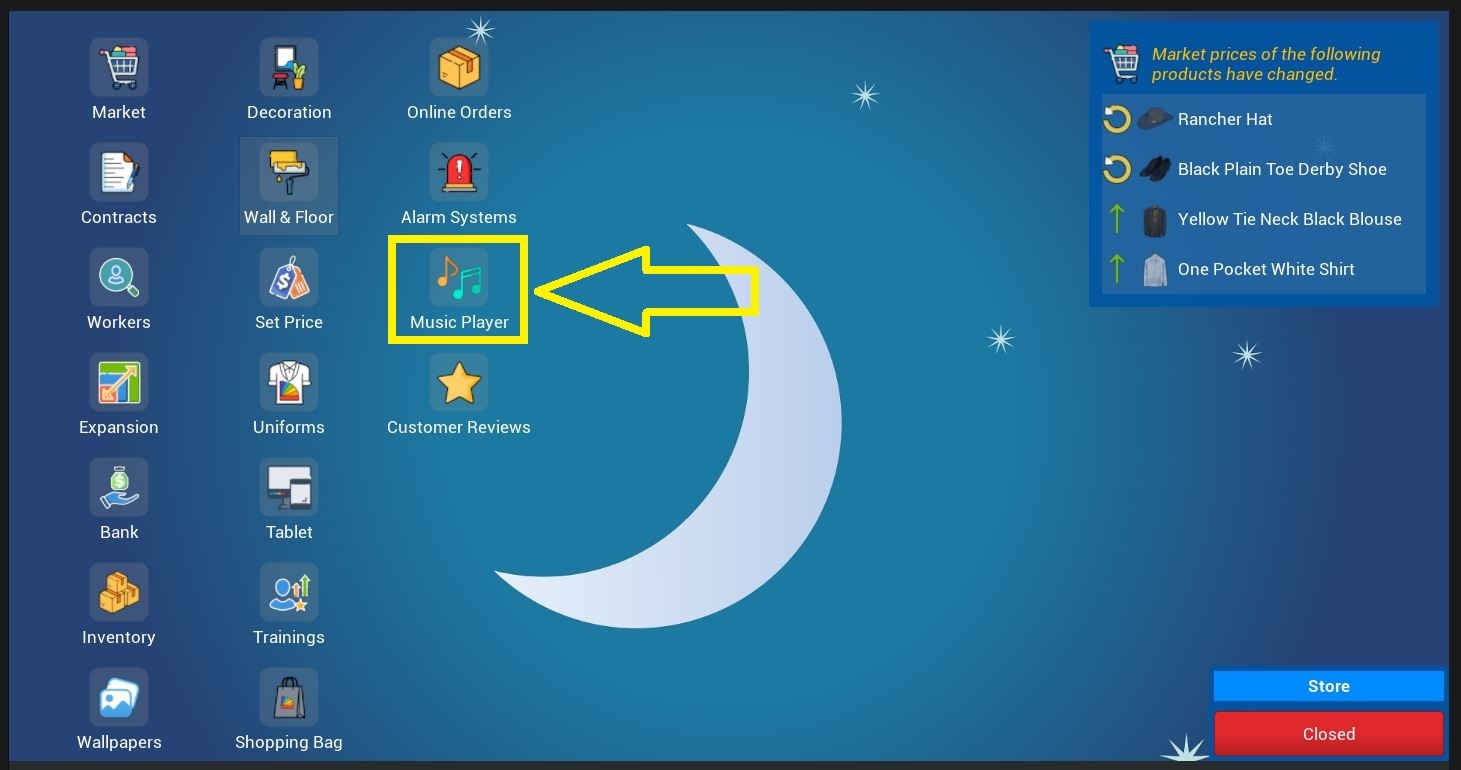
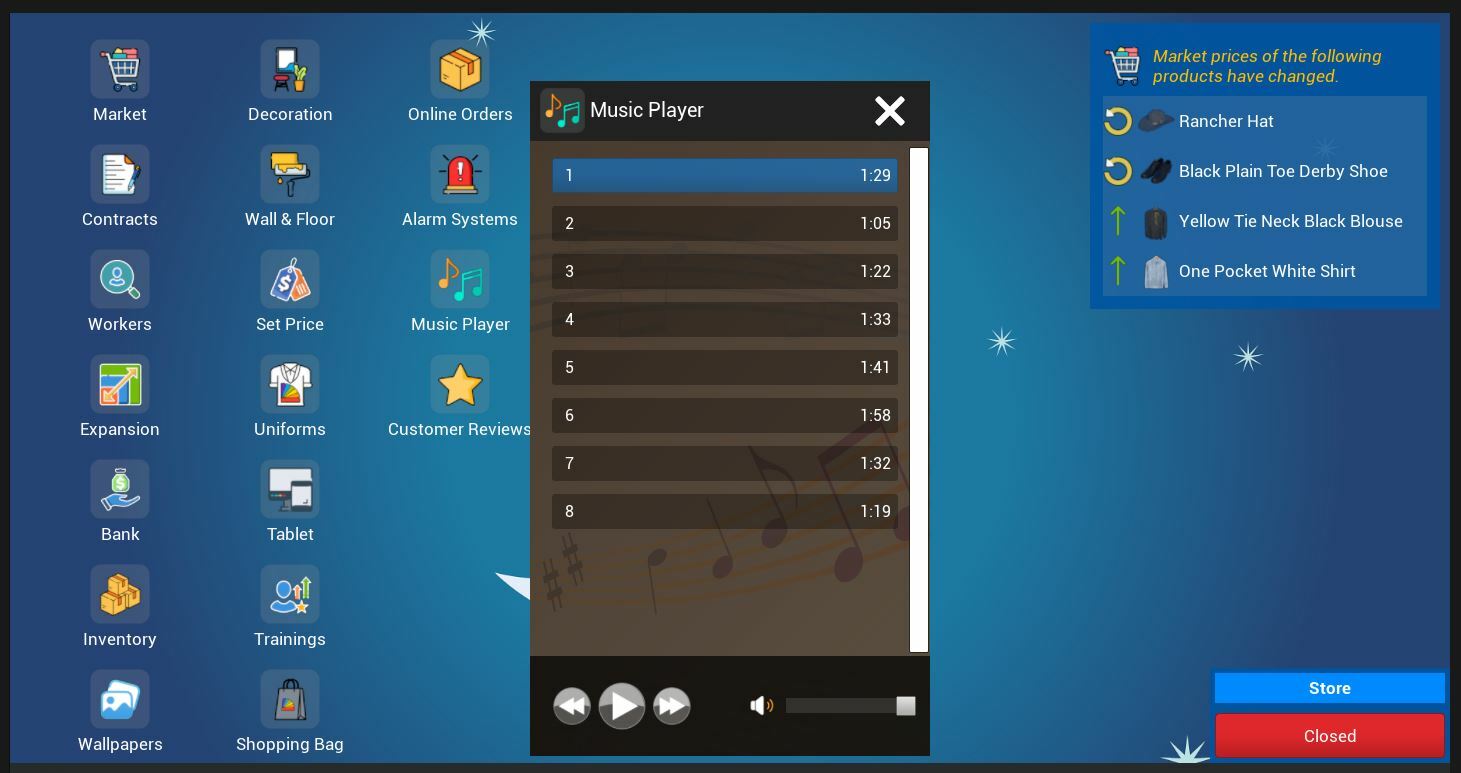
15- Speakers & Music Player
You can buy the speakers from the Market-Equipment section.
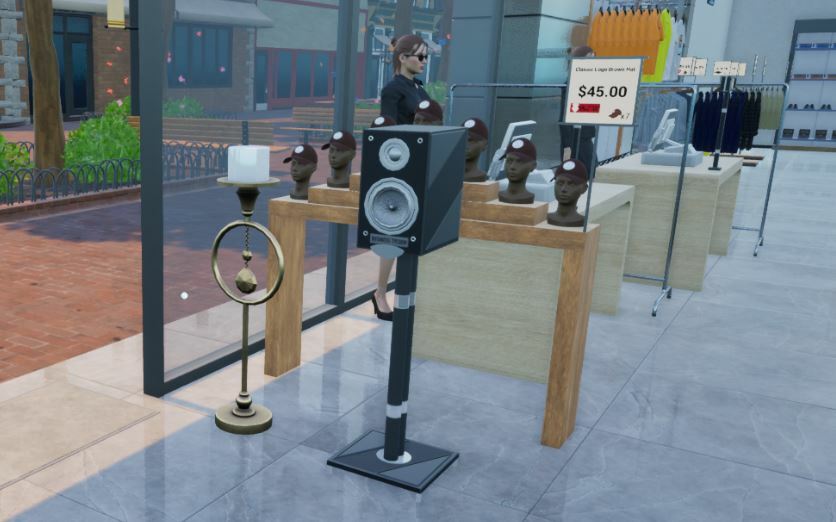
Once you place a speaker in your store, you'll be able to play the music in the store using the Desktop-Music Player.
16- Set Price - Filter Button
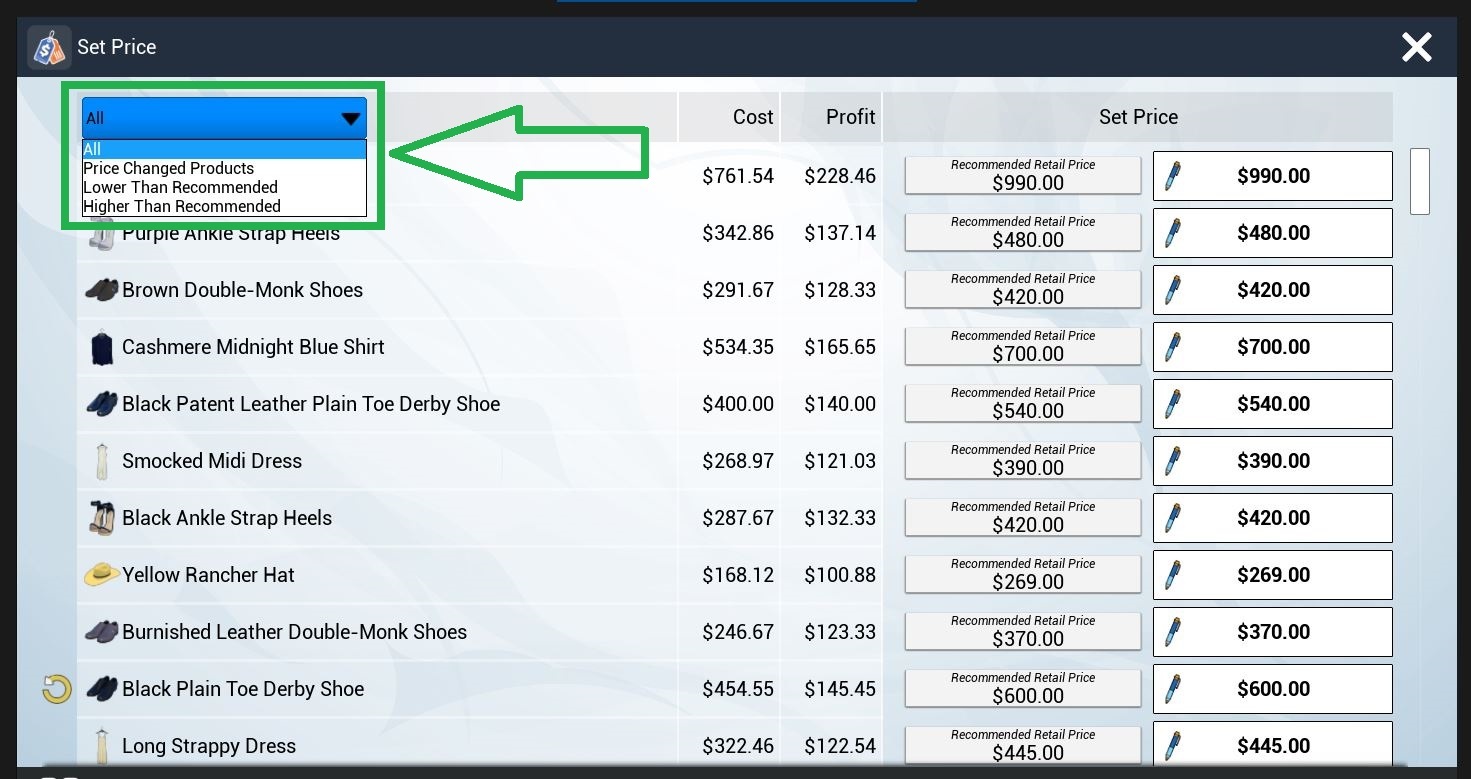
There is a filter button on Set Price.
Filters are All, Price Changed Products, Lower Than Recommended, Higher Than Recommended.
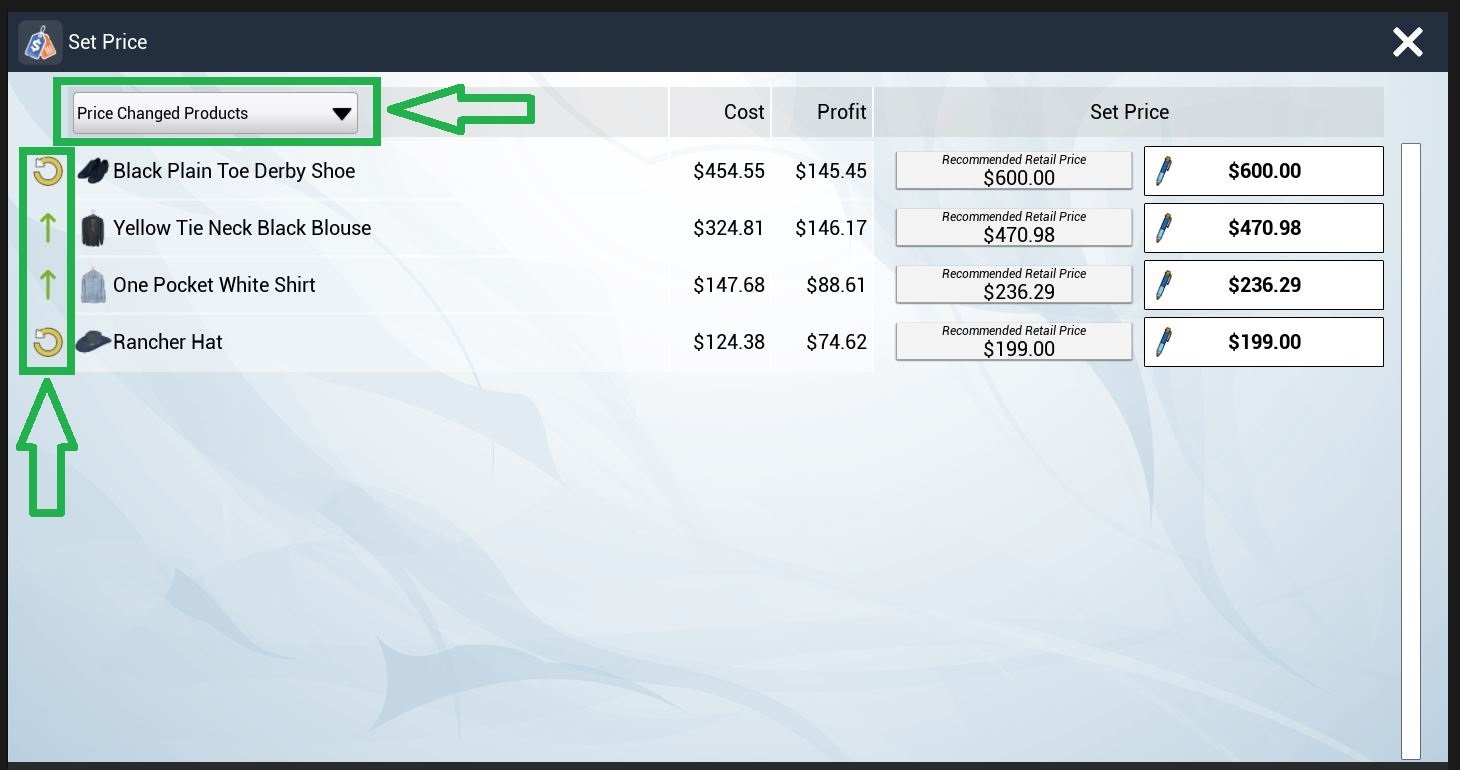
Price Changed Products filter will help you easily check the daily changes at the day start.
17- Decoration Placement (Above the wall racks)
You can place the decorations above the wall racks.
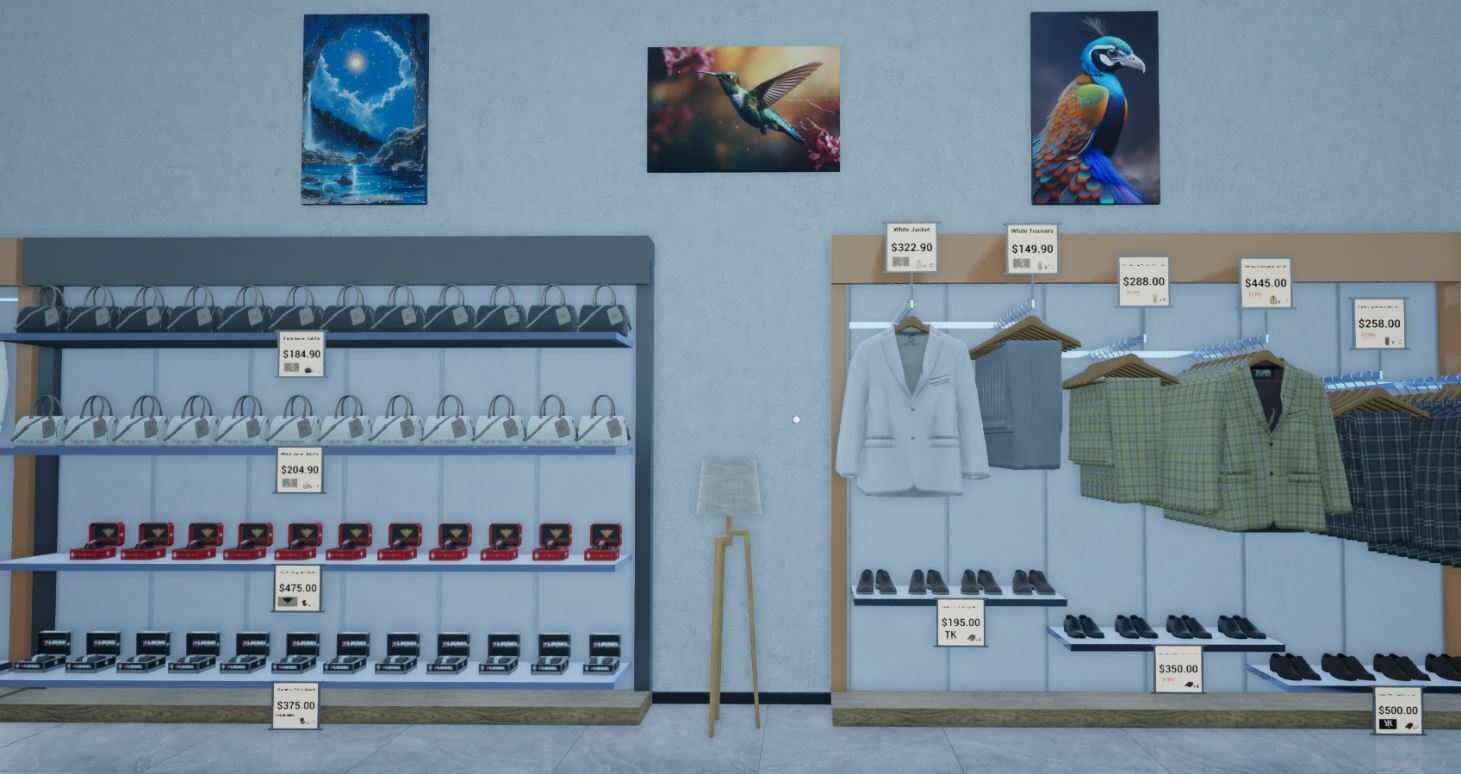
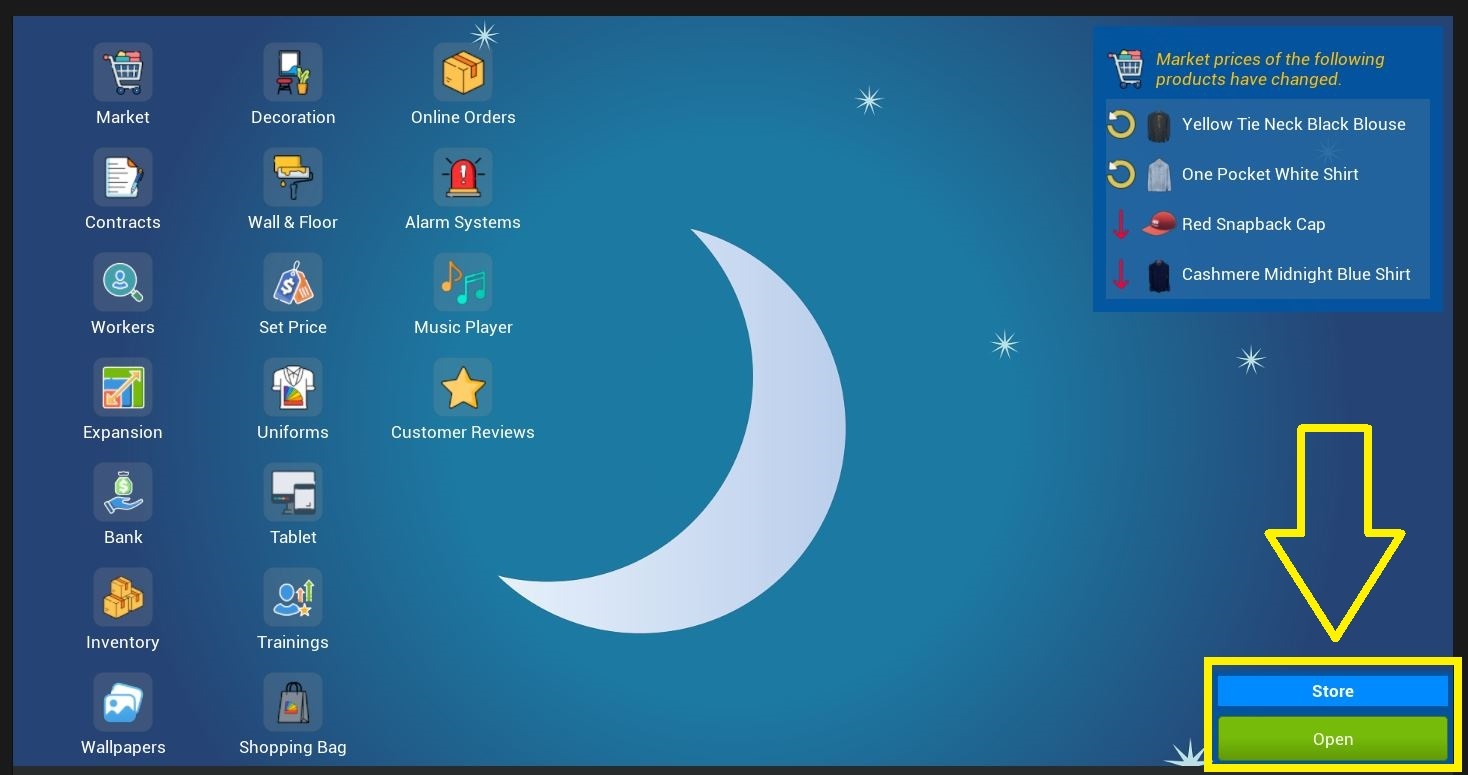
18- Computer/Tablet - Open the store
You can open/close your store on your computer and tablet.
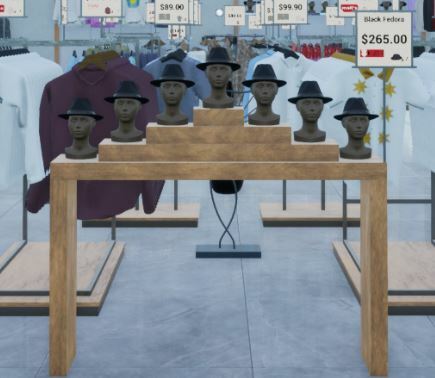
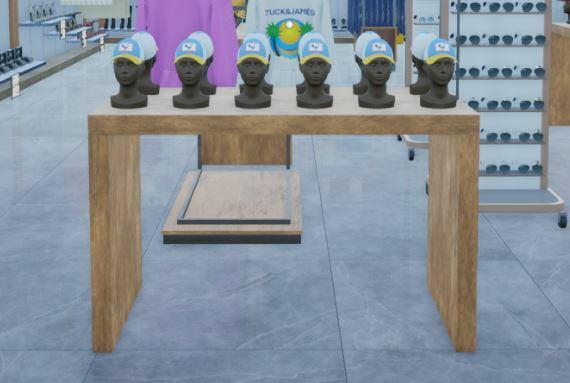
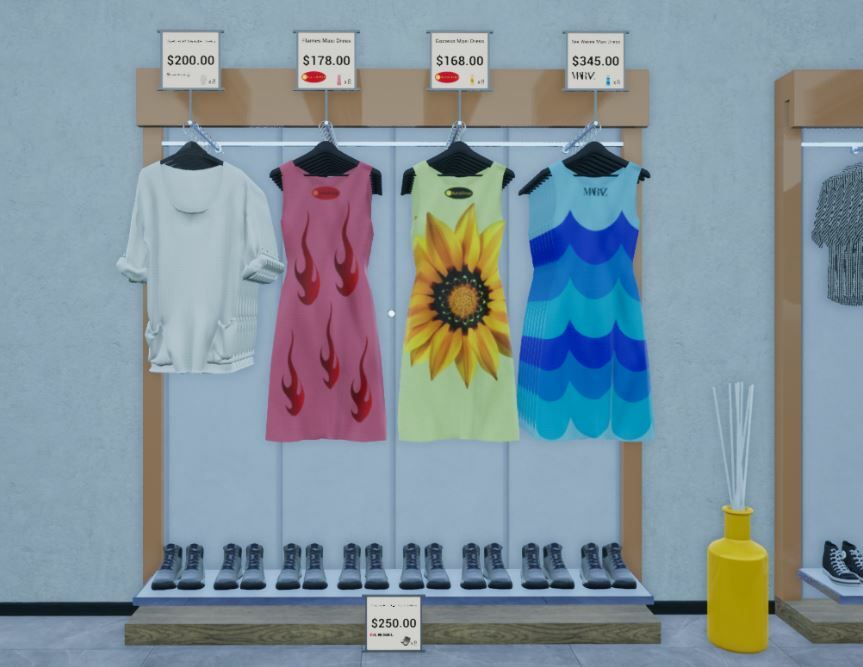
19- New Racks
3 new racks added:
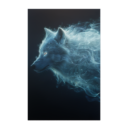
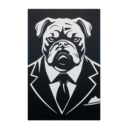
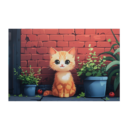
20- New Decorations
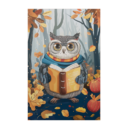
14 new decorations added:










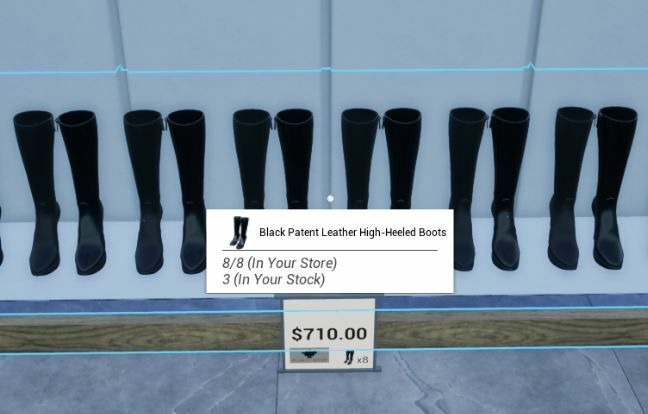
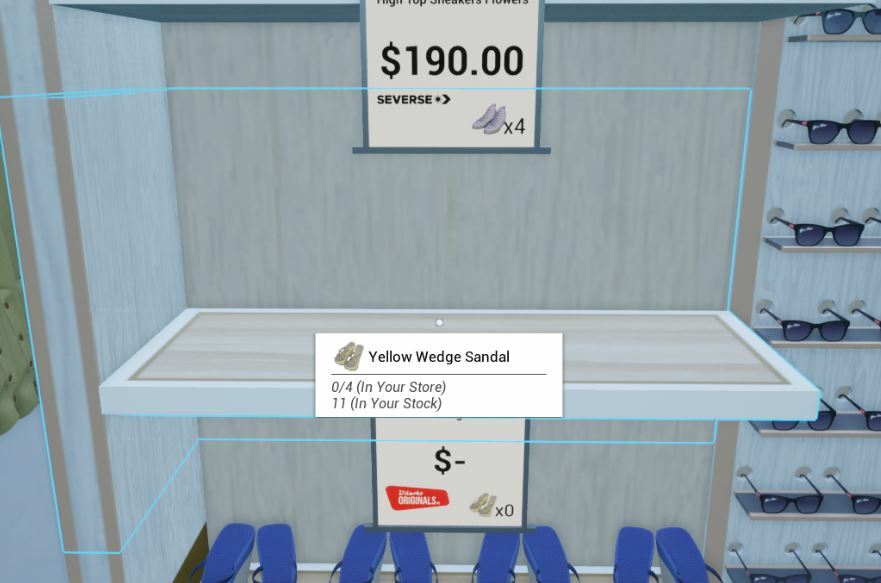
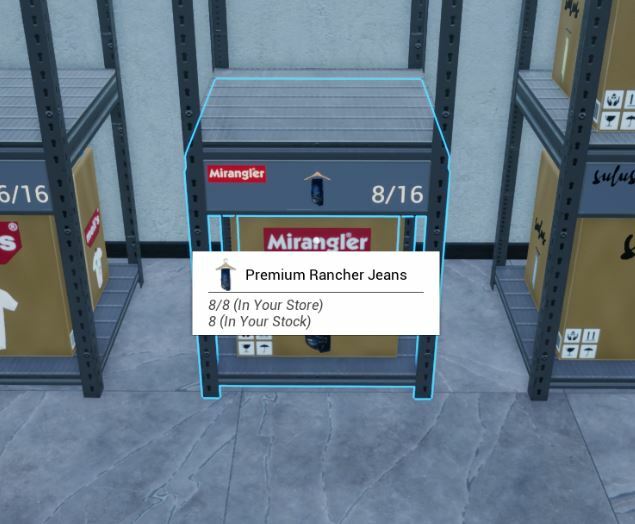
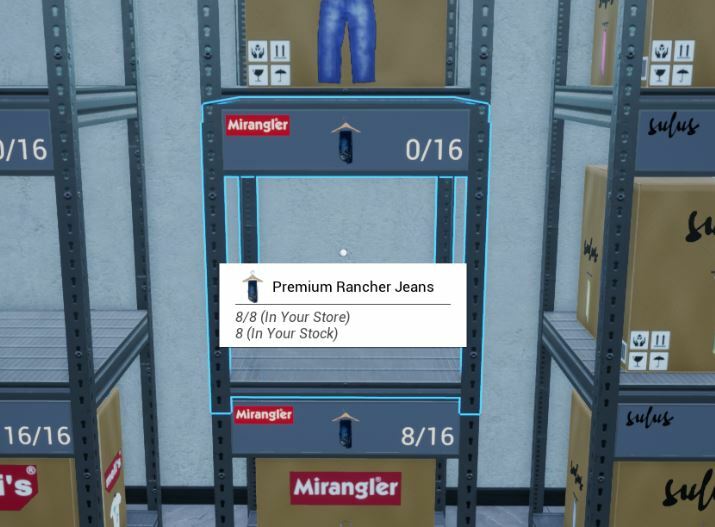
21- New Shortcut - Check Inventory
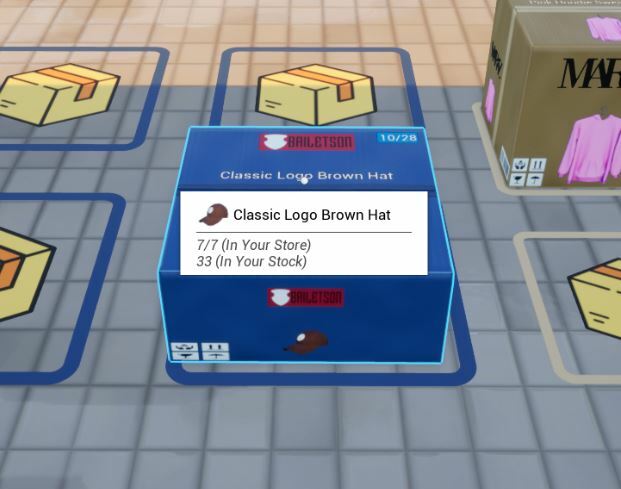
You can hold the Z-key (by default) to check your inventory.
When you hold the Z-key (by default), you can see how many products are in your store and how many products are in your stock.
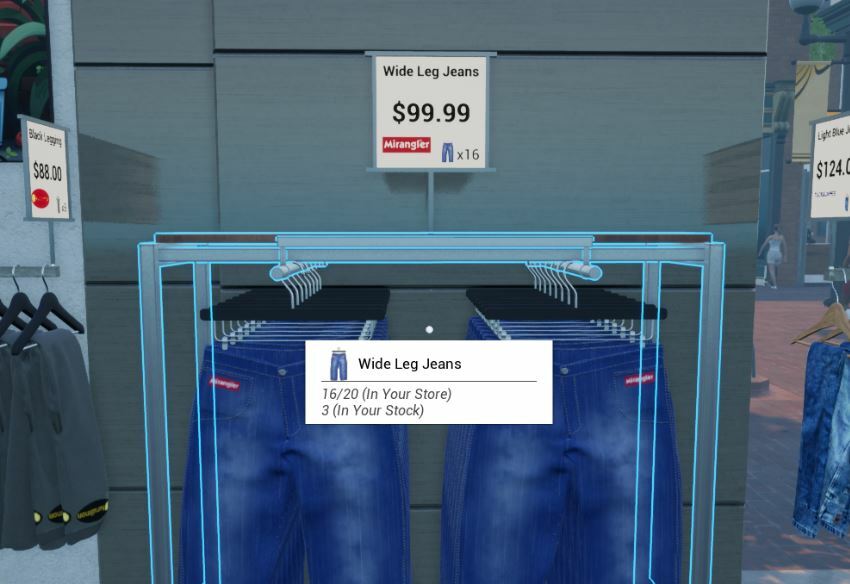
As you can see in the screenshot:
* There are 16 products on the store racks.
* This product's tagged store racks are for a capacity of 20 products
* There are 3 products in your stock.
It's Z-key by default. You can change it from the Options-Controls.
Keybinding: Options -> Controls -> Check Inventory
There are 5 ways to use this shortcut:
1- You can check your inventory when you hover on a store rack.
2- You can check your inventory when you hover on an empty store rack (but tagged with a product).
3- You can check your inventory when you hover on a warehouse rack spot.
4- You can check your inventory when you hover on an empty warehouse rack spot (but tagged with a product).
5- You can check your inventory when you hover on a box on the ground.
22- Contracts - Level Points
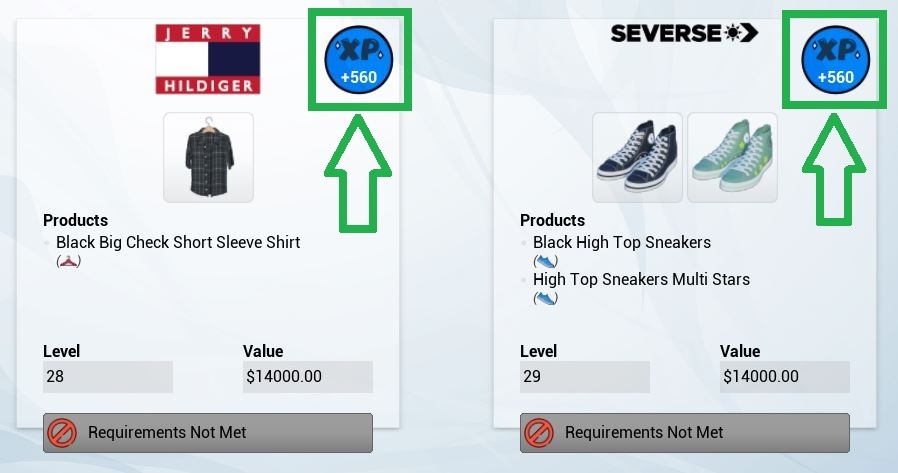
Each signed contract gives level points depending on the contract price.
23- New Shortcut - Add To Cart
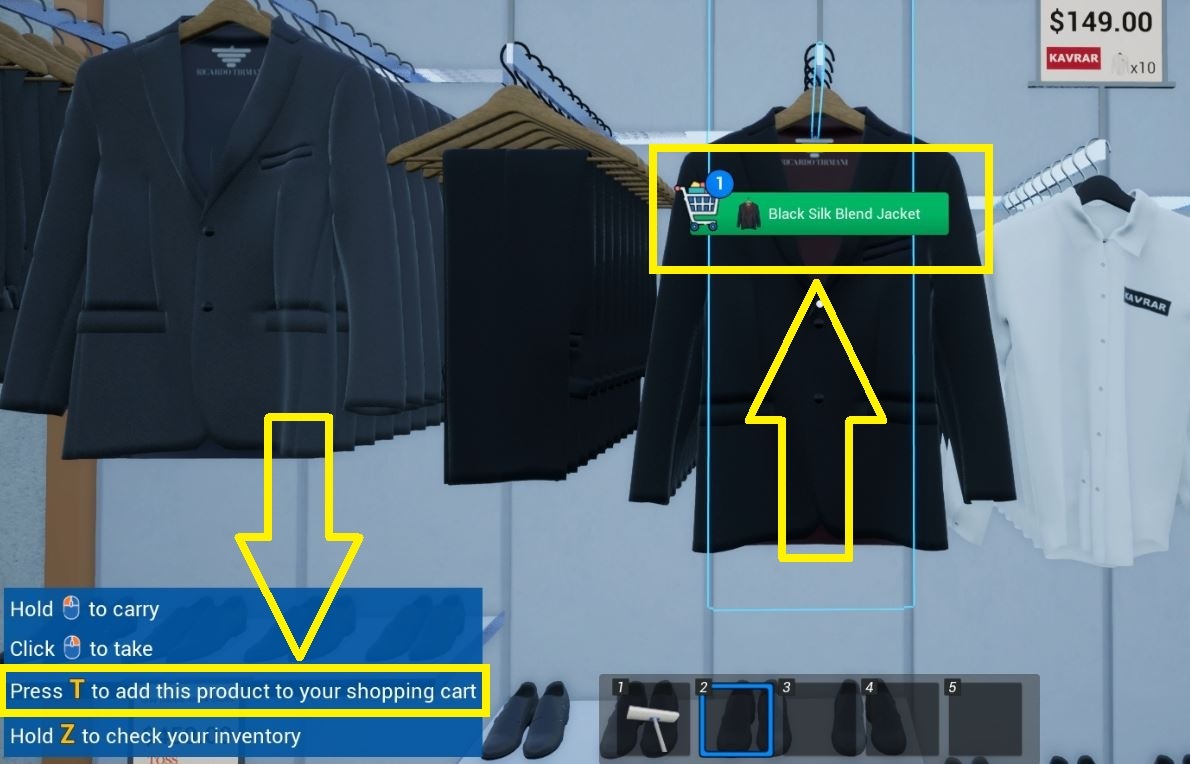
You can add any product to your shopping cart using the T-key (by default).
There are 5 ways to use this shortcut:
- When you hover on a store rack
- When you hover on an empty store rack (but tagged with a product)
- When you hover on a warehouse rack spot.
- When you hover on an empty warehouse rack spot (but tagged with a product).
- When you hover on a box on the ground
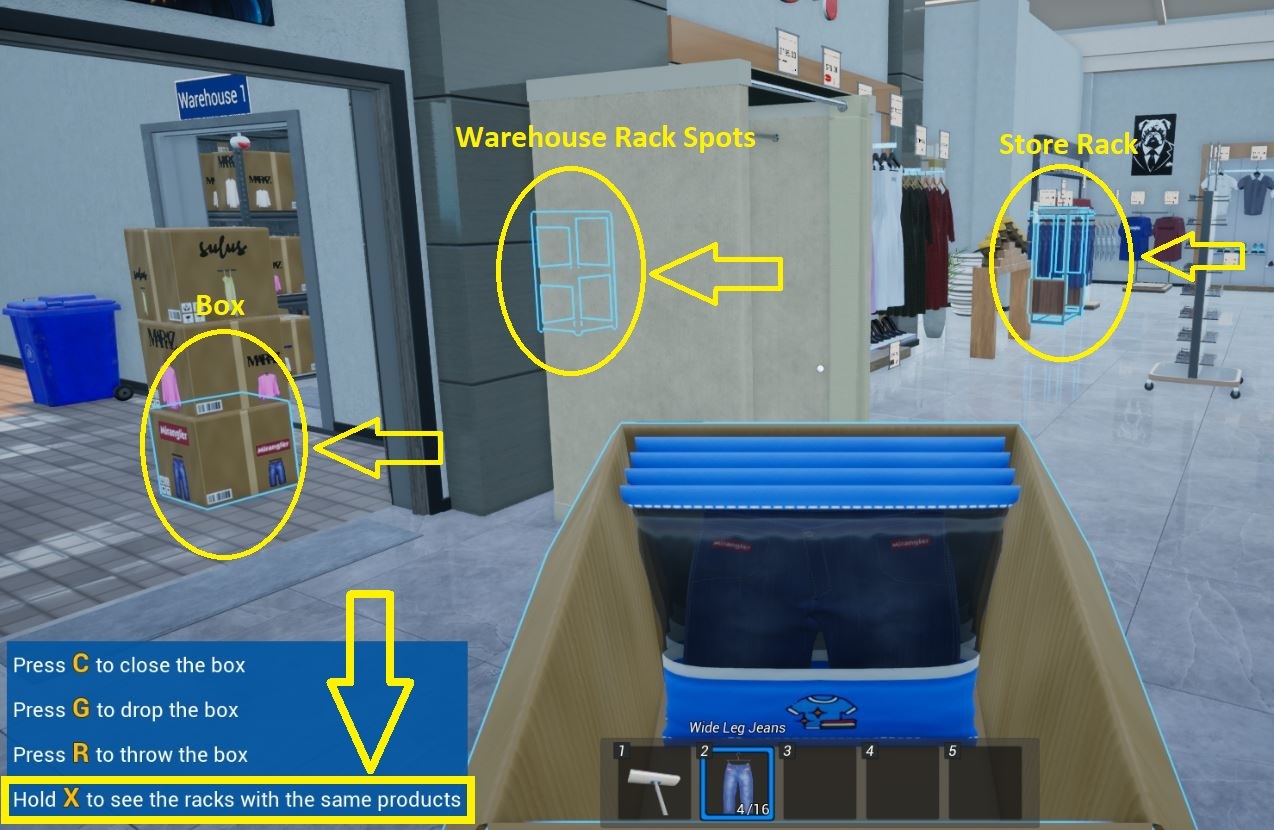
24- Highlighting Same Products
When you hold the X-key (by default), the same products (as you have in your hand) will be highlighted in the racks and boxes.