A new GammaBoost+
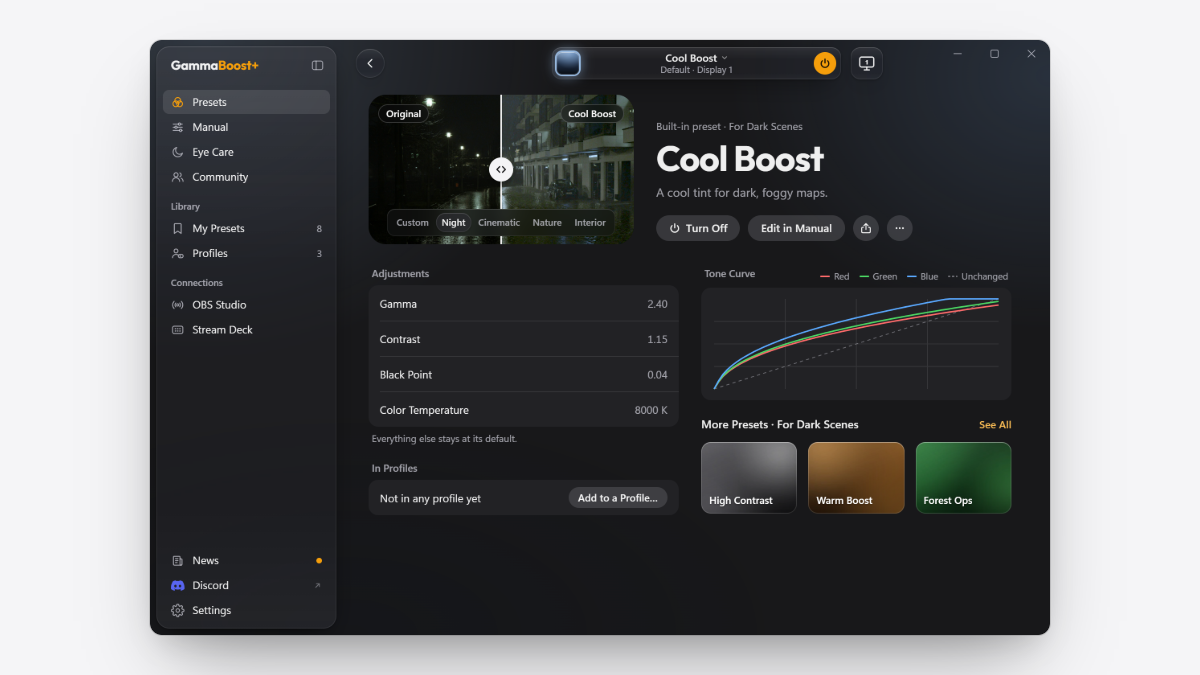
- Rebuilt around presets: a new design from the ground up, with a sidebar for Presets, Manual, Eye Care, Community, My Presets, Profiles, OBS Studio and Stream Deck.
- Light or dark: a new light look made of glass, tinted by the preset that's on, beside the dark one. Pick Light, Dark or Match Windows in Settings → General.
- Everything you set up carries over: your presets, profiles, keys and settings are all still here.
- In 17 languages: English, German, French, Spanish, Italian, Portuguese, Polish, Russian, Ukrainian, Japanese, Korean, Simplified and Traditional Chinese, Turkish, Thai, Vietnamese and Indonesian.

Presets
- See it before you turn it on: each preset has its own page with a before and after on a test scene (Night, Cinematic, Nature, Interior), or on a picture of your own game. Use Custom to capture your screen or choose a picture.
- Its page also lists what it changes, its tone curve and the profiles it's in.
- Turn a preset on with its power button, or double-click its card.
Your own icons
- Edit Icon: give a preset or a profile its own color, style and symbol, two letters, or a picture of yours, plus a banner for its card.
- Presets you share to Community keep their icon, and you can change it later.
Manual
- Adjust, Curves and Channels in one panel beside a large before and after.
- New Preset starts from scratch, or edit any preset and save it as your own.
- Show on screen sends your changes to your display as you make them, or keeps them in the preview only.

Eye Care
- A warmer screen in the evening, on a schedule, on top of whatever preset is on, with Soft White, Reading and Night Mode as starting points.
- Screen Dim turns the brightness down over any preset.
- Beside them, short facts on blue light and long sessions at a screen, with what helps.
Community
- Daily Spotlight, Trending, Newest and Creators, plus My Uploads for the presets you've shared.
- Each preset in the list shows its author's own description.
- Open a preset to see it on a test scene before you try it, along with more from the same author.
- Authors show with their Steam name and picture.
- Report a picture that shouldn't be there: it's hidden for you right away.
Tray panel
- No need to open the window: click the tray icon for a quick panel, right over your game.
- Turn the preset on or off, switch to any of your profile's presets, and slide Screen Dim.
- Eye Care, your profile and your display are a click away, along with Reset and Quit.
- Right-click the tray icon for the menu you know.

Profiles and notices
- Profiles linked to a game use the game's icon, have a starting preset, and can send each preset to its own display.
- Link a game right on a profile's page, and its switch says which preset turns on automatically when the game opens.
- A new in-game notice shows what turned on and why, at the top of the screen or where you choose.
Also
- Turn off all shortcuts: one switch in Settings → Shortcuts frees every key and mouse button for your games. Presets still change with a click in the app or the tray, and Stream Deck keeps working.
- Rainbow Mode (100 hours boosted) is bolder: rainbow colors drift behind the glass and around the preset that's on.
- Settings → Displays: pick the display presets go to, as the display button in the toolbar does.
- The Stream Deck plugin is updated.
- Under the hood: a newer Electron, for speed and security.
More from GammaBoost+
Other announcements
GammaBoost+ × FinishesFinishes · Rainbow Mode is now Finishes: eight finishes earned with hours boosted, from Steel (10 hours) to Nebula (1,000). · Pick one in Settings → Activity. It goes on the power buttons and the accents across the app. Achievements · Six new achievements, one for each finish. The 50 and 250 hour ones are now Silver Dollar and Ember Stone. · Hours you've already boosted count. · Achievements mo…Creators wanted: partner with GammaBoost+We're looking for streamers and YouTubers to partner with. Make a preset for your game and we'll feature it in the app's new Creators tab, with a link to your channel. Any channel size. As you grow with us, you can earn from every sale through your own link. Interested? Open Community → Creators in GammaBoost+, join our Discord , or email [email protected] .GammaBoost+ Update 1.6.1New in Manual · Exposure: more or less light, like a camera. Unlike Brightness, white stays white. · Shadows and Highlights: the dark and bright ends on their own, on NVIDIA's −100 to 100 scale, so values from an NVIDIA filter copy straight over. · Tint Color and Tint Strength: a tint of any color. · Sharpen: uses your monitor's own sharpness setting (most monitors allow it). It never touches t…