Thank you as always for using Textvas.
New Features
・Focus Mode
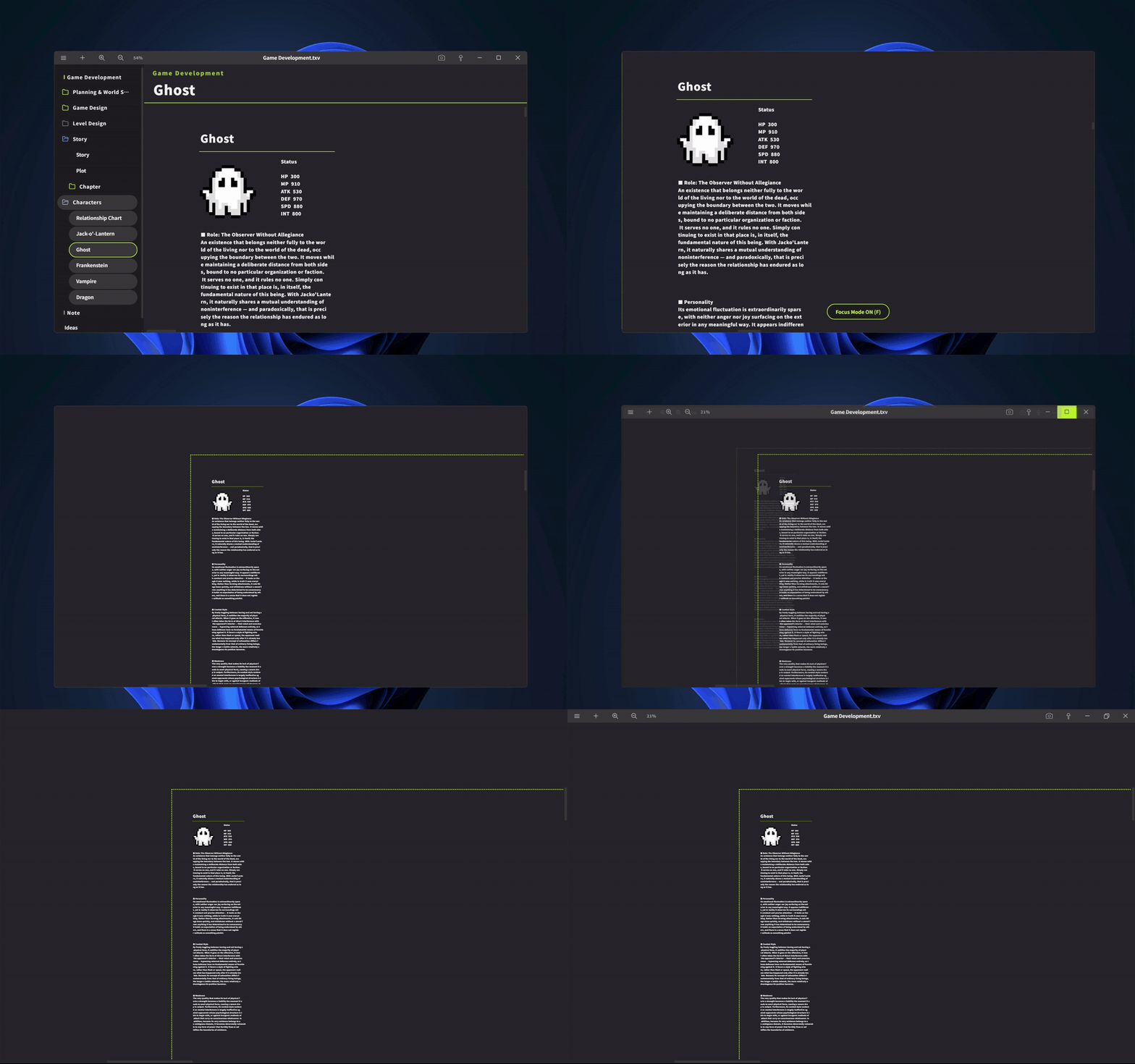
Pressing the F key now turns on Focus Mode, hiding the left sidebar, the project/board name at the top, and the title bar, so you can stay immersed while keeping the current window size. The title bar slides down when you move the mouse near the top of the screen, and automatically retracts when you move away. While shown, you can grab the title bar to move the window, and the area that responds follows your UI size setting. During Focus Mode, the canvas is virtually expanded, adding margin equal to half a real canvas on each side, letting you pan all the way to the screen center even on the left and top edges, which are normally locked. A boundary guide shows the edge of the actual work area as a dashed line in your accent color. Items placed outside the guide will be framed out in normal view, so use the dashed line as a reference for placement. Even in this mode, pressing TAB or Q will show the project name and sidebar again. Exiting the mode restores the sidebar and top display to their previous state, and automatically returns you to the real canvas if you were viewing the margin area.
・Screenshot Feature
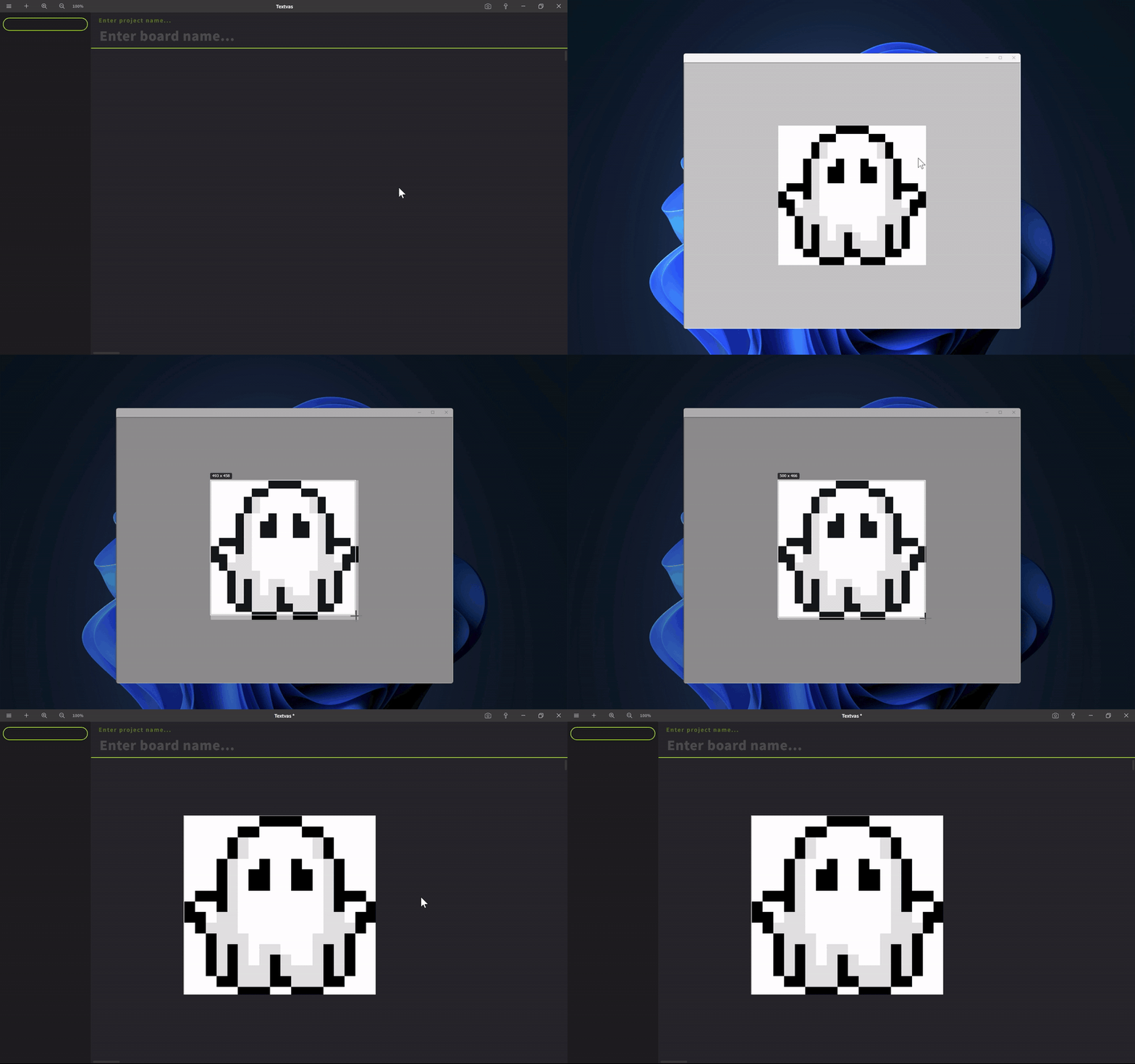
Added a feature to take screenshots using the camera icon in the title bar or Ctrl+P. Pressing the button minimizes the app, and you can capture your chosen area by dragging with the mouse. The captured image is pasted onto the currently open board, and multiple monitors are supported. The shortcut key can be freely changed in preferences, and you can cancel with the ESC key.
・Automatic Image Alignment
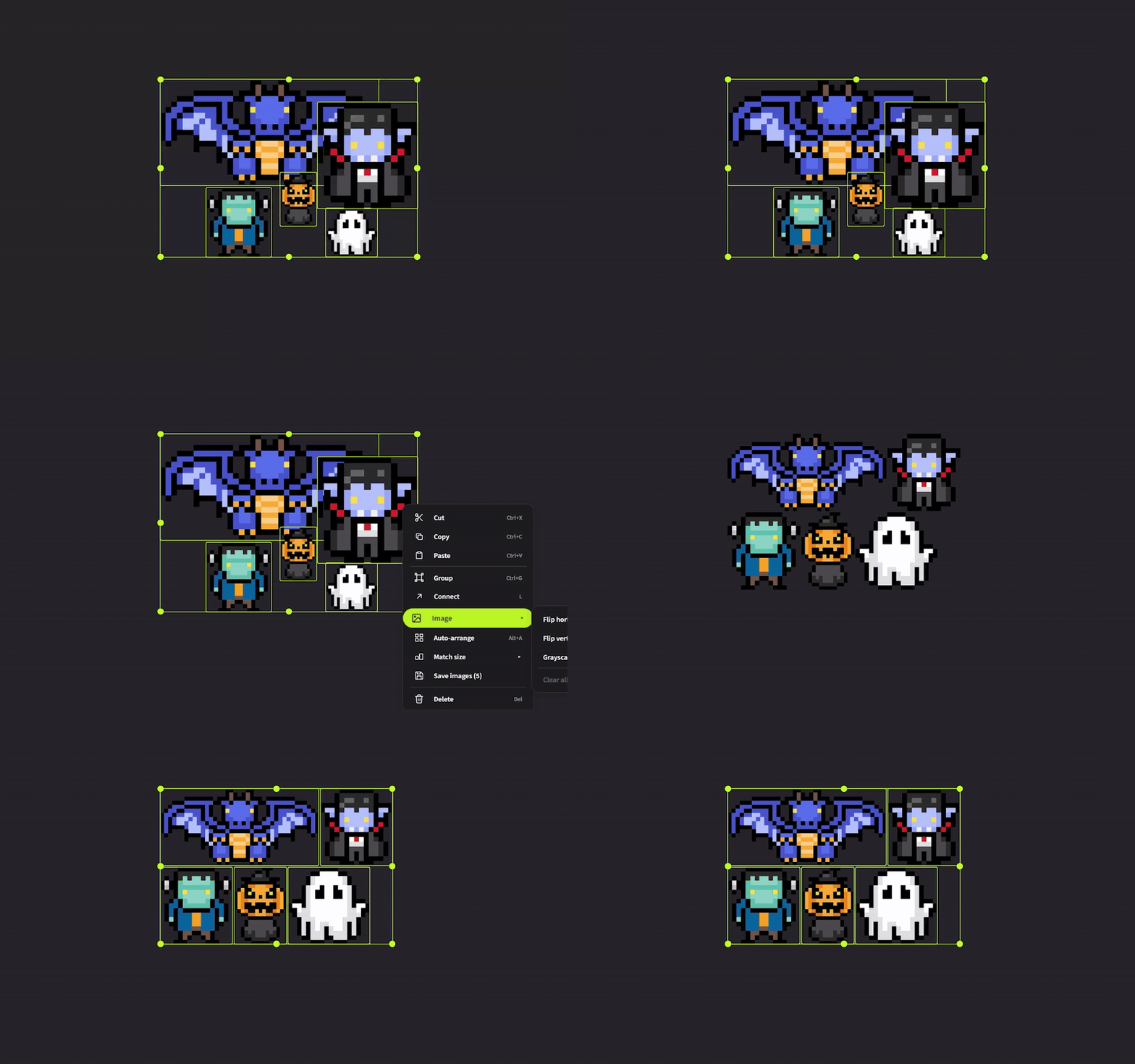
You can now neatly align multiple images together, matching their heights while keeping the current row order and left-aligning them. Manual adjustments you make after alignment (such as reducing the number of columns) are respected, and re-running the alignment will not force items back to their original order. Run it from the context menu after selecting multiple images, or with the shortcut Alt+A.
・Automatic Resizing of Loaded Images
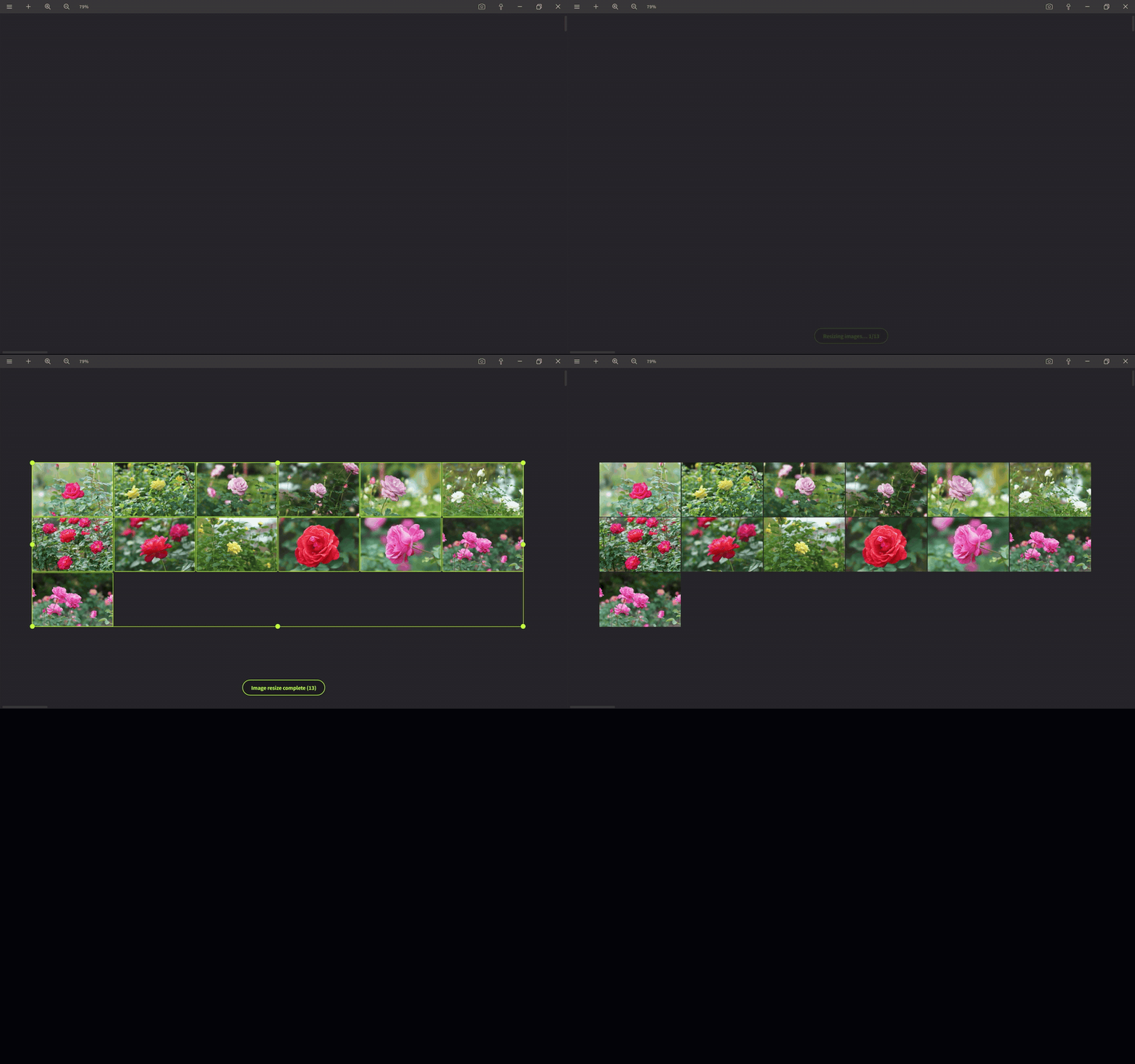
Added automatic image downscaling under Preferences → Save. If the long edge of an image brought in via drop or paste exceeds the configured value (300–2300px, default 1600px), it is automatically downscaled before being placed. This prevents freezes and save failures caused by huge images, while images within the limit are imported unmodified. When importing in bulk, progress during resizing is now shown at the bottom of the screen.
・Position of the Formatting Toolbar
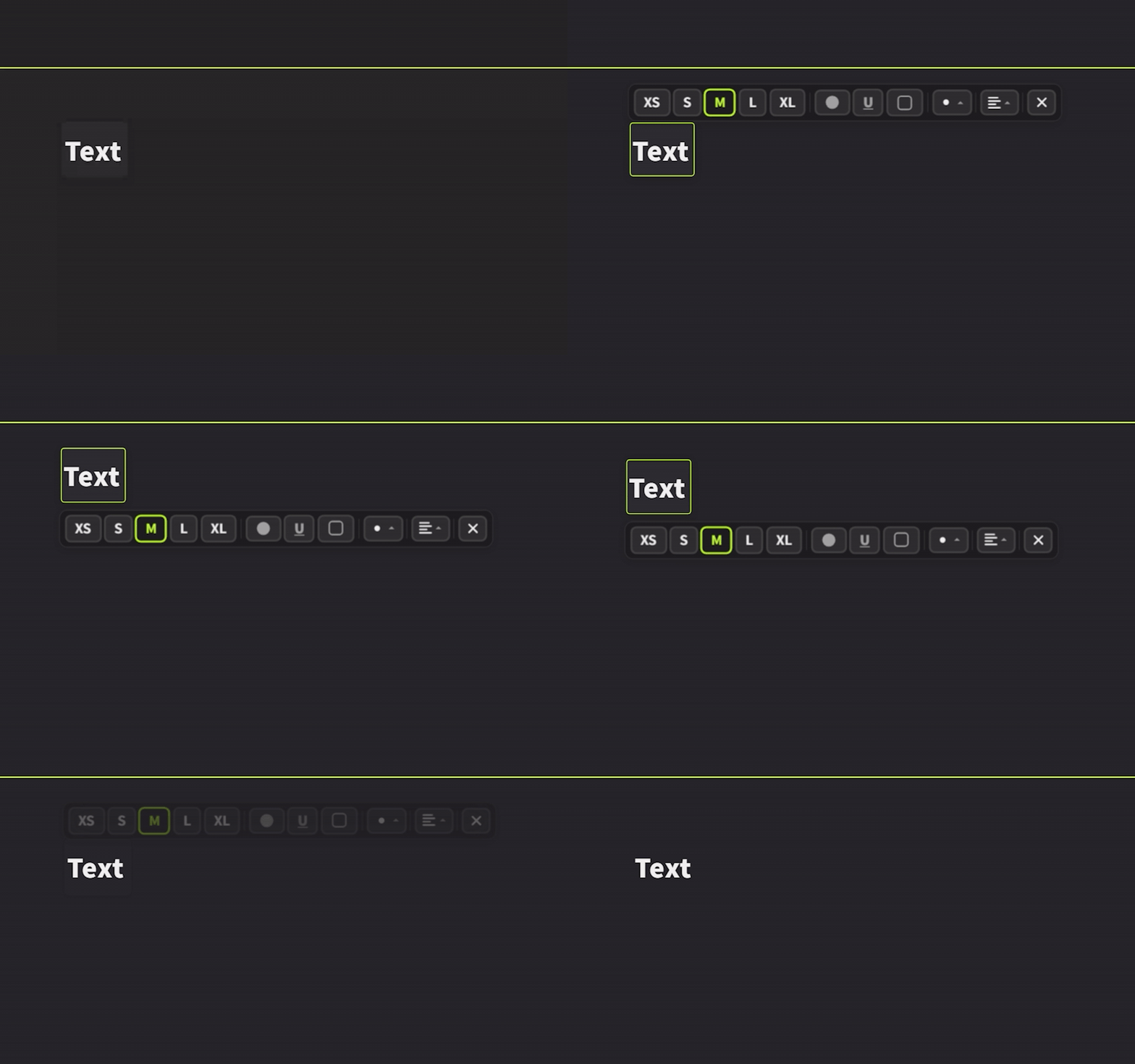
Fixed an issue where selecting text near the top edge would hide the formatting toolbar (XS/S/M…) behind the board name bar. When it doesn't fit above, it now automatically appears below the text, and follows correctly without overflowing even while scrolling.
・Including the Theme in Saved Data
When enabled under Settings → Save, the current theme (colors, patterns, sidebar, etc.) can now be embedded into the .txv file. Opening an embedded file automatically applies that theme.
・Ctrl+Arrow Key Operations While Editing Text
Added support for Ctrl+Arrow key operations while editing text, letting you move the cursor and make selections. Ctrl+←/→ moves by word, Ctrl+Shift+←/→ selects by word, Ctrl+↑/↓ moves to the start of the line (paragraph), and Ctrl+Shift+↑/↓ selects up to that point.
・Menu to Match Image Sizes
Added a menu that lets you match the size of multiple images at once, choosing from height, width, or area.
・Option to Display Image Card Corners as Right Angles
Added an option to display image card corners as right angles (no rounding). You can toggle rounded corners on or off under Preferences → Other → Image Corner Rounding.
・Image Thumbnail Cache
Added an image thumbnail cache under Preferences → System. On boards with large numbers of images, you can save the display thumbnails you've already generated to a specified folder, so that the next time you open that board, thumbnails don't need to be regenerated and the initial display fills in faster. It's enabled once you assign a save folder using the Browse button, and can be disabled at any time. When no folder is assigned, behavior is unchanged, and only the small display thumbnails are saved. If you don't plan to work with large numbers of images, you don't need to use this.
・Zoom Sensitivity Setting
Added a zoom sensitivity dropdown under Settings → Controls, letting you choose a zoom amount per wheel step from 1x to 4x.
・Expanded Zoom Limit
Expanded the zoom limit from 300% to 500%, allowing for greater magnification.
・Locking Guides
You can now lock guides from the right-click menu. Multiple selected guides can be locked/unlocked together. Locked guides no longer respond to mouse operations (move, resize, select). Locking and unlocking all guides can also be done with shortcuts (Ctrl+L/Ctrl+Shift+L).
・Export as ZIP
You can now export everything together as a single ZIP file. The ZIP contains structured data as project.json, and an attachments/ folder holding pasted images as their original files (images are referenced by file name). Each card is assigned a stable ID, and metadata such as its board, folder, group, connections (links), position/size, and the board's completion status are also included. All output is UTF-8 encoded.
・.txv-Only Display Toggle
Added a toggle in the file view to show only .txv files. When enabled, folders are also hidden, showing only .txv files.
Improvements
・Improved Performance on Image Boards
Further sped up zooming and panning on boards with large numbers of pasted images. Reworked the processing method during wheel zoom, eliminating stutter during continuous zooming.
・Window Movement via Right-Click and Hold
For moving the window via right-click and hold, shortened the hold time needed to trigger it from 0.2 seconds to 0.05 seconds. Note that you cannot move the window via right-click and hold while it is maximized. This is due to an OS-level restriction where Windows does not allow un-maximizing while the right mouse button is held down; we investigated workarounds but confirmed there is no way to achieve this safely.
・Reorganized Controls Tab
Reorganized the Controls tab to make groups of settings easier to understand.
・Changed Shortcut for Export as Image
Changed the shortcut for exporting as an image to Ctrl+Alt+E.
・Consolidated Export Features into the Top-Left Menu
Consolidated export features into the top-left menu. The two items "Export Selection" and "Export All" have been merged into a single "Export" item, letting you choose the target via a selection/all toggle within it. Exporting print guides is now possible from either selection or all, and print guides from multiple boards can now be exported together.
・Moved Board Composition to the Top-Left Menu
Moved Board Composition to the top-left menu.
・Adjusted Scale/Rotate Handles
Enlarged the scale handles for multiple and single selections, and moved the rotate handles further outward, reducing accidental rotation during resizing. Adjusted so that the area for grabbing a handle doesn't shrink even when the screen is zoomed out.
・Added Scroll Margin
Added scroll margin so that even when the screen is zoomed in, objects placed at the far right or bottom can be brought to the center of the screen.
・Connection Line "+" Add Button
Gave the "+" add button on connection lines a color-inverted, easy-to-see design.
Bug Fixes
・Refreshed the background patterns (ruled lines, grid, dots) and fixed them to the same coordinates as the canvas, so they now follow zoom and scroll together with the content. Previously, zooming could cause text and ruled lines to drift apart; this has been fixed so they always stay aligned.
・Fixed an issue where swatches remained enlarged even after closing the color palette in Preferences.
・Fixed a misleading issue where, when opening a file from Recent Files and saving via the unsaved-changes confirmation, the "Saved" notification appeared over the next file that was opened.
・Fixed an issue, caused by a previous version's preferences fix, where text in some languages' dropdown menus was cut off.
・Fixed an issue where scaling and rotation were possible even without an image selected (i.e. without resize handles shown). You can now only operate on an image after clicking to select it.
・Fixed an issue where the middle mouse button or Space+click could register as a text card selection.
・Fixed an issue where aligning images (Ctrl+Arrow) with smaller images left large gaps between them. Images are now packed tightly together with no gaps, regardless of size.
・Fixed an issue where the layout shifted slightly horizontally when switching between the theme color and other colors in color settings.
・Fixed an issue where, with wheel-zoom enabled, the wheel would still zoom in folder view. Folder view now consistently uses the wheel to scroll and Ctrl+wheel to zoom.
・Fixed so that when both the project name and board name are hidden, the header bar itself collapses. Previously, even with the board name hidden, a thin gap remained between the title bar and the board.
We will continue working to improve Textvas.