Input/Output Reordering:
For machines with multiple inputs or outputs, just drag the input or output you want to move, to the location you want to move it to, to reorder that input or output. Simple as that. No longer will you have to have your connections crossed because the inputs or outputs are in the wrong order. When reordering the inputs or outputs of an outpost, the outside and inside orders will always match, otherwise it could get quite confusing as to what matches with what if you have multiple of the same part type. You can even reorder the order of Priority Splitters/Mergers/Splurgers, however since this can get quite confusing, a box is drawn around these inputs/outputs when they are reordered to let you know that the bottom one is now high priority and the top is low priority.
Connection Styles:
In addition to the curves, you can now change connections to be either direct straight lines, or to be only horizontal and vertical straight lines. Choose the Curves, Direct, or 2D option in the settings for Connection Style.
Movable Connections:
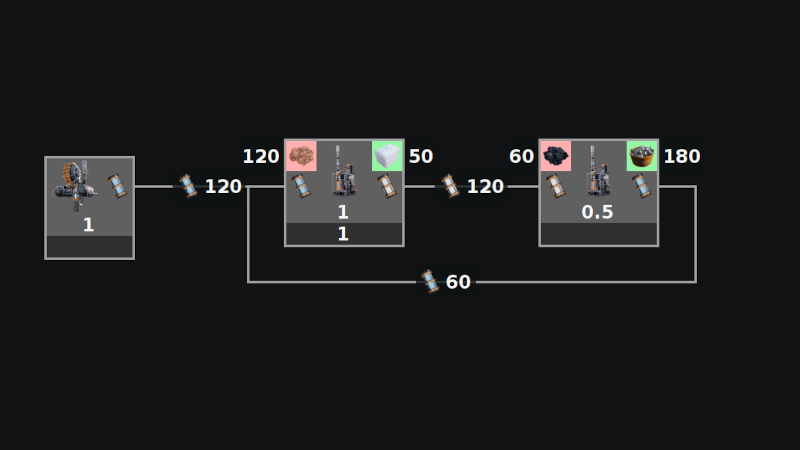
You can now adjust the path your connection takes instead of having just the default direct path. To do this, drag the label on the connection to a new location. This will now turn that label into a waypoint and anchor it at that spot and the new path will go through that spot. You can also double left click the initial floating label to turn it into an anchored waypoint. If you want another waypoint on the path, double left click an existing waypoint and a new one will be spawned. If you want to get rid of a waypoint, double right click it to delete it. If you have deleted all the waypoints and are left with just the floating label, you can now double right click that to delete the whole connection.
These waypoints will not move if you move either of the machines they are attached to, however if you have both machines selected and move them together, then the waypoints will be moved with the machines. Keep in mind this also applies when the connection goes from the output of a machine, to the input of that same machine. If the machine is not selected the waypoints will not move with it. If the machine is selected the waypoints will move with it.
In the case of something like Instant Scrap, you may want to connect an output to an input on the same machine. In this case it’s not actually possible to click the connection’s label in order to anchor it as it will always be behind the machine. If you right click the part’s connection point to bring up the menu for that connection point, you will find a new Add Waypoint option. This adds a waypoint to an existing connection. This will now allow you to move the machine (as long as that machine is not selected) to view the anchored waypoint, which then can be dragged to the location of choice. You will also find a help button there that describes the basics of waypoints. Keep in mind that the first time you add a waypoint it will be at the same location as the previous label, so it might not look like it did anything, but the difference is is that that waypoint is now anchored to a spot whereas the previous label moved with the machine.
Snap to Grid:
In the settings menu, you will find the ability to snap machines and waypoints to a grid. To turn it on, toggle the switch to on. It also allows you to specify a grid size in case you do not like the default. This will only apply to newly moved and placed machines/waypoints. If you want to snap existing machines/waypoints, use the apply button and choose which machines/waypoints you want to snap. This can allow different grids in different locations if that pleases you.
There are two grids, one for machines and one for waypoints. You can make them the same or different, such as if you want finer grain control over waypoints for example.
Connection Align:
Right click a part’s connection point to bring up it’s menu. If there are any connections to other machines, you will have the option to Align With Connection. This will move the machine such that the connection is aligned with the other connection point. If there are no waypoints the connection line will be a perfectly flat horizontal line.
Drag Sensitivity:
This is part of an older feature. When trying to click something that can also be dragged, if the mouse moved more than 1 pixel between button down and button up, it would register it as a drag instead of a click. This made it hard for some people to click. A while back I adjusted that value to be 25 pixels, so you would need to move the mouse at least 25 pixels before it registered as a drag instead of a click. Now you can customize that value in the settings menu.