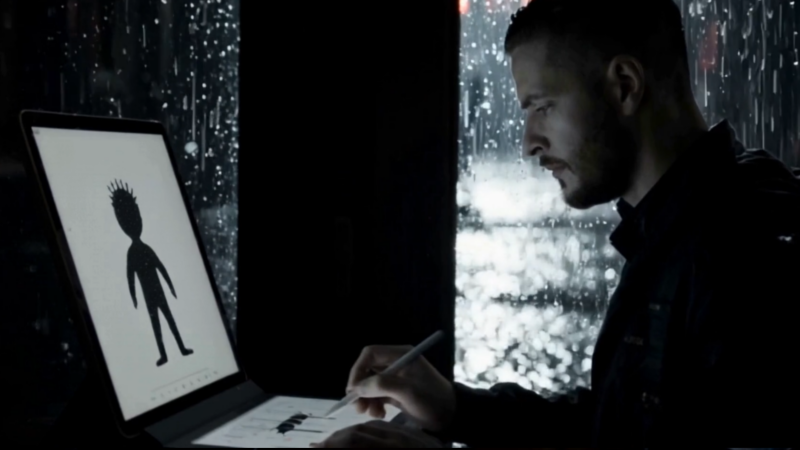
We’ve just released two brand-new animation tutorials for Arttista, designed to help you fully understand and control the animation system from the ground up.
These lessons focus on mastering Arttista’s frame-by-frame workflow, timeline organization, interpolation control, and professional animation principles like squash and stretch.
🎬 Tutorial 1 – Understanding Animation in Arttista
In this lesson, you’ll learn how animation truly works inside Arttista. Even though it’s vector-based software, all animation is built frame by frame — and understanding this is the key to mastering it.
You’ll learn:
How frame recording works in Arttista
How object changes are automatically recorded in the current frame
The difference between hiding and resetting objects
How to control object visibility forward and backward in the timeline (F6, F7, F8, Ctrl+F6, Ctrl+F7)
How to create and navigate keyframes (Ctrl+F2, Ctrl + Arrow keys)
How interpolation works and how to apply it (F2)
How to adjust interpolation types (linear, ease-in, ease-out, ease-in-out)
Why interpolation must be reapplied after changing its settings
How to select specific frame ranges in the timeline
How to move animation ranges to new positions (Shift + Alt)
How to duplicate animation ranges (Alt)
How to re-interpolate after moving keyframes
How to fix leftover animation data at the original position
A special tip about hiding objects and restoring them correctly
By the end of this tutorial, you’ll have full control over animation timing, visibility, interpolation behavior, and timeline organization, keeping your projects clean and efficient.
🏀 Tutorial 2 – Timeline Exercise: Squash, Stretch & Motion Control
In this hands-on exercise, we animate a bouncing ball to explore essential animation principles and refine motion control inside Arttista.
You’ll learn:
How to create and organize keyframes
How to move entire objects across the timeline
How to apply and refine interpolation using F2
How different interpolation types affect acceleration and deceleration
How to replicate frame ranges to extend animation
How to create seamless loops
How to apply squash and stretch for dynamic motion
How to modify object shapes in specific keyframes
How to duplicate frames efficiently using Alt + drag
How to animate internal elements to simulate rotation
How to refine motion to create the illusion of full rotation
By the end of this exercise, you’ll understand how to combine timing, spacing, interpolation, and shape deformation to create fluid, dynamic, and professional-looking animations.