Hello Adventurers! 👋
The update is just around the corner and before it’s launched we’d like to give you some heads up about the feature most of you are eagerly waiting for- the modding process. Therefore, this detailed instruction is issued! 👍
To get the process started, first you have to enter the new biome section.
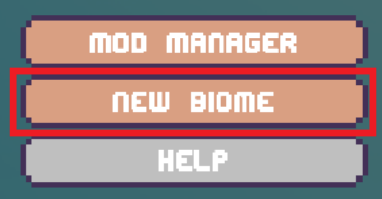
When you open it, a big panel will appear. It has all the details about the biome you create. Let’s take a closer look at each of them, shall we? 🔍
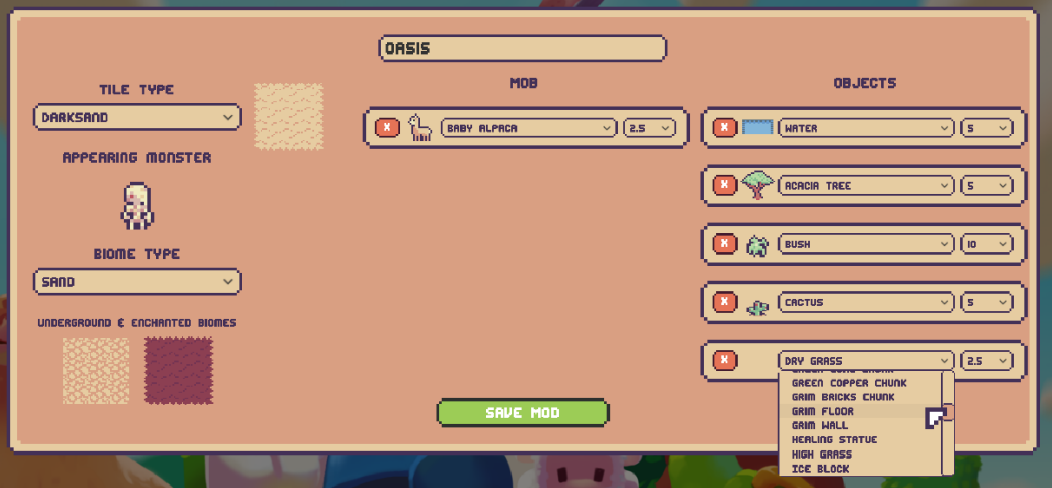
Biome Name
Choose a suitable name for your creation in the center top tile.

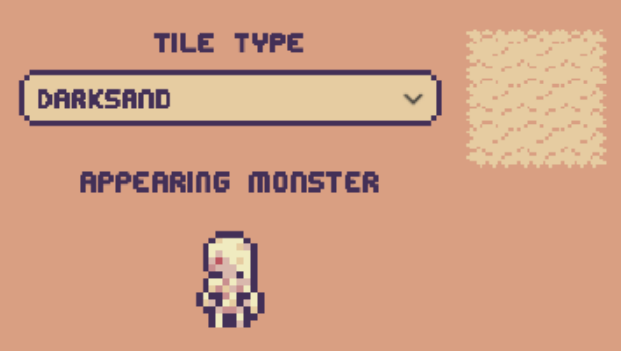
Tile Type
This option dictates what type of ground will appear on the biome and consequently, what kind of monsters you will encounter there. 🧟
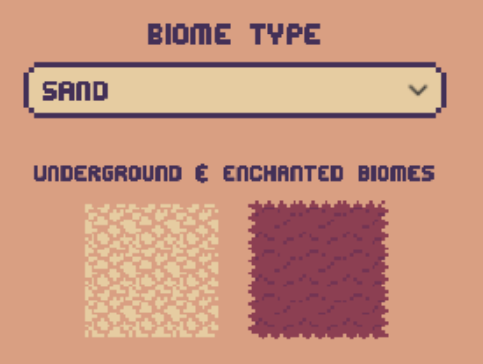
Biome Type
Once you’ve decided on the type of tiles you have to decide what kind of Underground and Enchanted Dimension appears on your map. Select carefully to ensure the best effect! 💪
Mobs and Objects
Once you’ve decided the looks on your biome we can start putting objects on it. On the biomes, you can put up to one mob and 5 objects. Each of them has a number right to their name. This number represents the percentage chance for appearance of said object/mob.
Let’s take a look at the example below and talk about the math behind it 📝
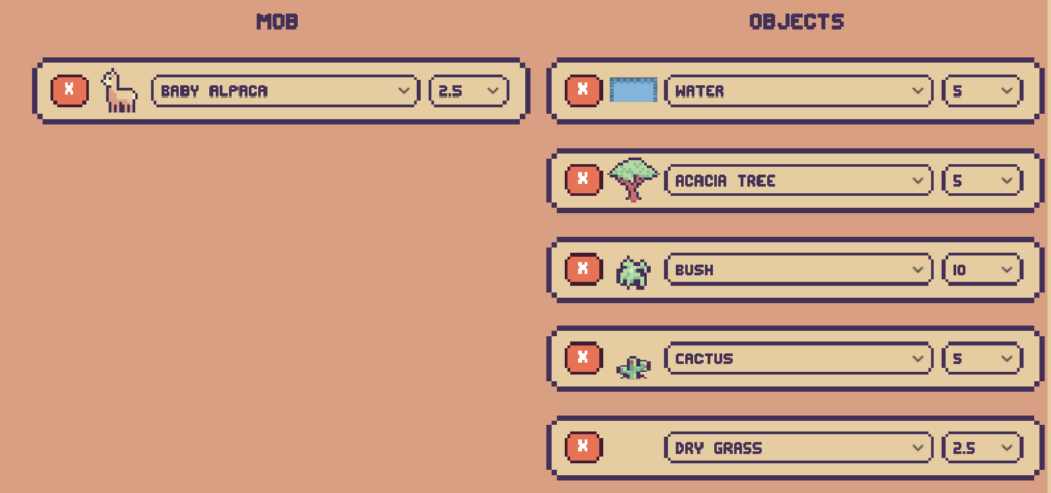
As you can see, the objects’ chances in the example sum up to 27.5%. What it basically means is that about 27.5% of tiles on that biome will have some kind of object or mob when placed, while the rest of the area will have nothing on it. In the area taken by objects, the chances for each specific one are proportional to the values you’ve set.
Make sure to have the total chances for the objects not exceed 100%, otherwise some objects will not be able to spawn at all. 🙁
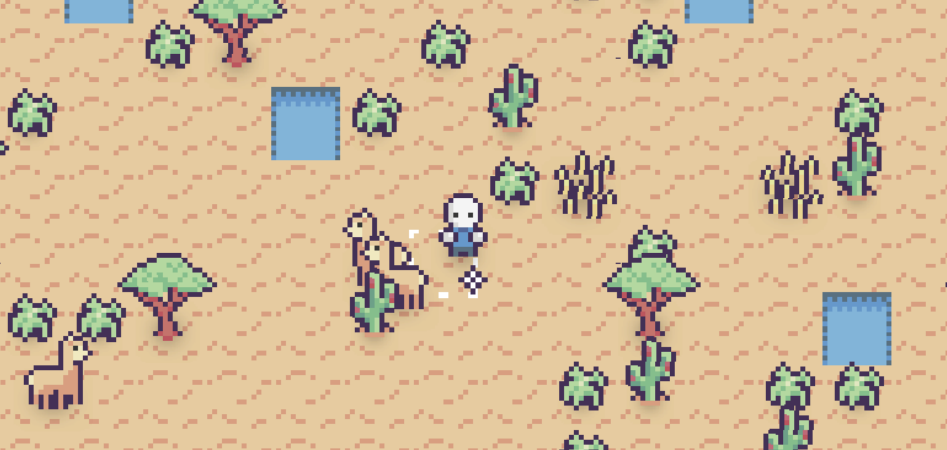
And this is how the final effect looks like:
How to disable/enable or remove mods
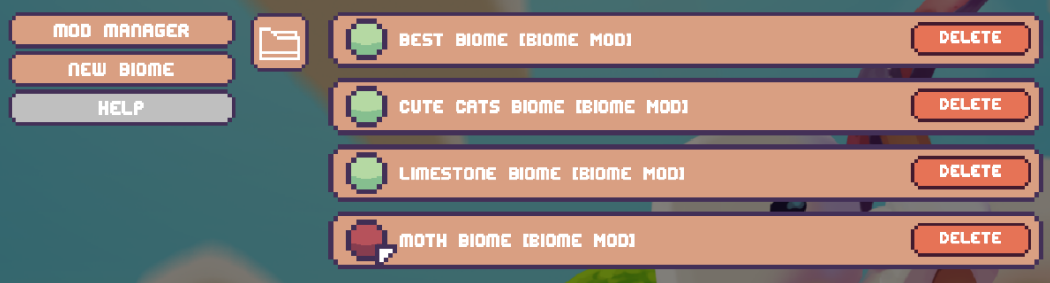
if you have mods that you don’t want to activate at the moment, you can simply disable or enable the ones you’d like to have again in the mod manager section.
All you have to do is to click on the big round button to the left of the mod’s name and voila, you’ve disabled/enabled the mod. By the way, to the right there is a delete button in case you don’t want to have the mod anymore.
How to add mods
We’d like to allow the community to share their creations with each other hence we introduced a way to add mods created by other people. The procedure is really simple and quick.
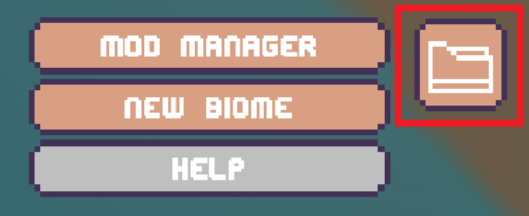
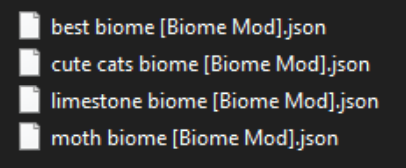
All you have to do is download the mod file you’d like to add and place it in the mod folder. Pay attention so that the file has the .json format. To quickly enter this folder, all you have to do is to click the folder button in the Modding window in the game. Don’t forget to restart your game afterwards 🙂
Hopefully you’ll find this instruction helpful and clear. If you’d like us to address any other mechanic in the game with an instruction news like this one don’t hesitate to let us know on our discord 👇 or in the comments/discussions on Steam. We can’t wait to see where creativity takes you once the patch is released.
See you soon,
Miniland Adventure Team