Task Force 0.7.6.2216
Task Force · published · build 26363926
Put Down the Mouse
Task Force's menus now work entirely with a controller. Boot the game in Steam Big Picture on your TV, grab your controller, and go: find a server, set up a lobby, change your settings, challenge another team on the ladder, and jump into a match without ever reaching for a mouse or keyboard.

There's nothing to turn on. The moment you touch your controller, the whole interface switches over: a highlight shows where you are, and the bottom right of the screen shows exactly what each button does right now. Move the mouse and everything goes back to the way it was. Pick the controller back up and you're right where you left off.
Built for the D-Pad
The d-pad takes you everywhere, and it goes where you'd expect it to:
- Pages are split into sections (a panel, a row of buttons, a list), and the d-pad moves through them the way you see them on screen. Leave a section and you land on whatever is nearest in the next one.
- Go back the way you came and you end up exactly where you started.
- Hold a direction to keep moving.
- Every page opens in a sensible place: on its tabs if it has them, otherwise on the first thing at the top left. From a list's tabs, down takes you straight to its first entry.
- Leave a page and come back, and your selection is right where you left it.
Buttons That Make Sense
- A selects, B goes back. B on any page is its BACK button, and from the menu it takes you home.
- LB / RB switch tabs from anywhere on a page. When the tabs themselves are selected, little arrows show you can flip through them with the d-pad.
- LT / RT scroll long lists a whole screen at a time: servers, rankings, ladder standings, Workshop pages.
- X and Y do the handy extras, and the prompts always tell you what they are on the thing you're on: join a server, jump to your own rank, open a team, remove a map, view screenshots, and more.
The button prompts match the controller you're holding, so Xbox and PlayStation players both see their own buttons.
Find a Game
The server browser is fully controller friendly. Flip between Dedicated servers and Hosted lobbies with the bumpers, scroll the list and sort it. Press A on a server to open its page with everything about it, or Y to join it straight away. Locked servers ask for the password right there.
Host Your Own
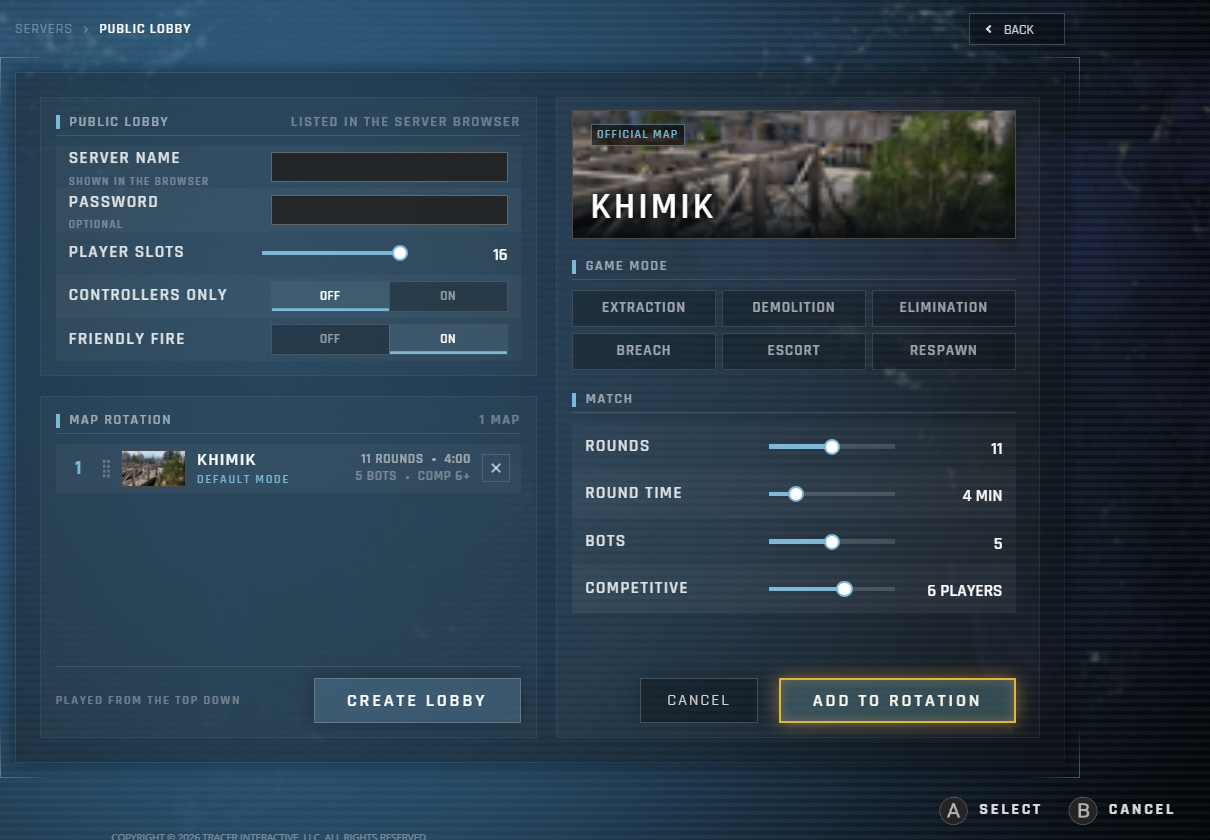
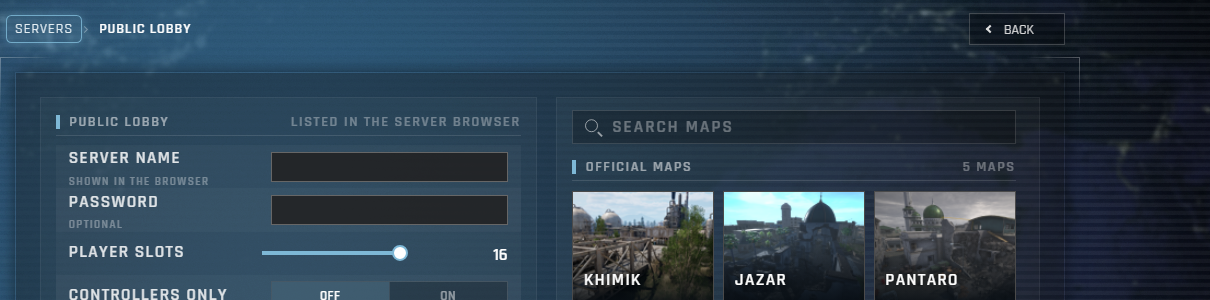
Setting up a lobby works just as well. Name your server, set the player slots, pick your maps and build your rotation, all from the controller. Press A on a map to set it up, and ADD TO ROTATION drops it into your list, which scrolls to show it. You can also reorder the rotation: press A to pick a map up, move it with the d-pad, and press A again to drop it in its new spot.

The most important buttons on every page, like CREATE LOBBY and ADD TO ROTATION, light up with a gold ring when you're on them, so you always know when you're about to do the big thing.
Typing Without a Keyboard
Any time you need to type, whether it's a server name, a password, a team name or a chat message in game, press A and Steam's on-screen keyboard pops up. Type it in and you're straight back in the game, already on the next thing you need, like the button to confirm.
Settings, Your Way
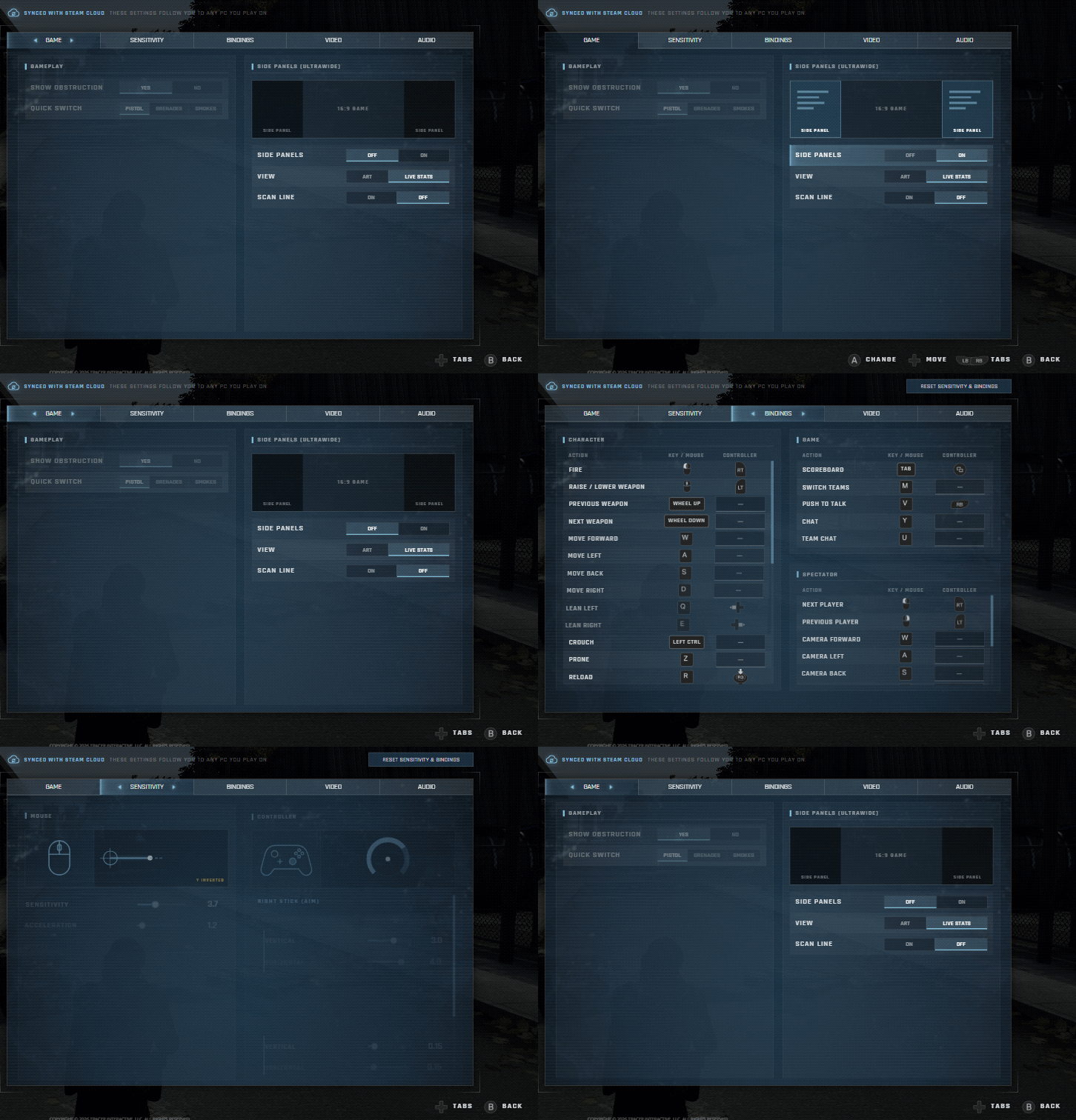
Every setting can be changed with the controller. Sliders and multi-choice settings are protected from accidental bumps: press A to grab one (arrows appear on either side), adjust it with the d-pad, and press A or B to let go. On/off switches flip with a single press of A.
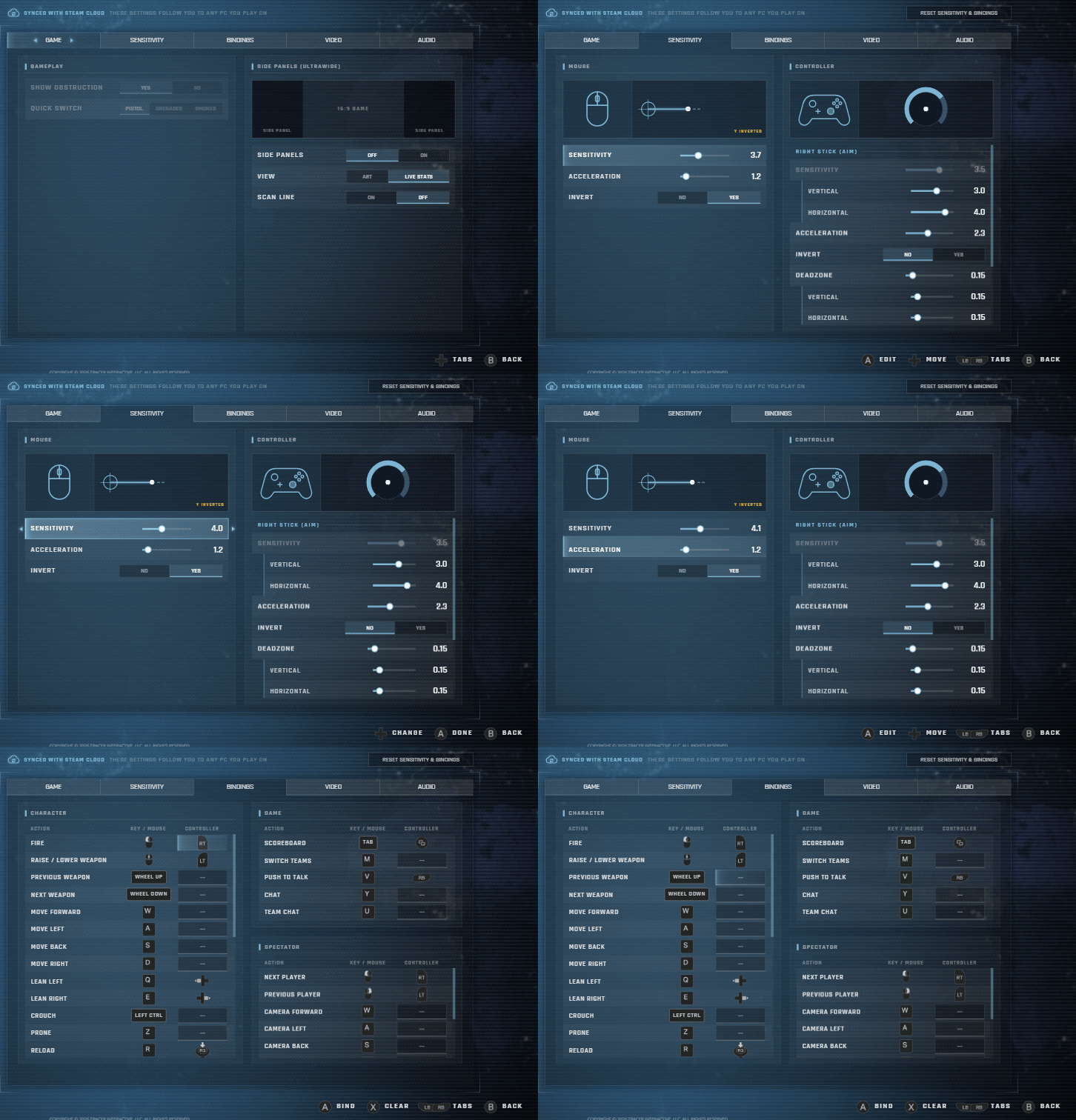
Controller sensitivity, deadzones and acceleration all have their own settings, separate from your mouse.

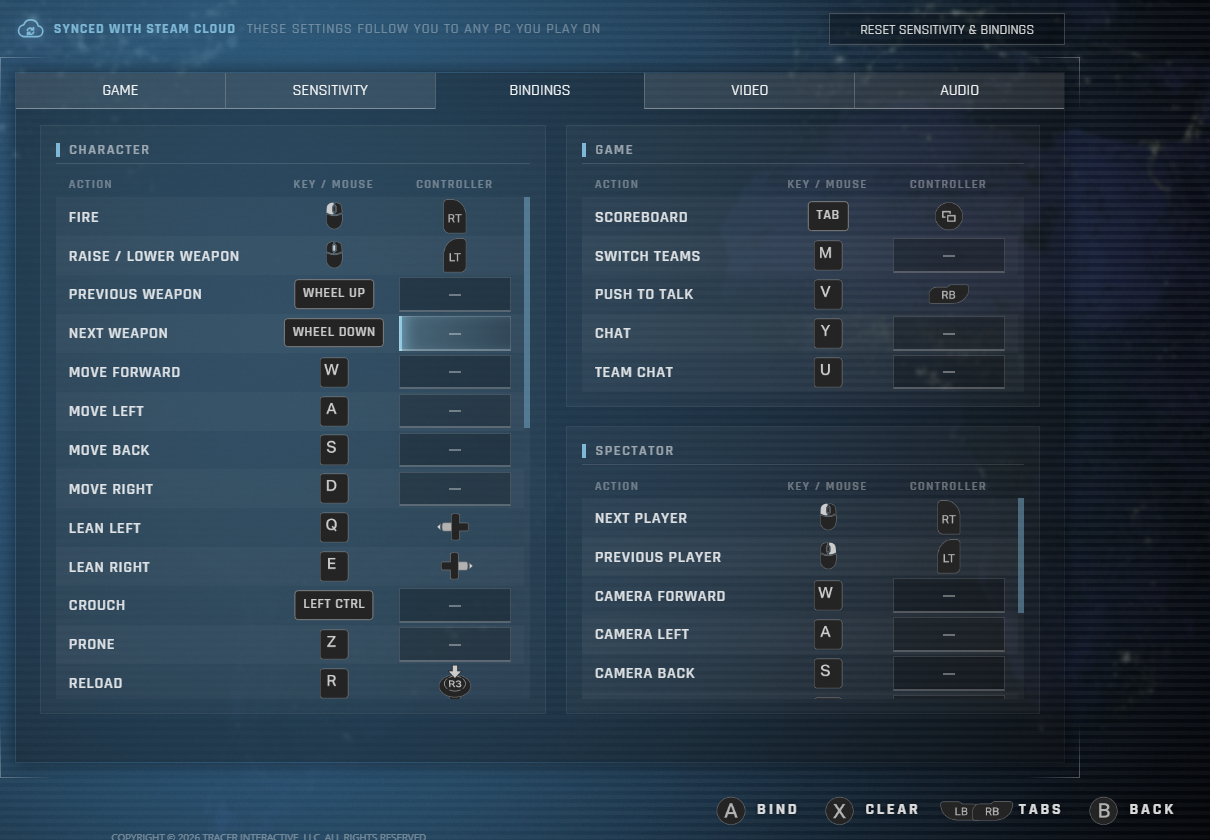
And on the Bindings tab, only your controller's buttons are selectable while you're using the controller. Press A to rebind an action, or X to clear it.
The Whole Competitive Ladder
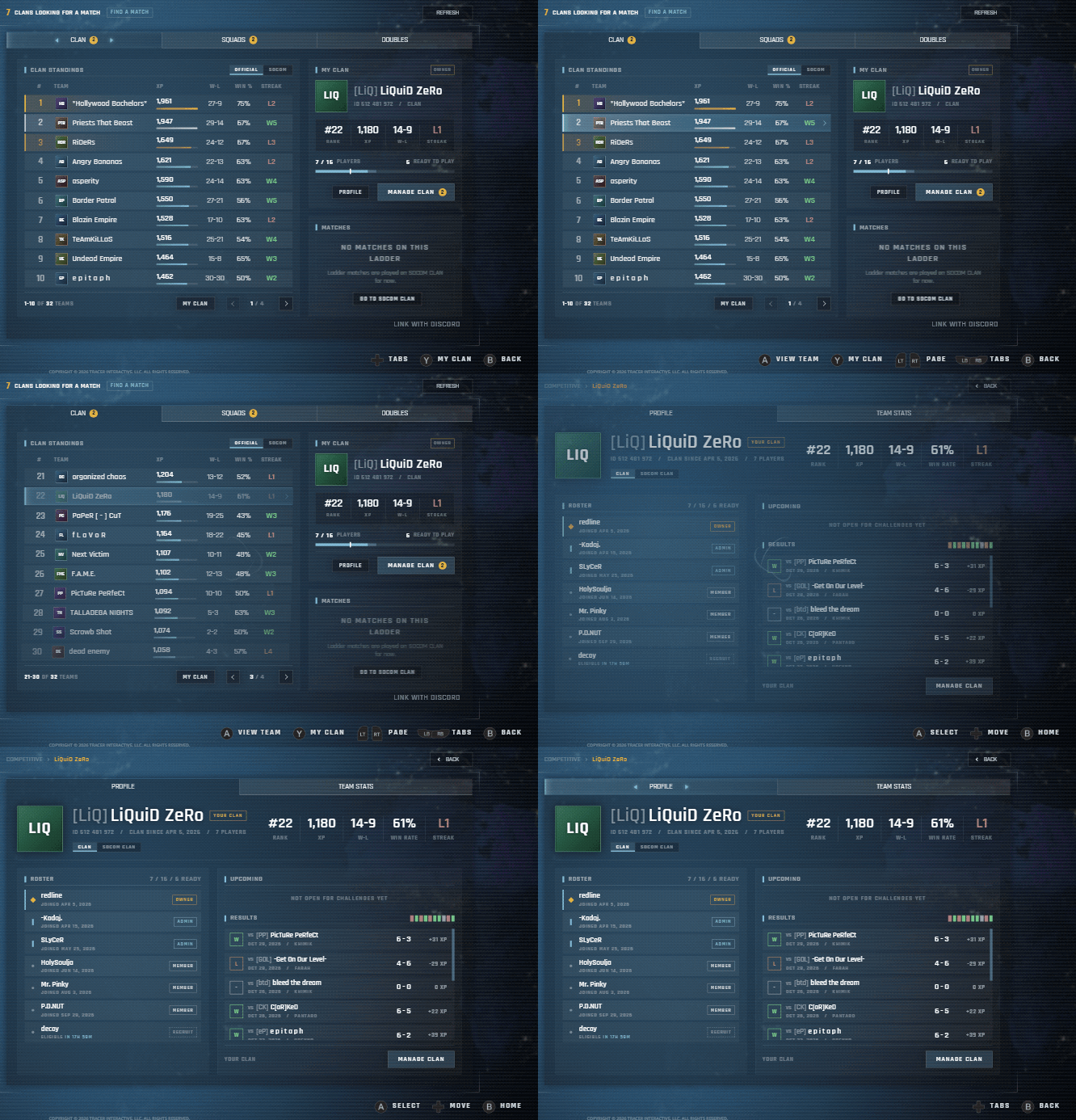
Every part of competitive play works on the controller: the standings, team pages, team stats, match details, running your team, and the Match Finder. Press Y on the standings to jump straight to your own team.
Scheduling a match is easy too. Grab the day and the time and step through them with the d-pad, or press Y for the calendar and pick the exact day and time. Choose whether RPGs are allowed and post it.
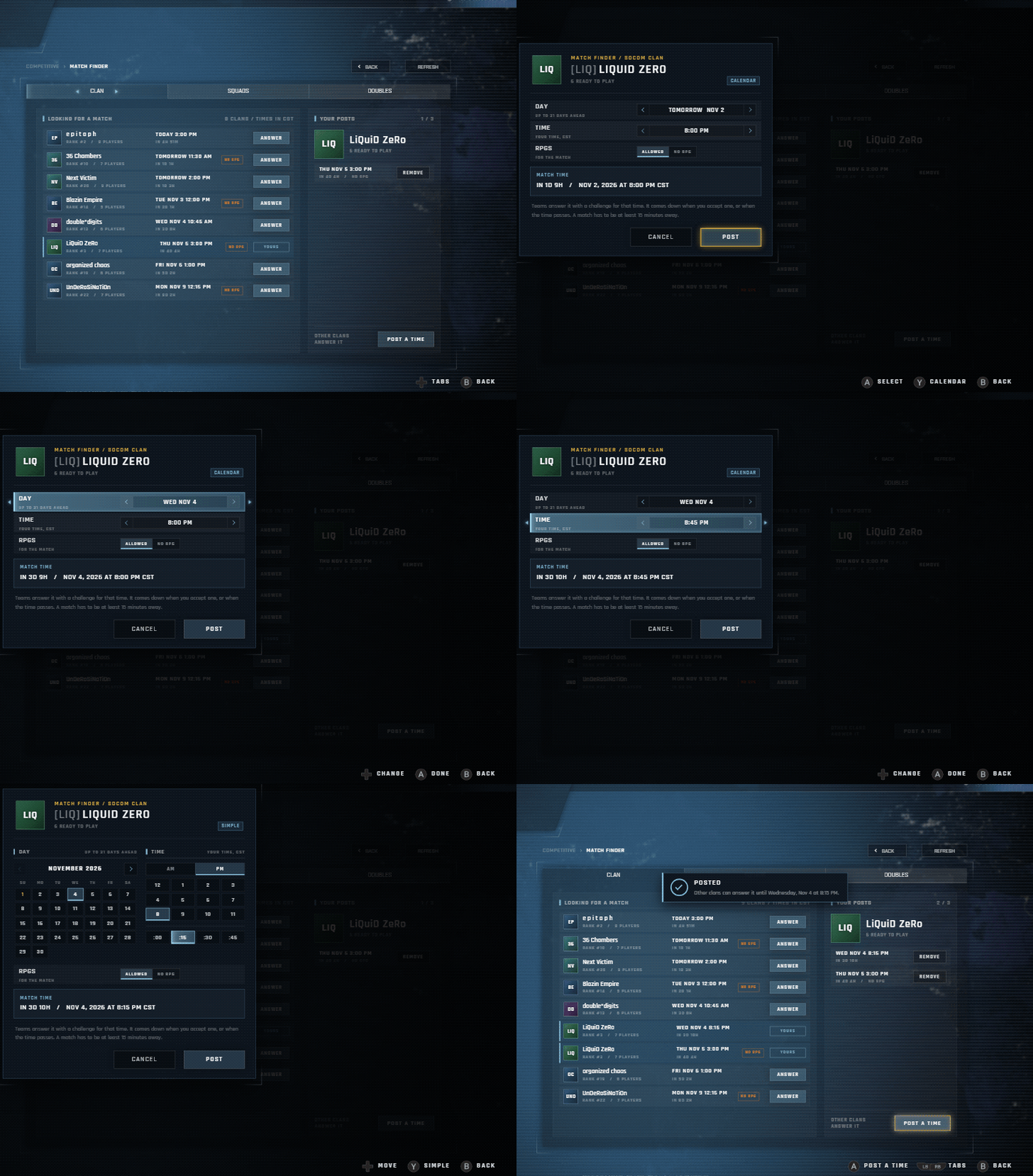
Anything you can't take back, like removing a player or deleting your team, always opens its confirmation on CANCEL, so a double tap of A never does something you didn't mean to.
The trail at the top of every page works on the controller too, so you can jump straight back to any step along the way.
Browse the Workshop
Browse community maps on the Steam Workshop from your couch. Each map's details follow you as you move down the list, Y opens its screenshots full screen, the d-pad flips through them, and X subscribes.

In the Middle of a Match
The in-game menu works the same way, so you can check the servers, the rankings or the ladder, or change a setting mid-match, without letting go of your controller. Every time the menu opens it starts fresh at the top, so you always know where you are.
The Couch Is Calling
We didn't build all of this just so you could lean back from your desk. A controller in your hands, a game on the big screen, and nothing else in the way: that's where Task Force is headed. This update lays the foundation for an upcoming console release, something we’ve wanted to do for a long time.
Keep your eyes open.
Try It Out
Plug in a controller, launch Task Force in Big Picture, and leave the mouse where it is. We'd love to hear how it feels, so let us know what you think on our Discord.