Thrustmaster TFRP Rudder Pedals Config Guide + Hotfix / Minor Bug Fixes
TBAS Study Pro · published
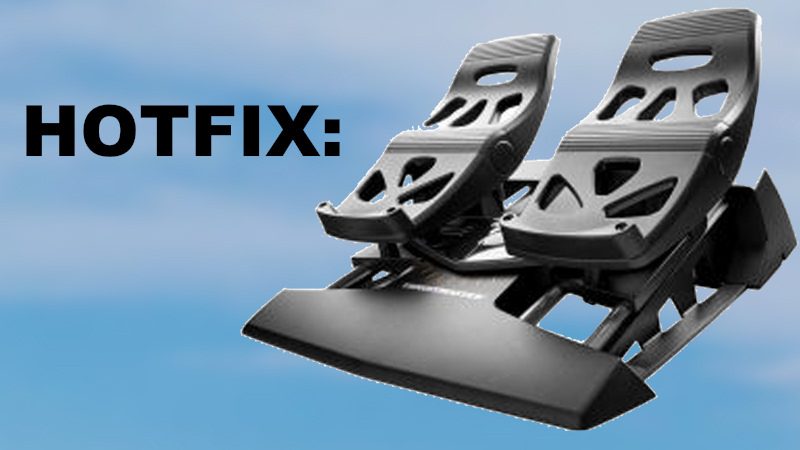
IMPORTANT UPDATE - V1.3.4 AND UP (2025-06-23):
In v1.3.4 update (and later), the process below will still work but is NO LONGER NECESSARY and is OBSOLETE. To get the Thrustmaster T. Flight Rudder Pedals (TFRP) to work all you need to do is to set "TRudderJoystickHID" as the assigned controller and click the "Reset" button beside the "Pedal" input binding button (it should read as "Slider") and the TFRP pedals should work from then on without further hassle. See the link to the community post here.
In V1.3.3 and Earlier:
The Issue: By default, Thrustmaster TFRP Rudder Pedals do not work when not as a part of the Thrustmaster T. Flight Full Kit setup (i.e. they do not work when used as a separate controller with they're own USB cable); This is because the game engine that TBAS Study Pro is built on fundamentally does not recognize/support certain inputs from the TFRP pedals when used with its own USB cable.
The Fix/Workaround:
Install Thrustmaster's official "TARGET" software using this link (If the link does not work, the URL may have changed).
Once the TARGET software is installed, open the "TARGET GUI" program and select "NEW CONFIGURATION".
On the following pop-up, give a name to the new configuration file (such as "TFRP"), select "BASIC" as the "Type", create a folder where you want the configuration file to be stored, and click "OK"
On the following screen, scroll to the right until you see the "TFRP Rudder" pedal listed. Select them and click "NEXT".
On the following screen, from the drop-downs, set "TRPRIGHT" to "NONE", "TRUDDER" to "DX_SLIDER_AXIS", and "TRPLEFT" to "NONE", then click "NEXT".
On the following screen, click "SAVE". This will create your configuration file (with the ".fcf" extension) in the folder you selected for the file to be stored.
You can either select "Run Configuration" on this screen, or click "Finish"/"Exit to Dashboard" and select "Run Configuration" from the following screen. On the Browse window that appears, select your configuration file (.fcf). While the configuration is running your TFRP controller identifier will be replaced with "HID:44F-FFFF". This is how it will appear in the Rebind menu in TBAS Study Pro.
Note! - If something in the nature of "TRudderJoystickHID" still appears alongside or instead of "HID:44F-FFFF" the process WILL NOT WORK, and you must close TBAS Study Pro, restart TARGET, and try running the configuration again before restarting TBAS Study Pro. Additionally, the configuration must be running BEFORE you start TBAS Study Pro, otherwise it may recognize the old input and ONLY the old input. If restarting TBAS Study Pro does not get "TRudderJoystickHID" to be replaced by "HID:44F-FFFF", then try restarting your computer instead.
In TBAS Study Pro, in the Aircraft Tracking Test, in the REBIND CONTROLS menu cycle through the available "PEDAL CONTROLLER" inputs until you see "HID:44F-FFFF"; this should have replaced your normal TFRP Rudder Pedal input, and you should not be able to select TFRP Rudder Pedals instead of "HID:44F-FFFF" as a kind of input while the TARGET configuration is running.
Under "Joystick Bindings", select the input for "PEDAL" and move your pedals until it registers "Z", "Slider", or "HatSwitch" as the input. If it registers anything else, that may be because it's registering inputs from either other controllers or from the TFRP left or right "Toe Brake" (Stick/X or Stick/Y) (toe brake inputs should be disabled anyway when running your configuration if you set "TRPRIGHT" and "TRPLEFT" to "NONE"). You can get passed input issues by repeatedly attempting to get the pedals to register as "Z", "Slider", or "HatSwitch" (while avoiding putting pressure on the toe-brake), or by simply disabling the Toe Brake inputs in your TARGET software configuration.
Note! - If you attempt to bind an input to "PEDAL" but nothing happens (the program doesn't receive any input) and your assigned controller is in fact listed as "HID:44F-FFFF", you must set the input to some other controller (such as "Keyboard" or "Mouse"), and then restart TBAS Study Pro. Once TBAS Study Pro has restarted, repeat Steps 8-9. If you are still not receiving any input, check to make sure that the TARGET profile is actually registering input by checking the "DEVICE ANALYZER" window, accessible from the TARGET profile window. If no movement is detected there, set the TBAS Study Pro input to "Keyboard" or "Mouse" again, close TBAS Study Pro, restart the TARGET profile until you see your rudder pedal movement register in the TARGET Device Analyzer window (you may also want to double check that your TARGET profile is configured properly), and then boot up TBAS Study Pro again to repeat Steps 8-9.
After following all of these steps, TBAS Study Pro should register your pedal inputs as you would expect.NOTE: If the TARGET software does not register your Pedals as even connected, or when following these steps something doesn't work, please ensure that, on your RJ12 USB adapter, your mode-select switch is switched from "CAR" to "AIRPLANE" mode because TARGET will not be able to reconfigure your pedals otherwise. Additionally, make sure the TARGET reconfigured controller profile is fully timed-in before running TBAS Study Pro. If anything does not work at first, try restarting TBAS Study Pro or backing out of the Aircraft Tracking practice test screen and re-entering it. You may also need to restart your computer entirely to get the TARGET "HID:44F-FFFF" input to replace the old "TRudderJoystickHID" input, as the the old input may be cached and otherwise unreplaceable until the computer has restarted.