We made a lot of changes and improvements to adapt the PC version of Watch_Dogs 2 for mouse and keyboard controls: All the UI screens, as well as shooting, hacking and driving mechanics were updated to be more PC-friendly. We also implemented plenty of different mouse and keyboard options in order to address the wide variety of requests from our PC players.
Shooting Adaptation
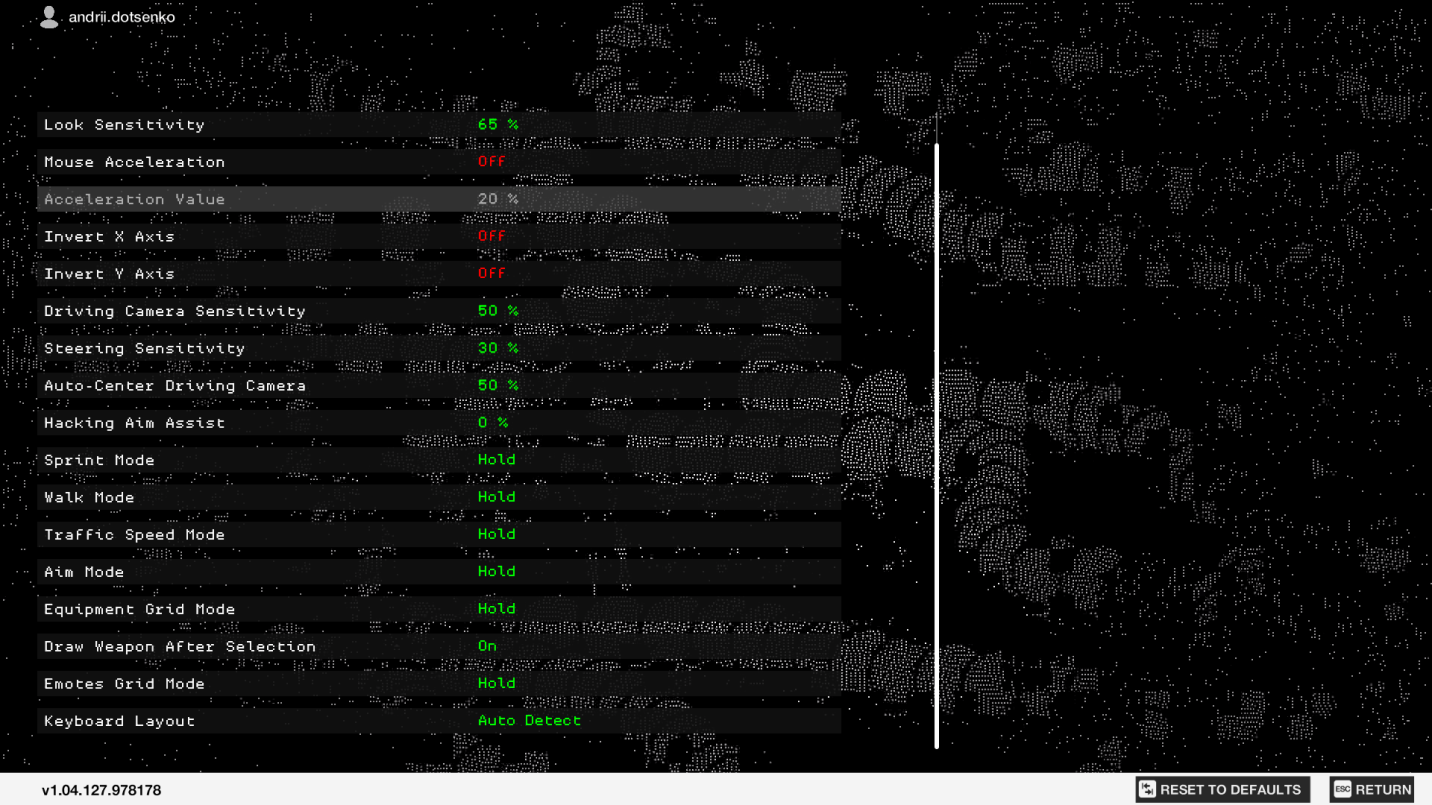
We changed the camera and animation systems to make shooting controls feel more natural and precise with the mouse. We implemented a raw input system, which makes the input signal from the mouse more precise and framerate-independent. We also provided a wide range of low mouse sensitivities to support a combination of high DPI mouse and low sensitivity. You can change the mouse sensitivity with the Look Sensitivity slider in the Mouse & Keyboard options menu.

Hacking Adaptation
To adapt Hacking Aim Assist (the white line which selects different objects) to the mouse control, we implemented a sensitivity slider which allows you to control the strength of the assist. The game still has some default assist value, but if you don’t want to automatically select everything nearby you can turn the Hack Aim Assist off. This will work in both single player and multiplayer game modes.

Driving Adaptation
To adapt driving controls to the keyboard, we implemented a system that counts how long the keyboard button was pressed, turning keyboard input from digital into analog. The default steering sensitivity settings are designed to mimic the original gamepad driving experience as much as possible with the keyboard. If you prefer a lower sensitivity or are used to a more "digital" input, you can use the Steering Sensitivity slider to set it to a more comfortable value.
You can also change the driving camera’s steering sensitivity and auto-centering speeds.

Traffic Speed Mode
By holding while driving, you can enter the Traffic Speed mode which allows you to “blend with traffic” and adapt to the speed of the car ahead of you. This is a great option for Hacking Invasions where you’re trying to avoid notice.
Equipment Grid/Emotes Grid
We redesigned our equipment and emote wheels to a mouse-friendly grid, allowing you to easily select weapons, gadgets, and mass hacks with the mouse.


Additional options
Hold/Toggle modes are supported for some controls such as Sprint, Walk, Aim, Equipment Grid, Emotes Grid and Traffic Speed. For example, you can set the Equipment Grid to Toggle mode and turn off the "Draw Weapon After Selection" option to use it as a more familiar PC inventory screen. Additionally, if you have different languages installed on your PC (with QWERTZ/AZERTY layouts, for example), you can also manually-select the keyboard layout used for the game.

Controls Customization
The game supports four different controls layouts: On Foot, Driving, Jumper, Quadcopter. Each can be customized separately – you can define a completely independent set of keys for each controls layout.

We also support M4/M5 mouse button mapping, so if you find that the default hacking mode is not comfortable with the middle mouse button control you can use additional mouse buttons instead. We also support mapping of mouse scroll up/down for actions which require a single button press to perform.
UI Adaptation
During the PC development process of Watch_Dogs 2, we focused on implementing a "mouse-centric UI", so players can finish any UI task using only the mouse. Two notable examples are the Nudle Map and the Media Player, but you can see this adaptation in any UI screen. We also changed “hold” confirmations into more mouse-friendly press actions and pop-ups in most of the UI screens.


PC hotkeys and tutorials
In addition to a more mouse-centric approach, Watch_Dogs2 also supports keyboard hotkeys for different cases. There is a keyboard hotkey for every UI and menu action, as well as for every weapon, gadget, mass hack, smartphone app and emote.

Further, all the in-game tutorials are also adapted to the mouse and keyboard: You can find additional information about the mouse and keyboard adaptations in the Know-It-All App, including videos and descriptions of PC features such as Traffic Speed or Walking Mode and a list of all the keyboard hotkeys. You can also find PC-specific hints during loading screens.

Gamepad support
Watch_Dogs 2 on PC supports controllers using all the XInput game types, such as Xbox 360, Xbox One, or any Xbox-based third-party controller, as well as the Playstation 4 controller. The game switches on-the-fly between gamepad and mouse & keyboard controls, no additional steps necessary.

Should you experience an issue with controller connections, please check the official guide here. Thanks for checking out our Mouse and Keyboard Adaptation Guide. If you have any questions, feel free to reach out to us @watchdogsgame or on our subreddit /r/watchdogsgame.